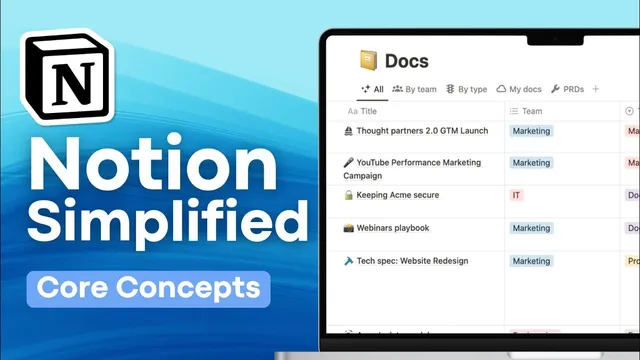
15 Notion Core Concepts! | Blocks, Pages, Databases & More
Based on The Organized Notebook's video on YouTube. If you like this content, support the original creators by watching, liking and subscribing to their content.
A Workspace is the top-level container for Notion content and also the anchor for settings, permissions, and billing/subscription details.
Briefing
Notion’s core building blocks—workspaces, pages, blocks, and databases—fit together into a simple hierarchy: everything lives in a Workspace, that Workspace is organized with Teamspaces, content is arranged as Pages (including sub-pages), and every Page is made of movable Blocks. Once that structure clicks, the rest of Notion’s features—views, properties, sharing, and integrations—start behaving like tools for organizing structured information rather than a confusing pile of menus.
A Workspace is the “digital headquarters” where all Notion content lives: pages, databases, and files. It also anchors the operational details—settings/customizations, member management and permissions, and billing/subscription information. Multiple Workspaces can exist side by side for different purposes (for example, personal versus work), and they remain separate, each with its own members, content, and configuration.
Inside a Workspace sits a Teamspace, which functions as a team-focused subdivision. Teamspaces can’t exist without a Workspace, and they’re used to organize access and permissions more cleanly—such as separating marketing and development within the same company Workspace.
Navigation and discovery happen largely through the sidebar, which shows the page structure and lets users drill into pages, add new pages, and access areas like inbox, home, Notion AI, search, templates, settings, and trash. From there, the fundamental unit of content is the Page. A Page is a blank canvas that can hold anything—from simple habit trackers to more structured content.
Pages can nest: using slash commands (like “/page”), users can create sub-pages under a parent page, building hierarchies. But the real flexibility comes from Blocks. Inside each Page, Blocks are the individual components—text, tables, images, and more—each with its own handle (the six-dot grip) for moving, duplicating, linking, and converting into other block types. This block-based approach is what makes Notion feel different from traditional word processors: content is modular and rearrangeable.
Databases add structure. A database can be inserted inline or as its own page, and it acts like a container where every item shares the same schema. Add a property like “date,” and future entries inherit that structure even if the value is empty. Databases also support multiple database views—table, board, timeline, calendar, list, gallery, chart—so the same underlying dataset can be displayed and interacted with in different ways. Views can be added as tabs, and each view can apply sorting and filtering.
Databases can also be reused across a workspace through inline databases and linked view databases. Linked views let the same dataset appear in multiple locations; adding a new page in one place updates it everywhere.
Within databases, properties define the data model. Beyond basic fields like text, number, select, multi-select, email, phone, and formulas, two advanced property types matter for building relationships: Relation and Rollup. A Relation connects one database to another so items can reference related records (for example, ingredients linked to a “chicken” entry). A Rollup—available only when a relation exists—aggregates information from the related records, such as counting how many ingredients are associated with a dish.
Finally, Notion’s collaboration and connectivity layer includes page sharing controls (share by email with access rights, or publish to the web) and “Connections” for integrations like Slack, managed through Notion settings. The takeaway is that once Workspace → Teamspace → Page/Sub-page → Blocks → Database → Views/Properties is understood, Notion’s features become consistent parts of one system rather than separate concepts.
Cornell Notes
Notion’s organization works as a hierarchy: Workspaces hold everything, Teamspaces subdivide a Workspace for teams and permissions, and Pages act as canvases that can contain sub-pages. Every Page is built from Blocks—modular elements like text, tables, and images that can be moved, duplicated, and linked. Databases provide structured pages where each entry shares the same schema, and multiple views (table, board, timeline, calendar, gallery, chart, and more) can display the same dataset differently. Relations connect databases to each other, and Rollups aggregate data from those related records, enabling calculations like counting related ingredients. This matters because it turns Notion from a freeform note tool into a system for managing structured information and workflows.
How do Workspaces and Teamspaces differ, and why does that distinction matter for permissions and billing?
What makes Pages different from Blocks, and how does that affect how users build content?
Why are databases more than just “tables,” and what does a shared schema enable?
How do database views and linked view databases change how information is used across a workspace?
What roles do Relation and Rollup properties play in building connected data?
What are the main collaboration and integration concepts mentioned—sharing and Connections?
Review Questions
- If a Workspace contains multiple Teamspaces, what changes when you move content between them—permissions, settings, or billing? Explain using the definitions.
- Describe how a database view differs from a database itself. Give two examples of view types and what stays consistent across them.
- What is the difference between a Relation and a Rollup property, and why can Rollups only be created when a relation exists?
Key Points
- 1
A Workspace is the top-level container for Notion content and also the anchor for settings, permissions, and billing/subscription details.
- 2
Teamspaces organize a Workspace into team-based sections with more manageable access control, and they cannot exist without a Workspace.
- 3
Pages are blank canvases that can nest via sub-pages; slash commands help create pages quickly.
- 4
Blocks are the modular elements inside Pages (text, tables, images, etc.) that can be moved, duplicated, and linked individually.
- 5
Databases provide structured entries with a shared schema, enabling consistent properties and calculations.
- 6
Database views (table, board, timeline, calendar, gallery, chart, and more) show the same dataset in different layouts with sorting/filtering.
- 7
Relations connect databases to each other, and Rollups aggregate data from those related records for computed summaries like counts.