2 Essential Apps For A Productive Life
Based on Easlo's video on YouTube. If you like this content, support the original creators by watching, liking and subscribing to their content.
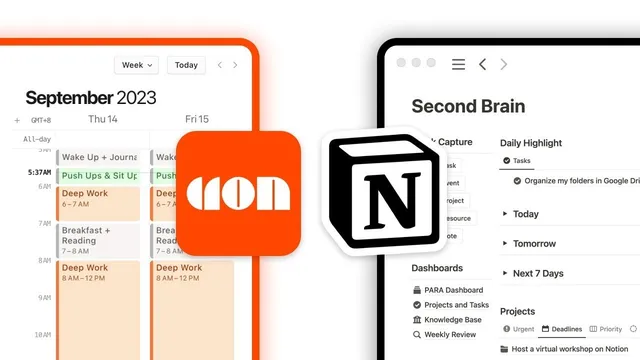
Notion functions as a connected knowledge and task system, turning captured information into linked resources tied to projects.
Briefing
Two apps—Notion and Cron—work best together when they’re used for complementary jobs: Notion stores and connects ideas, tasks, and knowledge as a “second brain,” while Cron turns that backlog into a timed plan through time blocking. The payoff is practical: a user can jump from a calendar time slot straight into the relevant Notion page, cutting the friction that usually causes procrastination and lost momentum.
Notion is positioned as an external memory that captures, organizes, and links thoughts, tasks, and resources so people can retrieve what they’ve already processed instead of starting from scratch. The workflow starts with capturing information—often via the “Save to Notion” Chrome extension, which clips articles and videos into a database. But storage isn’t the end goal: notes are linked to related projects or topics, forming a navigable web of information. For execution, Notion also serves as the project and task system. Large projects get broken into manageable tasks, and tasks can be further divided into one or two subtasks, turning vague goals into clear next steps.
Cron is described as more than a calendar. It functions as a “compass” for the day by assigning specific time blocks to tasks, creating structure that reduces distractions. The routine begins each evening with a “Prep My Day” process: review tasks due tomorrow, check available capacity, and optionally schedule new tasks pulled from ongoing projects or goals. A daily highlight is then set in Notion—the single most important outcome for the next day. Finally, Cron is used to allocate time blocks for the larger tasks, including a reserved default slot for deep work. Smaller tasks are handled in batches or during smaller pockets of time, keeping attention anchored to priorities rather than constantly reacting to new inputs.
The central integration is the bridge between the two systems. Cron’s desktop widget provides an at-a-glance view of upcoming events, and it can surface the corresponding Notion page for a given time block. If the daily highlight is writing a YouTube script, that task can be linked directly to the right Notion page in a content tracker. Meeting preparation follows the same logic: pages for meeting notes can be prepared in advance within the appropriate Notion databases, then accessed instantly when the meeting starts. The result is a smoother workflow where planning and execution stay connected, and where pre-built structure helps prevent last-minute scrambling.
Both apps are presented as free enough for most individuals: Notion’s free plan is deemed sufficient, and Cron is free to use on the web or on Apple devices. The overall message is that a second brain alone doesn’t solve overwhelm—pairing it with time-blocked scheduling and direct calendar-to-page links turns stored information into daily action.
Cornell Notes
Notion and Cron are presented as a two-part productivity system: Notion acts as a “second brain” for capturing, organizing, and linking ideas, tasks, and knowledge, while Cron provides time-blocked scheduling that turns that backlog into a day-by-day plan. Notion becomes useful when notes are clipped into databases (via the “Save to Notion” Chrome extension), connected to projects, and broken into tasks and subtasks. Cron reduces distraction by assigning dedicated time slots, including a default deep-work block, and supports an evening planning routine (“Prep My Day”). The key integration is linking Cron time blocks to specific Notion pages—such as a YouTube script page or pre-made meeting notes—so work starts faster with less friction.
Why treat Notion as a “second brain,” and what makes it more than a note folder?
How does the workflow turn big goals into actionable work inside Notion?
What role does time blocking in Cron play in staying focused?
What is the “Prep My Day” routine, and how does it connect Notion and Cron?
How does linking Cron events to Notion pages reduce friction during the day?
Review Questions
- How do linking notes to projects in Notion change the way information is retrieved later?
- What steps make the evening “Prep My Day” routine effective at turning a Notion task list into a timed plan?
- Why does pre-linking meeting notes to Cron time blocks matter when meetings start?
Key Points
- 1
Notion functions as a connected knowledge and task system, turning captured information into linked resources tied to projects.
- 2
The “Save to Notion” Chrome extension helps quickly clip videos and articles into Notion databases for later use.
- 3
Breaking projects into tasks and subtasks in Notion creates clear next steps and reduces mental overwhelm.
- 4
Cron’s time blocking assigns dedicated slots to tasks, lowering distraction and improving focus on priorities.
- 5
An evening planning routine (“Prep My Day”) aligns tomorrow’s Notion tasks with Cron time blocks, including a reserved deep-work slot.
- 6
Linking Cron time blocks to specific Notion pages lets users jump directly into the right work—such as script writing or meeting notes—without last-minute setup.
- 7
Both tools are presented as free options for most individuals, with Notion’s free plan and Cron’s free web/Apple availability.