50 macOS Tips and Tricks Using Terminal (the last one is CRAZY!)
Based on NetworkChuck's video on YouTube. If you like this content, support the original creators by watching, liking and subscribing to their content.
Terminal can make macOS speak with `say`, and it can copy command output to the clipboard using `| pbcopy` for fast sharing.
Briefing
A fast tour of macOS Terminal commands turns everyday Mac tasks—speech, screenshots, Wi‑Fi password retrieval, file management, networking diagnostics, and system monitoring—into one-liners, then escalates into “installable” Terminal toys via Homebrew. The practical through-line is simple: most useful Mac workflows can be automated or accelerated from the command line, and many can be made more convenient (clipboard copying, plain-text pasting, custom screenshot naming, and even Touch ID for sudo).
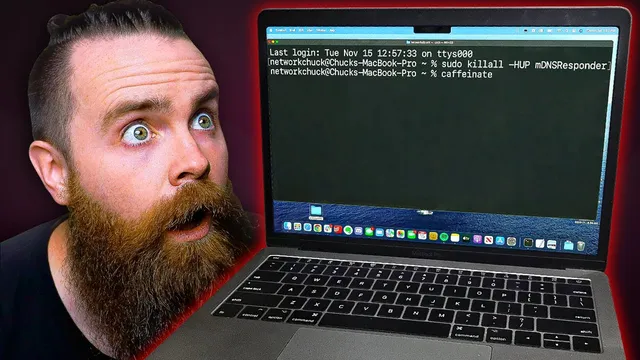
Early commands focus on quick wins. Terminal can make the Mac speak using `say`, and it can reveal saved Wi‑Fi credentials by querying the system keychain with `security find-generic-password -w -a <network name>`. For sharing, output can be copied straight to the clipboard using `| pbcopy`, which pipes any command’s results into the clipboard. The transcript also highlights productivity shortcuts: plain-text pasting with `pbpaste`/`pbcopy`-style workflows (via `Shift`+`Command`+`V`), keeping the Mac awake with `caffeinate`, and capturing screenshots with `Command`+`Shift`+`3` (whole screen) or `Command`+`Shift`+`4` (selection). Screenshot behavior can be customized by changing defaults for filename, file type (e.g., JPEG), and save location using `defaults write com.apple.screencapture ...`.
Beyond convenience, the command set digs into visibility and control. macOS keeps a download history in a SQLite database, retrievable with a command that queries the relevant `com.apple.LaunchServices` database; clearing browser history doesn’t necessarily erase what’s stored there. Password changes can be handled without leaving Terminal using `passwd`, and the transcript emphasizes using unique passwords per service. That’s where Dashlane enters as a sponsor: it manages passwords, monitors password health (including compromised credentials via dark web monitoring), supports password sharing, and includes built-in two-factor authentication.
A large middle section speeds through Unix-style fundamentals that carry over from Linux: `cd`, `ls`, `pwd`, `whoami`, `mv`, `cp` (and macOS’s `ditto`), `df -h` for disk space, `nano` for editing, `man` for command help, and `open` to launch files like screenshots. Networking commands add troubleshooting muscle: `ping` to test reachability, `ifconfig` (and a more targeted `ifconfig en0` approach) to find IP addresses, `grep`-filtered interface output to extract IPv4/IPv6 addresses, `traceroute` to map router hops and latency, and `dig` to inspect DNS records. Process management is covered with `ps`, `ps -ax`, `top` (including memory-focused sorting), and `kill -9 <PID>` after locating a process ID.
The final stretch turns Terminal into a playground. It checks the active shell with `which $SHELL`, switches between `zsh` and `bash`, reports uptime with `uptime`, and flushes DNS cache using `sudo`-prefixed commands. File and web utilities appear via `qlmanage -p` (Quick Look preview), `diff` (file comparison), and `curl` (downloads and even a weather example). There’s also a built-in “leave” alarm, command history via `history`, and a Gatekeeper toggle using `sudo spctl --master-disable` (with a warning not to do it casually).
The most dramatic segment depends on Homebrew: after installing it, the transcript installs Terminal-native “apps” like `cmatrix` (the red “Matrix” effect), `asciiquarium` (animated ASCII fish), `toilet` (ASCII art text), and `tetris` (playable in the terminal). It also shows a quick Python web server (`python3 -m http.server`) and power controls (`shutdown -h now` / `shutdown -r now`). The capstone is security convenience: editing `/etc/pam.d/sudo` to allow Touch ID (`pam_tid`) so sudo prompts can use fingerprint instead of typing a password—framed as the “best command ever” for anyone tired of repeated sudo entries.
Cornell Notes
The transcript assembles a practical “command-line toolkit” for macOS: quick automation (speech with `say`, clipboard piping with `pbcopy`, keeping the Mac awake with `caffeinate`), faster workflows (plain-text pasting, screenshot capture and customization via `defaults write com.apple.screencapture`), and deeper system access (Wi‑Fi password retrieval through `security`, download history via a SQLite database, and password changes via `passwd`). It then shifts to Unix fundamentals and networking diagnostics—`ping`, `ifconfig`, `grep`, `traceroute`, `dig`—plus process management with `ps`, `top`, and `kill -9`. The final section uses Homebrew to install Terminal “apps” like `cmatrix`, `asciiquarium`, `toilet`, and `tetris`, and finishes with a Touch ID sudo setup by editing `/etc/pam.d/sudo`.
How can Terminal copy the output of another command directly to the clipboard?
What commands are used to capture screenshots, and how can the default screenshot filename/type/location be changed?
How does the transcript find saved Wi‑Fi passwords from Terminal?
Which networking tools help diagnose connectivity, routing, and DNS issues?
How are processes inspected and terminated from Terminal?
What’s the “Terminal playground” workflow, and what are examples of installed tools?
Review Questions
- Which command-line pattern lets you pipe command output into the clipboard, and what’s a concrete example from the transcript?
- How do `ping`, `traceroute`, and `dig` each contribute to troubleshooting a website problem?
- What steps are involved in enabling Touch ID for sudo by editing `/etc/pam.d/sudo`, and why does it reduce repeated password prompts?
Key Points
- 1
Terminal can make macOS speak with `say`, and it can copy command output to the clipboard using `| pbcopy` for fast sharing.
- 2
Saved Wi‑Fi passwords can be retrieved via the keychain using `security find-generic-password -w -a <network name>`, then copied with `pbcopy` if desired.
- 3
Screenshot capture can be customized using `defaults write com.apple.screencapture` to change filename, file type, and save location.
- 4
Networking troubleshooting is streamlined with `ping`, `ifconfig` (plus `grep` filtering), `traceroute`, and `dig` for DNS records.
- 5
Process visibility and control come from `ps`, `top`, and `kill -9 <PID>` after locating the correct PID.
- 6
Homebrew enables Terminal “apps” like `cmatrix`, `asciiquarium`, `toilet`, and `tetris` through `brew install` commands.
- 7
Touch ID can replace repeated sudo password entry by editing `/etc/pam.d/sudo` to add the `pam_tid` line.