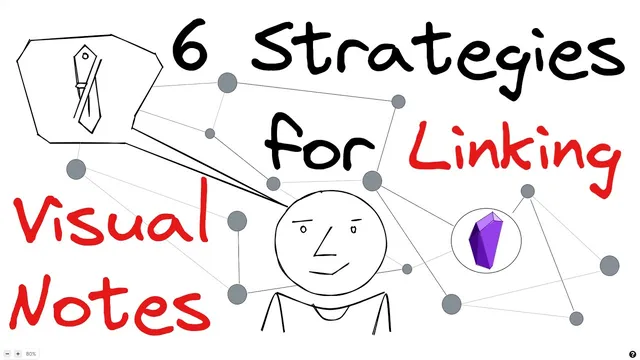
6 Strategies for Linking your Visual Thoughts with Obsidian, Excalidraw & ExcaliBrain
Based on Zsolt's Visual Personal Knowledge Management's video on YouTube. If you like this content, support the original creators by watching, liking and subscribing to their content.
Embed images directly into Excalidraw when you want Excalibrain to reflect those visuals as linked nodes/children.
Briefing
Linking sketches to text in Obsidian becomes far more useful when images carry searchable metadata and relationships—not just when they’re pasted into a canvas. The core idea behind these six strategies is to treat drawings as first-class knowledge objects: embed images, tag them, link them to existing notes, and let Excalidraw/Excalibrain surface those connections as children, backlinks, and visual “friend” relationships.
A straightforward starting point is inserting an image directly into an Excalidraw sketch. In the example workflow, a video thumbnail lives as a separate Excalidraw drawing, then appears inside an Excalibrain view as a linked node. The same sketch can also embed other images (like a copied airplane) and reuse iconography across multiple places—so one visual element can function like a reusable concept rather than a one-off decoration. Excalibrain then reflects these embedded relationships in its graph.
To make library images reusable without losing discoverability, the transcript emphasizes adding text fields—especially tags—so the system can find the drawing later. When an icon is added from the stencil library, it may be hard to locate later because the item itself lacks context. The workaround is to attach tags, links, or Dataview fields to the image element. One example uses a transparent text element: the label is hidden in the drawing for visual cleanliness, but the Dataview field still stores a link (e.g., “example” mapped to a concept like “combining components”). That hidden metadata then drives Excalibrain’s visual grouping and shows where the concept is used.
Another approach flips the pattern: instead of tagging the embedded image, add text elements to the drawing itself. Creating a text element like “#example” automatically adds “example” to the tags list, and adding a double-bracket link creates an Excalibrain child node. The transcript also notes how unresolved links appear when the referenced note doesn’t yet exist in Obsidian—useful feedback for building out the knowledge base.
Beyond element-level tagging, the workflow can preserve structured metadata by writing in Markdown mode. Anything above the text elements—front matter, Dataview fields, tags, descriptions, and links—gets copied into Excalidraw and retained, enabling consistent linking to topics (like a YouTube content map) and relationships (like marking an icon as a “friend” of the drawing).
Finally, drawings can connect to the rest of the vault through backlinks and templates. Backlinks let other notes “point back” to a sketch, turning active work (like a daily note tagged “working on” a topic) into a richer relationship graph. Templates add another layer: right-click locking prevents template artwork from being accidentally selected, while editable overlays let users fill in resources and dates that become automatic links. The result is a set of composable strategies—metadata, relationships, backlinks, and templating—that together make visual thinking searchable and interconnected inside Obsidian’s note system.
Cornell Notes
The workflow centers on making Excalidraw sketches searchable and relational inside Obsidian by attaching metadata and links to visual elements. Images can be embedded directly, but the real leverage comes from adding tags, links, or Dataview fields—sometimes hidden via transparency—so Excalibrain can surface concepts as children and relationships. Markdown mode preserves front matter and Dataview fields above text elements, keeping tags and links intact when sketches are synced. The system also gains depth through backlinks from daily notes and through locked templates that users fill in with resources and dates that automatically become links.
How does embedding an image inside an Excalidraw sketch create useful connections in Excalibrain?
Why does the stencil library approach need extra metadata, and how is it handled?
What’s the difference between tagging an image element versus adding a text element to the drawing?
How does Markdown mode help keep metadata attached to drawings?
How do backlinks and templates extend linking beyond what’s inside the sketch?
Review Questions
- When would hidden (transparent) text fields be preferable to visible labels in an Excalidraw sketch?
- How can unresolved links in Excalibrain help guide the next step in building out an Obsidian knowledge base?
- What metadata should be placed above text elements in Markdown mode to ensure it survives into Excalibrain?
Key Points
- 1
Embed images directly into Excalidraw when you want Excalibrain to reflect those visuals as linked nodes/children.
- 2
Add tags, links, or Dataview fields to stencil-library items so reused icons remain searchable later.
- 3
Use transparent text elements when you want metadata stored without cluttering the drawing’s appearance.
- 4
Add text elements (tags or [[links]]) to the drawing itself when you want document-level tagging and child-node creation.
- 5
Write metadata in Markdown mode above text elements so front matter and Dataview fields are preserved into Excalibrain.
- 6
Create richer connections by adding backlinks from daily notes or other vault documents to sketches.
- 7
Use locked templates to standardize sketch layouts while letting users fill in resources and dates that can become automatic links.