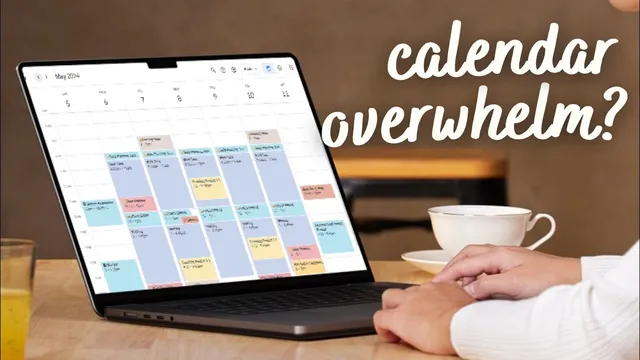
9 BEST tips to manage multiple calendars | Google Calendar, Outlook Calendar, Notion Calendar
Based on The Organized Notebook's video on YouTube. If you like this content, support the original creators by watching, liking and subscribing to their content.
Assign each calendar a distinct purpose (personal, team/work, database-style items, and central time-blocking) to prevent events from landing in the wrong place.
Briefing
Managing multiple calendars becomes far less stressful when everything follows a clear system: assign each calendar a distinct purpose, then centralize what matters into one master view. The approach starts with categorizing calendars by role—personal life in Google Calendar (gym, family dinners, doctor appointments, work time blocks), company scheduling in Outlook (team meetings), database-driven planning in Notion (daily journaling as a calendar-style database), and time-blocking plus “everything in one place” in Akiflow. That mapping prevents the most common failure mode: personal events accidentally landing in the wrong tool. With that structure in place, recurring items and consistent metadata keep the system from turning into manual busywork.
Recurring tasks are the next lever for reducing calendar maintenance. Instead of re-creating weekly or daily entries across multiple apps, recurring time blocks can be set directly in each platform—Akiflow supports repeat rules for customized schedules, Google Calendar can repeat on patterns like weekdays, and Notion’s daily journal can repeat and sync into Akiflow. The result is fewer reminders to remember and fewer opportunities for schedules to drift.
Descriptions and context fields add another layer of reliability. Adding event descriptions and locations makes calendar entries actionable rather than vague—doctor appointments in Google Calendar can include what’s happening and where, and those details also carry into other systems via sync. Akiflow can pull in information from Google Calendar, while still allowing additional context such as project tags for errands time blocks.
A key distinction then keeps the calendar from getting cluttered: tasks should be treated differently from actual events. In Akiflow, tasks can be placed into specific time blocks so they represent work time, while Google Calendar’s task feature keeps tasks as tasks rather than calendar events. The same principle applies to time-blocking structure—clear blocks for errands, meetings, and focused work make it obvious what’s scheduled versus what’s merely pending.
For teams and cross-border collaboration, time zones and color coordination help prevent scheduling mistakes. Multiple time zones can be added in Akiflow, Notion Calendar, Google Calendar, and Outlook, letting colleagues see what “9 a.m.” means in each location. Color coordination then makes categories legible at a glance—team meetings, fitness, and errands can each use consistent colors.
Finally, the system scales only if there’s a single place to check everything. Akiflow is positioned as the master schedule that can display Outlook, Google Calendar, and Notion events together, with integrations also pulling in tasks from sources like Slack and Microsoft To Do. Daily planning sessions—built into Akiflow—provide a routine check so nothing surprises the day’s schedule. The workflow closes with time-awareness: Akiflow’s stats track how long tasks and events take, helping users refine future time blocks based on real data rather than guesswork.
Cornell Notes
The core strategy for juggling multiple calendars is to give each calendar a clear purpose, then centralize visibility and planning in one master system. Google Calendar handles personal life and work blocks, Outlook focuses on team meetings, Notion supports database-style items like daily journaling, and Akiflow acts as the central time-blocking hub. Recurring schedules, detailed descriptions (including locations), and a strict separation between tasks and true events reduce clutter and prevent missed updates. For international teams, adding multiple time zones and using consistent color categories improves accuracy and readability. A daily planning check plus built-in time stats helps users keep schedules aligned with how long activities actually take.
How does categorizing calendars by purpose reduce overwhelm when using multiple apps?
What’s the practical value of recurring time blocks across different calendar tools?
Why add descriptions and locations to calendar events instead of leaving them blank?
How should tasks differ from events in a multi-calendar setup?
What tools help international teams avoid time-zone confusion?
Why centralize into one master calendar and add a daily planning routine?
Review Questions
- What purpose does calendar categorization serve, and what are examples of how different apps are assigned roles?
- How do recurring schedules and synced repeats reduce manual calendar maintenance across Google Calendar, Outlook, Notion, and Akiflow?
- What’s the difference between tasks and events in this workflow, and how does that distinction prevent calendar clutter?
Key Points
- 1
Assign each calendar a distinct purpose (personal, team/work, database-style items, and central time-blocking) to prevent events from landing in the wrong place.
- 2
Use recurring time blocks to automate weekly/daily scheduling across apps and keep synced calendars consistent.
- 3
Add event descriptions and locations so entries are actionable and context doesn’t disappear during sync.
- 4
Separate tasks from true events: place tasks into time blocks for work time or use task features so the calendar reflects scheduled reality.
- 5
For international teams, add multiple time zones in every calendar system used to avoid “same time, different meaning” errors.
- 6
Color-coordinate categories so categories are readable at a glance and consistent across tools.
- 7
Centralize planning in one master view (Akiflow) and run a daily planning check to catch surprises before the day starts.