Accept user input using commands and ribbon actions with Marcus Olsson
Based on Obsidian's video on YouTube. If you like this content, support the original creators by watching, liking and subscribing to their content.
Register ribbon actions inside `onload` to add clickable icons to Obsidian’s left ribbon with a hover title and callback.
Briefing
Obsidian plugin developers can give users direct control by wiring plugin behavior into two core interaction points: ribbon actions and commands. Ribbon actions add a clickable icon to Obsidian’s left-side ribbon, making it easy to trigger a small task on demand—like the Halloween “boo” example—without building a full interface. Commands, by contrast, integrate with Obsidian’s command palette (Command-P on macOS) and can optionally support hotkeys, conditional availability, and editor-only execution.
The session starts from a minimal plugin setup and moves into user-driven features. A ribbon action is registered inside the plugin’s `onload` function. The icon comes from Obsidian’s Lucide icon library (`lucide.dev`), where developers pick an icon ID (for example, an “eye” icon) and provide a title shown on hover plus a callback that runs when the user clicks. After reloading, the new ribbon icon appears in the side menu; clicking it triggers the callback and produces the intended effect.
Next comes commands, which are central to how Obsidian users discover and run functionality. Commands appear in the command palette and can be bound to keyboard shortcuts. The session then demonstrates a conditional command using a `checkCallback` instead of a normal callback. The check callback runs twice: first with a “checking” flag set to true to determine whether the command should be available, and then with the flag set to false to actually execute the action. In the Halloween example, the command only becomes available after a time threshold (checking the current hour and returning true only after 7–11 p.m., depending on the demo). This pattern generalizes to other prerequisites—like verifying configuration or credentials—so commands don’t show up when they can’t succeed.
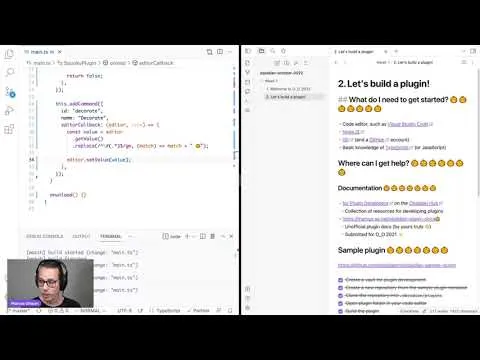
Finally, the session introduces an editor callback, which restricts a command to run only when the user is actively editing. Instead of manually locating the editor and markdown view, the callback receives them as parameters, enabling direct manipulation of the open note. The “decorate” command demonstrates this by reading the entire note contents, using a regular expression to find lines that start with `#` (headings), appending a pumpkin string to each match, and writing the updated text back via `setValue`. When the command is run outside the editor, it won’t execute; inside the editor, it updates the document immediately.
By the end, the takeaway is clear: ribbon actions are lightweight click-to-run entry points, commands integrate with Obsidian’s palette and hotkeys, conditional commands control availability through a two-phase check, and editor callbacks provide safe, direct access to the active note. Modals are mentioned as a next step for richer user input, but they’re reserved for a later session.
Cornell Notes
Obsidian plugins can accept user input by registering ribbon actions and commands inside `onload`. Ribbon actions add a clickable icon to the left ribbon; selecting an icon from Lucide and wiring a callback lets users trigger plugin behavior instantly. Commands appear in the command palette and can support hotkeys, but they can also be made conditional via `checkCallback`, which runs twice—once to decide availability and once to execute. For document edits, an editor callback runs only when the user is in the editor and receives the editor and markdown view, enabling direct text transformations like regex-based updates to headings. These patterns help plugins stay discoverable while preventing actions from running in the wrong context.
How does a ribbon action get added to an Obsidian plugin, and what does the user experience look like?
What’s the practical difference between a normal command callback and a conditional command using `checkCallback`?
Why does `checkCallback` run twice, and how should the callback behave in each phase?
How does an editor callback change what a command can do?
What text-editing workflow is demonstrated for transforming a note using the editor callback?
Review Questions
- When registering a ribbon action, which three parameters are needed to make the icon clickable (icon, title, callback), and where are they provided?
- In a conditional command, what does the `checking` flag indicate on the first vs second invocation of `checkCallback`?
- How does an editor callback ensure the command only runs when the user is editing, and what two objects does it provide to the callback?
Key Points
- 1
Register ribbon actions inside `onload` to add clickable icons to Obsidian’s left ribbon with a hover title and callback.
- 2
Use Lucide icon IDs from `lucide.dev` to supply the ribbon action icon parameter.
- 3
Commands surface in the command palette and can optionally support hotkeys for faster user access.
- 4
Conditional commands use `checkCallback`, which runs twice—first to decide availability (checking=true) and then to execute (checking=false).
- 5
Conditional logic can gate commands based on runtime conditions like time of day or configuration readiness (e.g., credentials).
- 6
Editor callbacks provide direct access to the editor and markdown view and only run when the user is inside the editor context.
- 7
Use regex-based transformations plus `setValue` to update note contents safely from an editor callback.