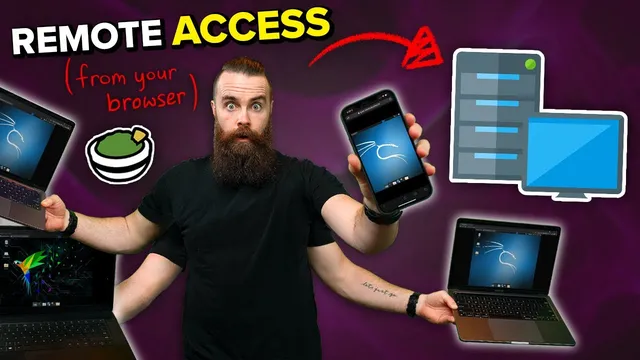
access EVERYTHING from your web browser!! (Linux and Windows Desktop, SSH) // Guacamole Install
Based on NetworkChuck's video on YouTube. If you like this content, support the original creators by watching, liking and subscribing to their content.
Guacamole centralizes remote access to Windows (RDP), Linux shells (SSH), and Linux desktops (VNC) inside a browser-based dashboard.
Briefing
Guacamole lets people reach multiple remote machines—Windows via RDP, Linux via SSH, and Linux desktops via VNC—through a single web browser interface, eliminating the need for separate RDP/SSH client apps. The practical payoff is central: once Guacamole is deployed and wired to your hosts, every connection becomes a click inside a browser tab, usable from laptops, tablets, or phones.
Setup starts with a web-accessible “gateway” using Apache Guacamole, but the walkthrough emphasizes a faster path: deploying Guacamole through Cloudron, a platform that automates much of the otherwise fiddly installation. Two deployment routes are presented. For cloud users managing multiple machines, a Cloudron instance is created on Lenode (with an Ubuntu VM), then configured to serve Guacamole on a subdomain of a domain name. For home-lab users, the same Cloudron-based approach runs on an Ubuntu 20.04 virtual machine (shown on Proxmox), with router port forwarding so the browser can reach it from outside the house.
Before Cloudron can host Guacamole, the workflow requires domain plumbing. If no domain is available, a free one can be obtained from Freenom (the example uses Stark Industries.tk). DNS is then managed through Cloudflare: the domain’s nameservers are switched to Cloudflare’s, and HTTPS is enabled by default. The tutorial also calls out a common friction point—some free top-level domains may not work smoothly with Cloudron’s automatic DNS integration—so it includes a manual DNS fallback where an A record points the relevant subdomain to the server’s IP.
In the cloud path, a Lenode VM is provisioned from the Cloudron marketplace image (Ubuntu “Fasa” is referenced). After Cloudron finishes its automated scripts (about 10 minutes), the public IP is used to reach the Cloudron setup page. Cloudron then requests a domain, Cloudflare credentials, and a Cloudflare global API key. Once the Cloudron dashboard loads, the App Store is used to install Guacamole. The Guacamole app is assigned its own subdomain (example: guac.starkindustries.tk). After installation, the default login is guac admin / guac admin.
Connections are then created inside Guacamole. For SSH, the host and port 22 are entered along with credentials. For Windows RDP, the protocol is switched to RDP, port 3389 is used (with a note to change it in real deployments), and security mode is set to NLA (network level authentication), with an option to ignore server certificates for typical home setups. For Linux graphical access, VNC connections are added using port 5901 by default.
The home-lab section mirrors the same logic but shifts the networking burden to the router. Cloudron is installed via a script on an Ubuntu 20.04 VM, then the user forwards port 443 (and port 80 for Let’s Encrypt certificate issuance). DNS records are created so Cloudron and the Guacamole subdomain resolve to the home server’s public IP (with a brief mention of dynamic DNS for changing IPs). After Guacamole is installed from Cloudron’s App Store, the same SSH/RDP/VNC connection types are configured, and the result is browser-based remote access from anywhere—without dedicated client software.
Cornell Notes
Guacamole provides a single browser interface for remote access to Windows (RDP), Linux shells (SSH), and Linux desktops (VNC). The walkthrough deploys Guacamole using Cloudron, which automates installation and exposes Guacamole through a subdomain under a domain name. Domain setup relies on Cloudflare for DNS and HTTPS, with a manual DNS workaround when certain free top-level domains don’t integrate cleanly. After Guacamole is installed, connections are added by entering hostnames/IPs, ports (22 for SSH, 3389 for RDP, 5901 for VNC), and credentials, then selecting RDP security mode NLA for Windows. The same approach works in the cloud (Lenode) or at home, with home access requiring router port forwarding (443, and often 80 for certificates).
Why does the tutorial route Guacamole through Cloudron instead of installing Guacamole directly?
What domain and DNS steps are required before Guacamole can be reached in a browser?
How are remote connections created inside Guacamole for different protocols?
What networking changes are different between the cloud setup and the home-lab setup?
What are the default Guacamole credentials used after installation?
What’s the practical benefit of using Guacamole on mobile devices?
Review Questions
- What specific ports does Guacamole use by default for SSH, RDP, and VNC in the walkthrough, and where are those values entered?
- Why might Cloudron require manual DNS configuration when using certain free top-level domains like .tk?
- In a home-lab deployment, which router ports must be forwarded for browser access and certificate issuance, and why?
Key Points
- 1
Guacamole centralizes remote access to Windows (RDP), Linux shells (SSH), and Linux desktops (VNC) inside a browser-based dashboard.
- 2
Cloudron streamlines Guacamole deployment by automating setup and providing an App Store for installing Guacamole.
- 3
A domain name plus Cloudflare DNS is the backbone of making Guacamole reachable via HTTPS on a subdomain.
- 4
Cloud deployments focus on VM provisioning and DNS pointing to a public IP, while home deployments require router port forwarding (443, and often 80).
- 5
Guacamole connection setup is protocol-specific: SSH uses port 22, RDP uses port 3389 with NLA security mode, and VNC uses port 5901.
- 6
After Guacamole installation via Cloudron, the default credentials are guac admin / guac admin, which are then used to add connections.
- 7
When automatic DNS integration fails for certain domains, creating an A record manually to the server IP restores functionality.