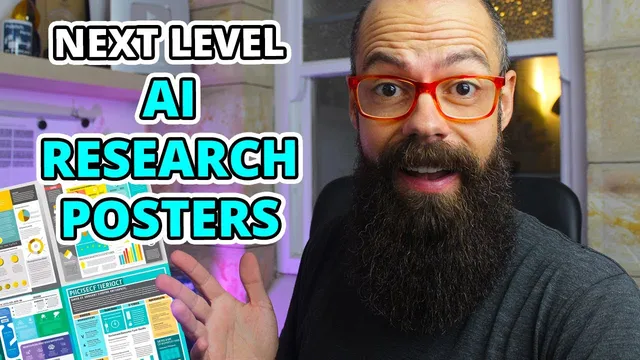
AI Research Poster Design: Create Professor-Stopping Presentations with AI
Based on Andy Stapleton's video on YouTube. If you like this content, support the original creators by watching, liking and subscribing to their content.
Use ChatGPT to generate a structured prompt for a research poster template, then paste it into Midjourney to get multiple layout options.
Briefing
Designing a research poster that actually grabs attention can be faster with Midjourney—especially when paired with ChatGPT to generate the right prompts. The core workflow is simple: use ChatGPT to draft a structured prompt for a poster template (including layout, typography, and spacing), paste it into Midjourney to generate multiple design options, then refine by upscaling and iterating until a usable layout emerges.
Early attempts at poster templates directly in Midjourney weren’t very strong, but the process improved dramatically once ChatGPT was used to produce a more specific instruction. After copying a ChatGPT-generated prompt into Midjourney, the result produced several poster-style designs. A key practical detail is that the generated text may be “alien” or unreadable, so the value isn’t in the exact wording—it’s in the visual structure. The workflow then shifts from “use the AI output as-is” to “use it as design inspiration.” One selected design was upscaled (the example used “version four”), yielding a poster layout that was “perfectly reasonable” but still somewhat plain.
To make that output useful, the next step focuses on extracting visual design elements rather than trying to edit the gibberish text. The approach recommended is to pull a color palette from the upscaled image using HTML-color dot codes (drag-and-drop an image, then select colors). That palette becomes a ready-to-use set of 3–5 colors for tools like PowerPoint, Canva, or Photoshop. This turns an AI-generated concept into a concrete design system: limited colors, consistent headings, and a cleaner visual hierarchy.
The same prompt-and-iterate loop works for poster layouts with constraints. When asked for a science research poster prompt with “limited colors,” ChatGPT produced a tighter instruction emphasizing no more than three to four colors, plus appropriate fonts, graphics, and white space. Midjourney then generated multiple options, and the user selected a version with clear areas for data, headings, and message placement. Variations were generated (e.g., using a “V4” style iteration), then the chosen version was upscaled again and run through the color-palette extractor to lock in the final palette.
Midjourney also serves a second, more eye-catching role: creating a feature image for the poster. By browsing Midjourney’s Showcase styles, then prompting for a subject in a specific style (the transcript gives an example: a solar cell “in the Style of Emiliano Ponzi in blue and yellow, illuminated by the Sun”), the tool can generate striking visuals that can function as the poster’s main hook. The guidance is to pick a style that’s visually attractive but not overly cartoony, then generate variations and choose the best fit.
Overall, the message is that AI can reduce the time spent on design decisions—turning poster creation into a repeatable workflow: prompt with ChatGPT, generate and upscale with Midjourney, extract colors, and use the best feature image to draw conference attention. A free Midjourney tier exists, but the transcript notes that paid access provides more generation capacity; for many users, the free option may still be enough to start.
Cornell Notes
Midjourney becomes practical for research posters when it’s guided by ChatGPT prompts. Instead of relying on AI-generated text (often unreadable), the workflow treats Midjourney outputs as layout and style inspiration: generate several poster template options, upscale the best one, and then extract a limited color palette from the image. HTML-color dot codes is used to turn the chosen design into 3–5 usable colors for tools like PowerPoint, Canva, or Photoshop. The process also extends to creating a poster’s feature image by selecting a Midjourney style and prompting for a scientific subject (e.g., a solar cell in a specific artist style and color scheme).
Why does the workflow pair ChatGPT with Midjourney instead of using Midjourney alone for poster templates?
What should be done with the unreadable text that appears in AI-generated poster designs?
How does the workflow turn an AI poster concept into a real color palette?
How are “limited colors” constraints used to improve poster outputs?
What role does Midjourney play in creating the poster’s feature image?
Which tools are suggested for implementing the final poster design after extracting colors?
Review Questions
- When Midjourney produces a poster with unreadable text, what is the recommended strategy to still make the output useful?
- How does the “limited colors” prompt change the kinds of poster templates Midjourney generates?
- Describe the step-by-step process from selecting a Midjourney poster design to extracting a palette and applying it in a design tool.
Key Points
- 1
Use ChatGPT to generate a structured prompt for a research poster template, then paste it into Midjourney to get multiple layout options.
- 2
Treat AI-generated poster text as unreliable; use the designs for layout, typography direction, and visual hierarchy instead of copying the text.
- 3
Upscale the best Midjourney poster option (e.g., a selected version) before extracting design elements.
- 4
Extract a limited 3–5 color palette from the upscaled image using HTML-color dot codes, then apply that palette in PowerPoint, Canva, or Photoshop.
- 5
Iterate by trying different prompts and generating variations (e.g., selecting a version and requesting variations) until a layout with clear data and heading areas appears.
- 6
Use Midjourney Showcase styles to create a high-impact feature image for the poster, then generate variations and choose the most fitting one.
- 7
Start with the free Midjourney tier if needed, but paid access can provide more generation capacity for faster iteration.