Annotating and Taking Notes on Papers | Protolyst Full Walkthrough
Based on Protolyst's video on YouTube. If you like this content, support the original creators by watching, liking and subscribing to their content.
Capture highlighted text as atoms to make paper notes searchable across the workspace without reopening PDFs.
Briefing
Protolyst’s note workflow is built around turning highlighted text from papers into reusable “atoms,” then reorganizing those atoms later using searchable pages and table-based grids. The core idea is simple: capture key snippets once, keep them linked back to their source, and then reshape the same information into whatever structure a current task demands—without reopening every PDF.
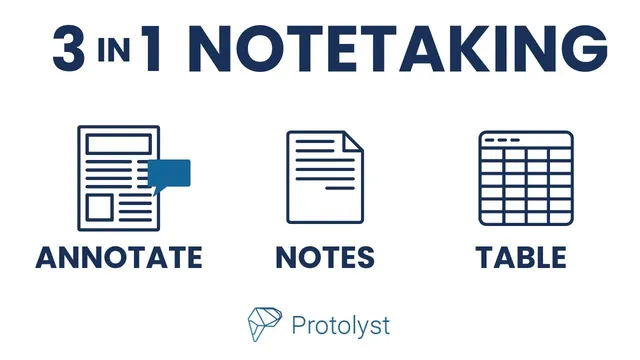
Three note-taking approaches are supported, and they can be mixed. First, annotations: upload a paper into a Protolyst workspace, highlight text, and use “capture atom” to lift the selected passage out of the PDF. Each atom becomes a standalone, searchable unit in the workspace. Atoms can also include the reader’s own clarifying thoughts typed directly into the atom box. Protolyst’s atom system extracts highlighted text into atoms (called out as “atoms and atoms lift whatever bits of text you’ve highlighted”), making it possible to search across all captured snippets even when the original paper isn’t open.
Second, document-style notes: create a separate text editor page (for example, a “paper summaries” document), then open it side by side with a PDF. Instead of capturing atoms directly, the reader drags highlighted text from the paper into the notes page. That drag-and-drop inserts the text with an automatic citation section that links back to the exact location in the source paper. The notes page remains editable, so a snippet can be replaced with a paraphrase while preserving the citation link for verification. Importantly, the drag-and-drop action also results in atoms being created behind the scenes—so those notes become searchable in the workspace’s “all pages” view.
Third, table-based organization: use tables as folder-like containers where each row represents a paper page. When papers are moved into the table, Protolyst extracts citation metadata (with an APA citation style option mentioned) and displays captured atoms in an “atoms” column. Tables also support filtered atom columns via tags/labels. The walkthrough demonstrates adding “methods” and “applications” columns by creating filtered atom properties that only show atoms tagged with the corresponding label. As atoms are dragged into the appropriate columns (or tags are added via a linking bar), the table grid updates so related information from multiple papers appears together at a glance.
The workflow emphasizes flexibility over a single rigid method. Readers can start with annotations, later move papers into tables, and then recategorize atoms by dragging them into filtered columns. Alternatively, they can begin with a table already set up with categories, capturing and tagging atoms as they go. Protolyst also allows turning table columns on or off to match different working styles, and it hints at further organization tools like multi-select and table filters/views for project-based grouping (examples include project categories such as 3D printing and acoustic trapping). The takeaway: Protolyst’s system is designed so notes don’t just accumulate—they become structured, searchable building blocks that can be reorganized as research needs change.
Cornell Notes
Protolyst turns highlighted paper text into reusable “atoms,” then lets users reorganize those atoms later for different tasks. Readers can capture atoms directly through annotations, or drag highlighted text into a separate notes document that keeps citations linking back to the exact PDF location. Drag-and-drop into notes also produces atoms, so everything becomes searchable across the workspace. For large collections, tables act like folder-like grids: each row holds a paper with extracted citation info and an atoms column. Adding filtered atom columns (e.g., “methods” and “applications”) via tags/labels lets related snippets from multiple papers appear together for quick review and reuse.
What is an “atom” in Protolyst, and why does it matter for paper reading workflows?
How does the “document-style” notes method preserve traceability back to the source paper?
What changes when notes are moved into a table, and what information does the table automatically extract?
How do filtered atom columns work for categorizing notes (e.g., “methods” and “applications”)?
What are the main ways to assign tags/labels to atoms so they land in the right table columns?
Why does the workflow emphasize flexibility rather than committing to one note-taking method?
Review Questions
- How does Protolyst ensure that text dragged into a notes document remains verifiable back in the original PDF?
- Describe how a filtered atom column like “methods” differs from an unfiltered atoms column in a table.
- List three different ways atoms can be tagged or categorized so they appear in the correct table columns.
Key Points
- 1
Capture highlighted text as atoms to make paper notes searchable across the workspace without reopening PDFs.
- 2
Use drag-and-drop into a separate notes page to build summaries while preserving citation links back to the exact PDF location.
- 3
Move paper pages into a table to get a grid view with extracted citation metadata and visible atoms per paper.
- 4
Create filtered atom columns using tags/labels (such as “methods” and “applications”) to categorize snippets from many papers into one overview.
- 5
Recategorize later by dragging atoms into the right filtered columns, or by adding tags in the atom linking bar.
- 6
Adjust table layouts by turning columns on or off to match the current workflow and reduce clutter.
- 7
Use table filters/views and multi-select to group papers by project needs (e.g., different research themes).