Applying Custom Themes for your RoamResearch Knowledge Graph
Based on Conor White-Sullivan's video on YouTube. If you like this content, support the original creators by watching, liking and subscribing to their content.
Create a page named exactly “Roam/CSS” (all lowercase) to drive custom Roam styling.
Briefing
Roam Research themes can be customized per graph page using a dedicated “Roam/CSS” page that contains CSS code blocks, letting users change the look and feel of their entire knowledge graph. The key requirement is that the page must be named exactly “Roam/CSS” (all lowercase), and the CSS must be pasted inside a code block set to CSS—once that’s in place, the styling applies across the graph for anyone viewing that page.
A crucial nuance is that Roam’s theme application can be filtered on a per-user basis. When sharing a graph with others, users can apply Roam’s filter option to include or exclude specific pages; if a collaborator filters out the “Roam/CSS” page (or relevant theme pages), the theme disappears for them. By default, everyone has no filters applied, so the custom styling affects all collaborators unless someone explicitly filters it out.
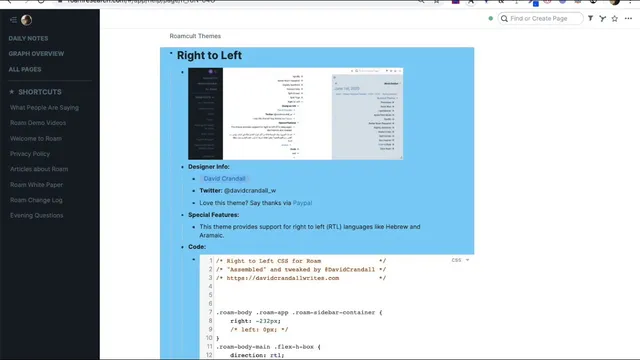
For people who want inspiration or ready-made styles, the workflow points to a community help database. By opening the question-mark help panel and following the linked Roam community themes area, users can browse themes created by others, including code snippets that list the author’s name and Twitter handle. There’s also an option to support creators via a PayPal link. One highlighted example focuses on right-to-left languages such as Arabic, Hebrew, and Farsi: applying that theme flips the graph’s directionality so text and layout render correctly. Switching the “Roam/CSS” content back to normal restores left-to-right behavior.
Beyond whole-graph themes, the transcript also spotlights a more granular customization approach: styling tags based on the tag’s value. Inspired by Maggie Appleton’s work on Roam gardening, the demo pulls a set of custom tag styles and applies them through the “Roam/CSS” page. After pasting the CSS, the user demonstrates editing visual properties—such as changing the color used for a specific tag (e.g., “evergreen”)—and confirms the updated styling appears immediately across all matching tags.
The practical takeaway is that CSS can be used to make certain tags visually stand out for faster scanning and workflow management. The demo sketches scenarios like making “urgent” tags larger and changing their background color to red, along with adjusting padding and line-height to control spacing. Because these changes live in the “Roam/CSS” page, they apply to any visitor of that page and to collaborators who don’t filter the styling out. The overall message: with basic CSS literacy and the right page setup, Roam becomes highly customizable—both at the theme level and at the tag level—without changing the underlying data.
Cornell Notes
Custom Roam Research themes are applied by creating a page named exactly “Roam/CSS” (all lowercase) and pasting CSS inside a code block labeled CSS. Once present, that CSS changes the look and feel of the entire graph for viewers of that page. Theme visibility can be controlled per user through Roam’s filter option: collaborators who filter out the “Roam/CSS” page won’t see the styling, while default settings apply it to everyone.
The transcript also shows how community themes can be reused from a Roam community themes database, including a right-to-left theme for Arabic, Hebrew, and Farsi. Finally, it demonstrates tag-level styling—using CSS to change colors, sizes, padding, and backgrounds for specific tags like “evergreen” or “urgent”—so important notes stand out visually.
What exact setup makes Roam apply custom styling across a graph?
How can collaborators prevent a theme from affecting their own view?
Where can users find ready-made Roam themes and CSS snippets?
How does the demo handle right-to-left languages?
What does tag-level styling enable, and how is it demonstrated?
What kinds of visual changes can be made to highlight workflow tags like “urgent”?
Review Questions
- What are the exact naming and formatting requirements for the page that drives Roam’s CSS theming?
- How does per-user filtering change who sees the “Roam/CSS” styling in a shared graph?
- Give two examples of how CSS can be used to customize Roam beyond whole-graph themes.
Key Points
- 1
Create a page named exactly “Roam/CSS” (all lowercase) to drive custom Roam styling.
- 2
Paste CSS inside a code block labeled CSS; that formatting is required for Roam to apply the theme.
- 3
Roam theme visibility is controllable per user via filters—collaborators can hide styling by filtering out the theme page.
- 4
Community theme libraries provide reusable CSS snippets, including themes for right-to-left language support.
- 5
CSS can target specific tags so matching tags change color, size, padding, and background to improve scanning.
- 6
Tag-level styling supports practical workflows by making important categories (like “urgent”) visually stand out.