Automate Your Vault With Dataview - How To Use Dataview in Obsidian
Based on FromSergio's video on YouTube. If you like this content, support the original creators by watching, liking and subscribing to their content.
Dataview’s workflow depends on YAML metadata in notes plus Dataview queries that generate dynamic lists, tables, or tasks.
Briefing
Dataview turns an Obsidian vault into a queryable “database” by combining two steps: adding YAML metadata to notes and then running Dataview queries to generate live views. Once set up, results update automatically as notes change—so lists, tables, and task views stay current without manual upkeep. That’s the core shift for anyone coming from Notion-style databases: Dataview provides the missing querying layer while keeping everything inside plain markdown notes.
Getting started requires installing and enabling the Dataview community plugin in Obsidian. Queries are written inside a code block that starts with three backticks followed by “dataview” and ends with three backticks; everything between those markers becomes the query. Dataview supports three output view types: list, table, and task. A list query is the simplest—using “list” alone can display every note in the vault. A table query needs explicit headers (for example, “table author, genre”) because tables require column definitions; without headers, the output behaves like a list. For table columns, Dataview reads values from YAML frontmatter, and when a field is missing it may show blanks or placeholders.
To make table output more flexible, Dataview can mimic Obsidian-style aliases using an “as” clause. If the underlying YAML key is “author” but the desired column label is “Author” (or “Creator”), the query can keep the correct field name while renaming the displayed header. This matters because Dataview is case-sensitive about parameter names.
Filtering is where Dataview becomes genuinely powerful. The “from” clause selects which notes to search, using inputs like tags (e.g., from #mock), folders (e.g., from "weekly journal"), and even subfolders (e.g., from journal/attachments). It can also query link structure: incoming links via “in” and outgoing links via “out” (with the note reference inside brackets). Logical combinations are supported—using “and” to require multiple tags, “or” to allow either, and a leading dash to exclude matches (such as excluding notes tagged #evergreen). For more precise control, a “where” clause adds conditions like file name equals a specific book, file size greater than a threshold, or a YAML field containing a value (e.g., where contains author "Julian Flynn").
Dataview can also power automated “index pages.” By creating an author page template that lists notes where the author field contains a name, new book notes automatically appear in the correct author page. Sorting is handled with an optional “sort” line, letting results order by fields like date, rating, or file size in ascending or descending order.
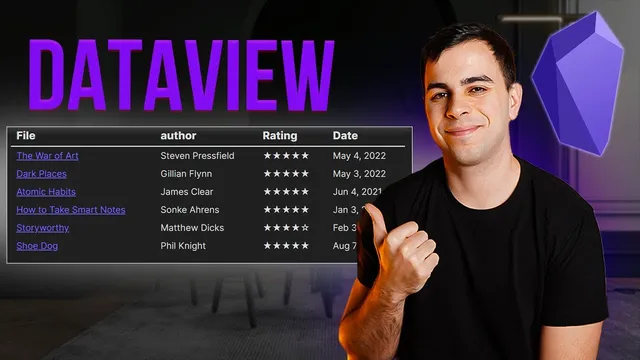
The transcript then moves from mechanics to real workflows. One example replaces Goodreads tracking: book notes store author, tags, rating, and date in YAML, and a Dataview table generates a “favorite books” page with star ratings. To make star entry fast, the workflow uses the Templater plugin with hotkeys that insert star symbols (command 1 for one star, command 5 for five stars, etc.). Another example uses Dataview for vault maintenance by listing notes missing content (e.g., notes where length equals 0 or where certain tag conditions fail), enabling quick cleanup. Across all examples, the emphasis stays consistent: metadata + queries produce dynamic, automated views that scale as the vault grows.
Cornell Notes
Dataview in Obsidian works by pairing YAML metadata with query blocks that output live lists, tables, or tasks. Queries are written inside triple-backtick blocks labeled “dataview,” and results update automatically when notes change. The “from” clause selects candidate notes using tags, folders, link direction (incoming/outgoing), and logical combinations like AND/OR plus exclusions. The “where” clause refines results using conditions such as exact file name matches, file size thresholds, or “contains” checks against YAML fields (e.g., author names). With optional “sort,” Dataview can generate index pages like author hubs and favorite-books dashboards without relying on external services.
How does Dataview know what to query inside an Obsidian vault?
What’s the practical difference between Dataview list and table outputs?
How can a Dataview table display a different column label than the YAML key it reads?
What are the main ways to select notes using the “from” clause?
How does the “where” clause enable targeted queries and automation?
How can Dataview replace Goodreads-style book tracking inside Obsidian?
Review Questions
- When would you choose a Dataview table instead of a list, and what extra requirement does a table have?
- Give one example of a “from” filter and one example of a “where” filter, and describe what each does.
- How can an author page be made to update automatically as new book notes are added?
Key Points
- 1
Dataview’s workflow depends on YAML metadata in notes plus Dataview queries that generate dynamic lists, tables, or tasks.
- 2
Dataview queries must be wrapped in triple-backtick blocks labeled “dataview,” and everything inside becomes the query.
- 3
Table outputs require explicit headers; list outputs can work without headers.
- 4
The “as” clause lets Dataview display a different column label while still reading the correct YAML key (including case-sensitive parameter names).
- 5
Use “from” to select candidate notes by tags, folders/subfolders, link direction (incoming/outgoing), and logical combinations with AND/OR plus exclusions.
- 6
Use “where” to narrow results using conditions like file name matches, file size thresholds, and metadata checks such as “contains author "Name".”
- 7
Optional “sort” lines order results by chosen fields (ascending/descending), enabling dashboards like favorite-books and vault-maintenance reports.