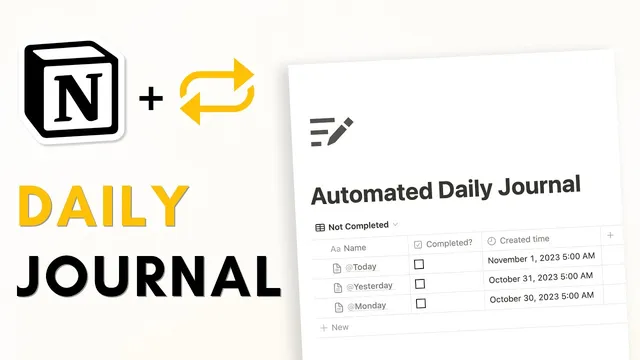
AUTOMATED Daily Journal in Notion (Easy Guide + Free Template)
Based on The Organized Notebook's video on YouTube. If you like this content, support the original creators by watching, liking and subscribing to their content.
Create a “Daily Journal” database with a created-time date property and a “completed?” checkbox to support scheduling and status tracking.
Briefing
A Notion daily journal can be fully automated using a recurring task-style database, so a fresh entry appears at a set time every day—then disappears from the “to do” list once marked complete. The workflow starts with a new Notion page titled “Daily Journal,” complete with an icon and cover, but the real automation comes from building a database that duplicates a template on a schedule.
The setup begins by creating a table view database named “Daily Journal.” Two key properties are added: a created-time date field (used for sorting and tracking) and a checkbox property labeled “completed?” to record whether the journal entry is finished. With the database structure in place, a custom template is created using a “@ today” title so each new entry automatically carries today’s date. Inside that template, the guide recommends prefilled prompts such as “What did I do today,” “What was I grateful for,” and “Best moments of the day,” plus optional placeholders for images.
Next comes the automation. The template is set as the default for all views in the “Daily Journal” database, then configured as a recurring template that repeats every day. The repeat settings include the start time and time zone, meaning the system will generate the new journal entry automatically at the chosen moment—no manual clicking required. After that, the page can be cleaned up by removing the database title display via layout settings.
To manage the daily workflow, the database view is filtered so incomplete entries appear in the main list. A filter is added to show only rows where “completed?” is unchecked. Then a second view/tab is created for completed entries by duplicating the view and switching the filter to show only checked items. The result is a simple two-lane system: the current day’s journal sits in the “not completed” view until the user finishes it and clicks the completed checkbox, at which point it vanishes from the active list. The entry returns the next day when the recurring template generates a new one.
Finally, the guide notes that entries can be sorted by the created date in ascending or descending order, keeping the journal history easy to scan. A completed template is referenced as available for download, and the same database can be made to look cleaner by toggling off “show database title.” Overall, the core value is turning Notion into a scheduled journaling system: prompts arrive automatically, completion updates status instantly, and views keep the daily task focused.
Cornell Notes
The journaling system is built as a Notion database with a daily recurring template. A “Daily Journal” table includes a created-time date property and a “completed?” checkbox. A custom template titled with “@ today” preloads prompts like what happened today, gratitude, and best moments, and it’s set as the default for new entries. The template is then configured to repeat every day at a chosen time and time zone, automatically generating the next journal entry. Two filtered views manage workflow: one shows unchecked (active) entries, and a duplicated view shows checked (completed) entries, so finishing a journal removes it from the active list until tomorrow.
What database properties make the daily journal trackable and automatable?
How does the template ensure each entry shows the correct date and includes useful prompts?
What settings turn a one-time template into a daily automated journal entry?
How do filters make the journal behave like a daily task that disappears after completion?
How can the layout be cleaned up so the journal page looks less cluttered?
Review Questions
- How would you configure the “completed?” checkbox and filters so that only today’s unfinished entry appears in the main view?
- What role does “@ today” play in the template, and why is it important for a recurring daily journal?
- Which two properties in the database are most important for automation and organization, and how are they used in sorting or filtering?
Key Points
- 1
Create a “Daily Journal” database with a created-time date property and a “completed?” checkbox to support scheduling and status tracking.
- 2
Use a custom template titled with “@ today” so each generated entry automatically carries the correct date.
- 3
Set the template as the default for all views, then configure it to repeat “everyday” with a specific start time and time zone.
- 4
Filter the main view to show only unchecked “completed?” entries so the active journal stays focused.
- 5
Duplicate the view to create a “completed” tab filtered to show checked entries, keeping history organized.
- 6
Sort entries by the created date (ascending or descending) to quickly scan past journals.
- 7
Hide the database title via Layout settings to keep the journal page visually clean.