Best practices for an organized workspace
Based on Notion's video on YouTube. If you like this content, support the original creators by watching, liking and subscribing to their content.
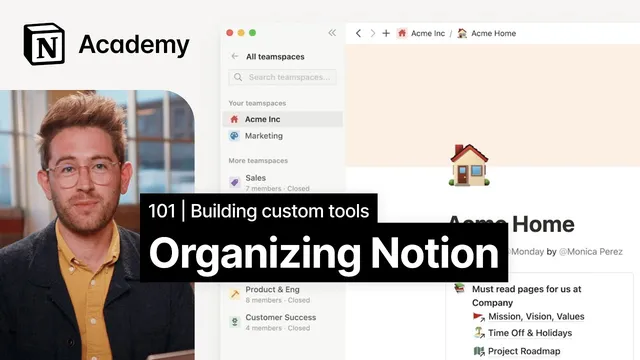
Create team spaces for major functions, then structure sub-teams inside each team space with their own home pages that appear as top-level sidebar entries.
Briefing
Organized Notion workspaces don’t happen by accident: they rely on deliberate structure—especially how team spaces, top-level pages, and a small set of shared databases are arranged—so people can find what they need quickly without the sidebar turning into clutter.
At scale, teams should treat the sidebar like shared office space. If physical offices can’t stay littered with trash, Notion workspaces shouldn’t drift into chaos either. The core approach starts with team spaces. Companies can create team spaces for major functions—such as Marketing, Product, Sales and Success, Legal, Finance, and Security—plus a general team space that every workspace must include. Within each team space, sub-teams get their own home pages that appear as top-level sidebar pages. Those top-level pages matter because they make browsing intuitive; unlike a traditional folder-and-file setup, Notion also allows text to sit alongside pages, helping teams understand where to go.
A second pillar is standardizing the “few things everyone uses.” Teams should align on three to five key databases—examples include meeting notes, docs, and tasks—because most day-to-day work flows through them. Keeping those databases stocked with rich properties (like tags and other metadata) helps information stay searchable and consistent. Equally important: the general team space should hold company-wide resources that any new hire would need regardless of role. That includes mission, vision, and values; benefits information; a new hire manual or office information.
The transcript contrasts two workspace designs to show what goes wrong and what improves outcomes. One example suffers from too many top-level pages with no hierarchy or rationale. That’s flagged as a common large-team mistake. Several fixes are offered: on Enterprise plans, workspace teamspace owners can prevent members from editing top-level sections of the sidebar; teams can create a dedicated “lost pages” or “tidy pages” top-level page for items that need a home; and teams should train members on nested pages so people don’t accidentally create visible top-level clutter. The messy example also highlights usability friction—such as inconsistent iconography, pages that serve competing purposes (like docs versus engineering docs), and overuse of shared pages paired with poor database usage.
The more polished example uses team spaces by functional area, with the general team space clearly laying out the company’s five key databases and how to use each one. Headings in team spaces guide readers to the right place, and each sub-team’s homepage is customized to match its needs. The result is a workspace that feels welcoming to new hires and reduces friction for everyone else.
In the end, the best practices boil down to four moves: be intentional with team spaces, give each sub-team its own home page, keep company-wide information in the general team space, and add community-friendly visual cues—custom icons, cover images, and other flair—to make the workspace easier and more pleasant to navigate.
Cornell Notes
A clean Notion workspace at company scale depends on deliberate sidebar structure and a small set of shared “core” resources. Teams should create team spaces for major functions, then give each sub-team a customized home page that appears as a top-level sidebar entry for easy browsing. Companies should standardize three to five key databases (like meeting notes, docs, and tasks) and use rich properties such as tags and metadata to keep information searchable. Company-wide essentials—mission/values, benefits, and new-hire materials—belong in the required General team space. Visual consistency (icons, covers) and better page/database choices reduce friction and prevent clutter.
Why do top-level pages in the sidebar matter more than simply “having pages somewhere”?
What’s the recommended strategy for organizing company-wide information versus team-specific content?
How should teams decide what databases to standardize?
What are practical ways to prevent sidebar clutter from spreading in large teams?
What usability problems show up in the “too many top-level pages” example?
How does the “more polished” workspace improve onboarding and daily navigation?
Review Questions
- What specific role does the General team space play, and what kinds of resources should it contain?
- How do rich properties (like tags and metadata) in a few key databases improve day-to-day organization?
- What steps can an Enterprise workspace take to control edits to top-level sidebar sections?
Key Points
- 1
Create team spaces for major functions, then structure sub-teams inside each team space with their own home pages that appear as top-level sidebar entries.
- 2
Standardize on three to five key databases (e.g., meeting notes, docs, tasks) and use rich properties like tags and metadata to keep information searchable.
- 3
Keep company-wide essentials—mission/values, benefits, and new-hire or office information—in the required General team space.
- 4
Reduce sidebar clutter by limiting who can edit top-level sections (Enterprise), using a dedicated “lost/tidy pages” area, and training members on nested pages.
- 5
Avoid inconsistent navigation signals such as mismatched iconography and overlapping page purposes (e.g., competing docs categories).
- 6
Prefer databases over excessive shared pages when the goal is organization and retrieval.
- 7
Add visual and community-friendly flair—custom icons and cover images—to make the workspace easier and more welcoming to use.