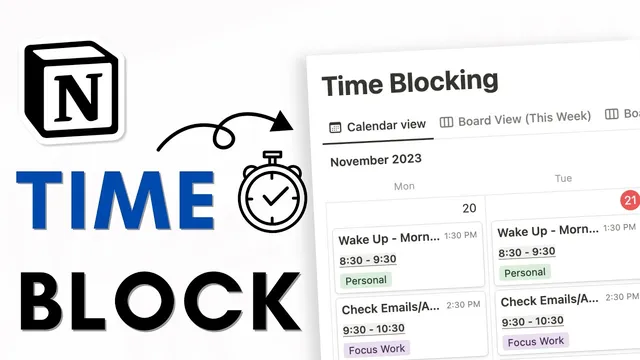
BEST Productive Time Blocking Setup for Notion | Step-by-step Tutorial + Free Template
Based on The Organized Notebook's video on YouTube. If you like this content, support the original creators by watching, liking and subscribing to their content.
Create a single Notion database for time blocks and store each block with a start/end date-time so the schedule can be rendered consistently.
Briefing
A Notion-based time-blocking system can be built around a single database that stores start/end times and then renders the same schedule in multiple views—weekly, board, table, and list—so the day stays readable while the underlying data remains consistent. The core move is creating a “time block database” with a date property that includes time, then adding a formula property that converts each block’s start and end into a clean “8:30 to 9:30” label. That formula becomes the visual backbone of the template, making time slots easy to scan without cluttering the page with raw date-time fields.
The tutorial starts from an empty Notion page and walks through setting up the database and its calendar layout. After creating the database, the layout is adjusted to a week-style view, and each time block is added as a database entry (for example, “Wake up / morning routine” from 8:30 to 9:30). To make those times actually visible, the template toggles properties and then hides the default date display in favor of a formula property. The formula formats the start time and end time into a single string using hour and minute formatting, and optional styling (bold, underline, gray background) is applied so the time range stands out.
Once the first day is filled, the schedule is kept orderly by sorting entries by the date property in ascending order. The template then scales across the workweek by duplicating entries from Monday to Tuesday through Friday, ensuring the same structure repeats even when the specific activities differ. This approach keeps the system fast to populate while preserving consistent time-slot formatting.
After the schedule is in place, the template’s real flexibility appears through view customization. The database is cleaned up by hiding the database title, then duplicated into multiple views: a board view grouped by date (with color columns and selected properties like tags and the formatted time), a “today” board view filtered to only show the current day and grouped with empty columns hidden, and a table view that hides the date property for a cleaner layout. A list view is also offered, with the caveat that spacing can feel spread out—suggesting column-based arrangements as an alternative for better readability.
Practical usage tips focus on tags and boundaries. Tags can communicate what each time block is for—such as “Focus work / do not disturb” to prevent scheduling conflicts or “Meeting time” to signal availability. The template can also be extended by placing mini task lists inside time blocks (e.g., “check email / admin”) so each block has a concrete agenda. Finally, the system recommends not filling every minute: leaving leeway helps the schedule absorb delays and keeps personal time from becoming overly rigid, while still separating focus time from more flexible downtime.
Cornell Notes
The template builds a Notion time-blocking database where each entry includes a start and end time, then uses a formula to display a readable time range like “8:30 to 9:30.” After filling Monday’s blocks, entries are sorted by the date property and duplicated across the week to create a consistent schedule structure. Multiple views—calendar/week, board, table, and list—are created by duplicating the same database and changing layout, grouping, and filters (such as “this week” or “today”). Tags are used to define the purpose of each block, including availability signals like “Focus work / do not disturb” versus “Meeting time.” The result is a flexible planning system that stays scannable while remaining easy to update.
Why add a formula property instead of relying on Notion’s built-in date display for time blocks?
How does the template keep time blocks in the correct order even if entries get out of sequence?
What’s the fastest way to expand a Monday schedule across the rest of the week?
How do the different views (board, table, list) change what the user sees without changing the underlying data?
How do tags function as a planning and communication tool in this system?
Why leave leeway instead of scheduling every task and minute?
Review Questions
- What specific role does the formula property play in making time blocks readable, and what does it output?
- How would you configure a “today” view so it shows only the current day and hides empty groups?
- What are two tag examples that communicate availability, and how would they affect how others interpret your schedule?
Key Points
- 1
Create a single Notion database for time blocks and store each block with a start/end date-time so the schedule can be rendered consistently.
- 2
Use a formula property to display a clean time range (e.g., “8:30 to 9:30”) and hide the raw date property for a less cluttered layout.
- 3
Sort entries by the date property in ascending order to keep time blocks aligned correctly even after duplication or edits.
- 4
Duplicate Monday’s time blocks and move them to subsequent days to quickly build a full Monday–Friday schedule.
- 5
Build multiple views (calendar/week, board, table, list) by duplicating the same database and changing layout, grouping, filters, and visible properties.
- 6
Use tags to define what each time block is for, including availability signals like “Focus work / do not disturb” and “Meeting time.”
- 7
Leave buffer time by not filling every minute, so the plan can absorb delays and keep personal time flexible.