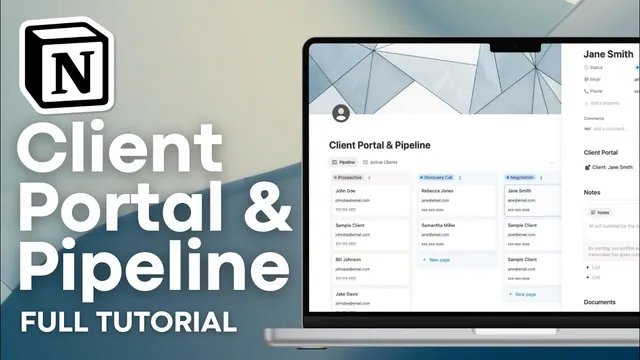
Build a Client Portal & Pipeline System in Notion (FULL Tutorial)
Based on The Organized Notebook's video on YouTube. If you like this content, support the original creators by watching, liking and subscribing to their content.
Create a single “Clients” board database in Notion with standardized properties (email, phone, and a customized status pipeline).
Briefing
A single Notion setup can manage both a client pipeline and a shareable client portal—using one core database for tracking status and a reusable template to generate consistent, client-facing pages. The system is built around a board-style “Clients” database that stores each client’s contact details and pipeline stage, then adds a second, filtered view (“Active clients”) so work stays focused on current engagements.
The build starts with a clean Notion page (“Client portal and pipeline”) and a board view database named “Clients.” A sample entry (John Doe) is created first so properties can be standardized before real clients are added. The database includes key fields such as email address and phone number, plus optional visuals like a cover image. Most importantly, the pipeline status property is customized beyond a simple default. Instead of generic “not started / in progress / done,” the tutorial defines a more granular workflow: “Perspective” (set as the default), “Discovery call,” “Negotiations,” “Lost” (colored red), “Active,” and “Done.”
To make the board usable day-to-day, the tutorial adjusts group visibility so “Lost” and “Done” can be pinned but hidden from the main working columns. That leaves a clearer view of the active stages—e.g., “Perspective,” “Discovery call,” “Negotiation,” and “Active”—while still keeping completed or dropped leads accessible. A separate gallery view (“Active clients”) is then configured to show only clients whose status is “Active,” with card previews and property visibility tuned so email and phone remain visible for quick outreach.
Portal creation happens through a database template. A “New client” template is added so every new client automatically receives the same portal structure, including a dedicated section for discovery-call notes and internal documentation. The template includes a place for Notion AI meeting notes (if available in the plan), plus embedded document areas for internal files. The client-facing portion is created as an embedded page (“client” page) that can be customized with brand assets—cover image, icon/logo, and a welcome callout.
Inside each client portal page, the tutorial recommends practical modules: a project description toggle, a calendar database for timeline items (with a checkbox property like “done”), invoice embeds, document embeds (PDFs, Google Docs, and more), and a notes table database that can optionally be editable depending on the sharing model. When the template is set as default, adding a new client (e.g., Jane Smith) automatically generates the portal with the calendar, AI notes section, and document areas already in place.
Finally, sharing options are laid out: invite by email with view-only, comment-only, edit, or full access; or publish to the web with indexing disabled. The tutorial flags a security limitation—Notion web publishing doesn’t support password protection natively—so the portal’s internal notes can be protected by controlling what content is shared and by using unique-link access for client-visible pages. The result is a repeatable pipeline-to-portal workflow that reduces setup time and keeps client communication organized as deals move from prospecting to negotiation and delivery.
Cornell Notes
The system uses one Notion “Clients” database to track each client’s pipeline stage and contact info, with a customized status workflow (e.g., Perspective → Discovery call → Negotiations → Active → Done/Lost). Board and gallery views are configured to keep daily work focused, including an “Active clients” view filtered to status = Active. A database template (“New client”) generates a consistent client portal for every new client, including sections for Notion AI meeting notes, internal documents, and a client-facing page with brand styling. Calendar, invoices, documents, and notes are embedded or added as modules so the portal updates as the pipeline progresses. Sharing is handled via email permissions or web publishing, with a noted limitation around password protection.
How does the tutorial structure the pipeline so it’s more than a basic “in progress” tracker?
What’s the purpose of pinning but hiding “Lost” and “Done” columns?
Why create a sample client first (John Doe) before adding real clients?
How does the tutorial ensure every client gets the same portal layout automatically?
What modules are recommended inside the client-facing portal page?
What sharing options are offered, and what security caveat is noted?
Review Questions
- When customizing the pipeline, which specific status stages are created, and which one is set as the default?
- How do board group settings change what columns are visible versus pinned?
- What does setting a template as default accomplish when adding a new client, and what risk exists when editing that template later?
Key Points
- 1
Create a single “Clients” board database in Notion with standardized properties (email, phone, and a customized status pipeline).
- 2
Define granular pipeline stages (Perspective, Discovery call, Negotiations, Lost, Active, Done) and use drag-and-drop to move clients across columns.
- 3
Use board group settings to hide “Lost” and “Done” from the main workflow while keeping them pinned for quick access.
- 4
Add an “Active clients” gallery view filtered to status = Active to reduce clutter and speed up outreach.
- 5
Build client portals using a database template so every new client automatically receives the same portal structure and modules.
- 6
Include Notion AI meeting notes (if available) plus embedded sections for documents, invoices, calendar timeline items, and notes.
- 7
Share portals via email permissions or web publishing, noting that web publishing doesn’t provide password protection natively.