Build a journal in Notion
Based on Notion's video on YouTube. If you like this content, support the original creators by watching, liking and subscribing to their content.
Create a dedicated “journal” page and place it under “private pages” so entries stay in a private sidebar section.
Briefing
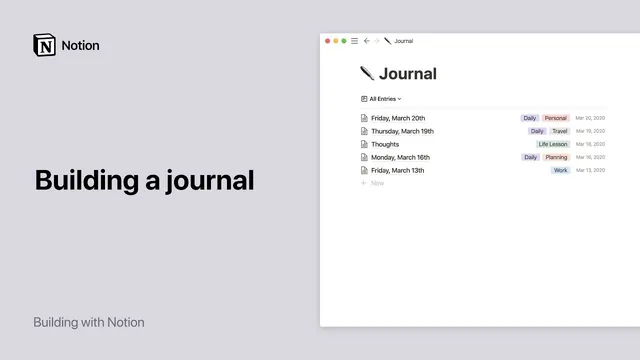
Notion can turn journaling into a repeatable habit by organizing entries in one private space and making them easy to add, browse, tag, and review. The simplest setup creates a dedicated “Journal” page where new entries can be added quickly and stored in a clean list sorted from newest to oldest, with dates and tags for future searching. From there, each entry can be opened to read its full content, and entries can include rich media—text, images, quotes, and even embedded Spotify songs or albums—so journaling doesn’t feel limited to plain writing.
The workflow starts by creating a new top-level page named “journal” and placing it inside the private section of the sidebar so the content stays “for your eyes only.” Journal entries then live under that page. Existing entries can be moved in by dragging and dropping them into the “journal” page, and the order can be rearranged the same way. This approach also supports more expressive entries: images can be dragged directly into the page, and slash commands like “/quote” can insert quote blocks. For music journaling, Notion can embed Spotify content, letting a person attach a song or album to a specific entry.
For people who want more structure as the journal grows, a list database offers a more robust system. Instead of a single page holding entries, a list database treats each entry as a record with built-in properties such as “time created” and “tags.” New properties can be added to capture what matters—like a file upload field for attachments—while the database’s sorting, filtering, and search make it easier to find past entries. The database can also display only the properties a person wants visible, toggling fields on or off through the properties menu.
To standardize daily writing, Notion database templates can automate the setup of new entries. A template can be created (for example, “new entry”) and configured to automatically add specific tags. When creating a new journal record, the template can be applied with a single click, ensuring consistent formatting across days and entry types.
Finally, the journal can be kept in a useful reading order by sorting the database by “time created” in descending order, so the newest reflections appear first. The same database pages can still be treated like normal Notion pages—adding emoji icons, dragging in images or videos, and updating content later. If the database approach feels too complex at first, the simpler page-based method still supports journaling immediately, with the option to switch between a regular page and a database later as comfort grows.
Cornell Notes
A Notion journal can be built either as a simple private page or as a list database for stronger organization. The page method uses a dedicated “journal” page in the private sidebar, where entries are added and rearranged by drag-and-drop and can include text, images, quotes, and embedded Spotify content. The list database method stores each entry as a record with properties like “time created” and “tags,” plus optional custom fields such as file uploads. Sorting by “time created” descending keeps entries in newest-to-oldest order, and templates can standardize daily entry formats and auto-apply tags. This matters because it turns journaling into a searchable, repeatable system rather than a scattered set of notes.
How does the “private page” approach keep journaling organized without extra complexity?
What makes a list database better once the journal grows?
How can tags be managed so they’re reusable across entries?
How do templates help standardize daily journaling?
What’s the best way to keep entries ordered for quick reading?
Can the journal still include rich media even when using a database?
Review Questions
- What are the key differences between building a journal as a private page versus a list database in Notion?
- How would you design a database property set for a journal that includes attachments and multiple tag categories?
- What steps would you take to ensure new journal entries appear first and follow a consistent template format?
Key Points
- 1
Create a dedicated “journal” page and place it under “private pages” so entries stay in a private sidebar section.
- 2
Use drag-and-drop to move existing entries into the journal and to reorder them as needed.
- 3
Add rich content to entries by dragging in images, inserting quotes with “/quote,” and embedding Spotify songs or albums.
- 4
Switch to a list database for scalable journaling with built-in “time created” and “tags,” plus custom properties like file uploads.
- 5
Standardize entry creation with database templates that can auto-apply tags and reduce repetitive setup.
- 6
Keep the journal readable by sorting entries by “time created” in descending order (newest first).
- 7
Treat database entries like normal Notion pages by adding emoji icons and embedding media directly in each record.