Build a personal wiki in Notion
Based on Notion's video on YouTube. If you like this content, support the original creators by watching, liking and subscribing to their content.
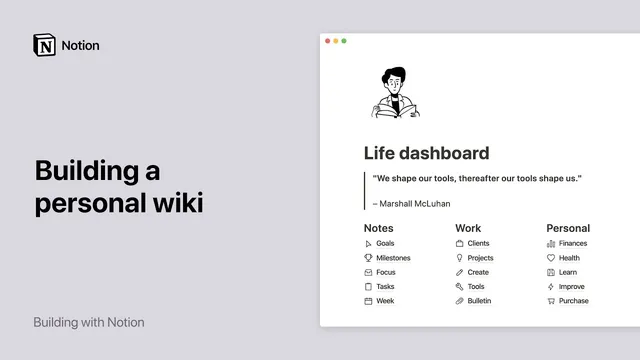
Create a single top-level Notion page as the navigation hub for a personal wiki, then organize it into clear sections using headings and columns.
Briefing
Notion users can turn a single page into a “personal wiki”—a home base that organizes goals and ongoing projects, then lets them drill into any area in one click. The core idea is simple: build one top-level page in Notion’s sidebar, split it into clear sections (like Notes, Work, Life, and Planning), and nest related subpages underneath each section so everything stays visible at a glance without endless scrolling.
The walkthrough starts by creating a top-level page directly from the sidebar using the New page button, then adding four headline sections with slash commands (e.g., /heading) and arranging those headings into side-by-side columns. Because Notion doesn’t automatically rearrange columns for you, the headings are manually moved using the six-dot handle and aligned with blue layout guides. To keep the layout readable, divider lines are added under each header.
Once the page structure is in place, the next step is creating subpages inside each section. Subpages can be added by typing /page and naming each one, optionally assigning an icon. If the subpage titles are already known, they can be typed in bulk, then converted into real pages by selecting the titles and turning them into pages. Those subpages are then dragged and dropped under the correct column, and their positions can be changed later by moving them again.
With the navigation structure complete, the workflow shifts to filling pages with content. For a faster start, the creator points to Notion templates—either selecting a template from within the page or browsing the template gallery for ready-made personal wiki layouts. The example given uses a reading list skeleton, but the key takeaway is that templates can be customized to match personal needs. The transcript also highlights how Notion’s sidebar toggles reveal nested structure: expanding the top-level page shows subpages, and expanding subpages reveals deeper nesting. Pages can be nested indefinitely, allowing a personal wiki to scale from simple lists to complex systems.
To illustrate that flexibility, the walkthrough names several possible wiki formats: a habit tracker implemented as a database for accountability, a plant tracker for storing details about houseplants, a video game database for tracking games to try with friends, a blog post draft with layout and design, and budget planning. After the content model is chosen, customization options include adding a page icon, cover image, and a quote field; enabling full-width display via the page’s three-dot menu; and pinning the personal wiki to the top of the sidebar by marking it as a favorite.
The end result is a single, clean, organized space for planning and capturing everyday tasks and long-term projects—something meant to reduce mental clutter and make next steps easier, whether that’s planning a hike, saving a recipe, or jotting down a quick to-do.
Cornell Notes
A “personal wiki” in Notion is built from one top-level page that acts like a home base, organized into sections (columns) with nested subpages beneath each section. The setup starts with creating the top-level page in the sidebar, adding headline sections, and manually arranging them into columns. Subpages are created with /page, converted from typed titles into real pages, and then dragged into the correct columns. Content can be added using templates from within Notion or the template gallery, and pages can be nested indefinitely using sidebar toggles. The structure can scale from simple trackers to databases for habits, plants, games, blog drafts, and budgets—then be customized with icons, cover images, quotes, and sidebar pinning.
What makes a Notion “personal wiki” different from a normal notes page?
How do you create the main structure (sections) for the personal wiki?
How are subpages created and organized under each section?
What’s the fastest way to add content once the page structure exists?
How does Notion handle deeper organization beyond one level of subpages?
Give examples of different personal wiki formats mentioned in the walkthrough.
Review Questions
- How would you design a personal wiki page so that related information is visible at a glance but still easy to drill into?
- What steps convert a list of typed subpage titles into actual nested pages, and how are those pages positioned under the right section?
- Which customization options (icons, cover images, full-width, favorites) would you use to make a personal wiki easier to find and more motivating to use?
Key Points
- 1
Create a single top-level Notion page as the navigation hub for a personal wiki, then organize it into clear sections using headings and columns.
- 2
Manually arrange headline sections into side-by-side columns using the six-dot drag handle and blue alignment guides.
- 3
Add subpages with /page, or type subpage titles and convert them into pages, then drag them under the correct column.
- 4
Use templates from within the page or the template gallery to quickly populate content areas like reading lists.
- 5
Rely on sidebar toggles to manage nested structure, since pages can be nested indefinitely.
- 6
Scale the personal wiki from simple pages to database-backed trackers for habits, plants, games, blog drafts, and budgets.
- 7
Customize the experience with icons, cover images, quote fields, full-width mode, and favorite/pinning to keep the wiki at the top of the sidebar.