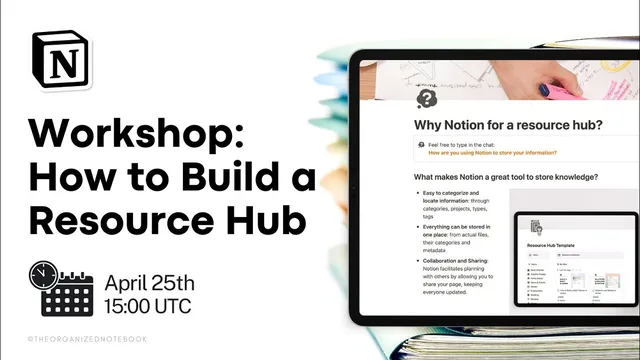
BUILD a Resource Hub with Notion | Store your digital information!
Based on The Organized Notebook's video on YouTube. If you like this content, support the original creators by watching, liking and subscribing to their content.
Build a Notion resource hub with two connected databases: Topics for categories and Resources for the items themselves.
Briefing
A well-structured “resource hub” in Notion can turn scattered digital files, links, and notes into a single searchable system—saving time, reducing clutter, and making collaboration easier. The core idea is to organize everything around clear categories (topics), then connect each item to the right category so resources can be filtered, reviewed, and revisited without hunting through folders.
The session starts with practical organization rules for any digital library: categorize resources by type, project, or study area; use descriptive file names that include dates and context; archive outdated or irrelevant items to prevent the hub from becoming cluttered; and add metadata such as created time, last edited time, and ownership/project association. For storage and reliability, it also points to cloud options like Google Drive, Dropbox, Box.com, and OneDrive, emphasizing that cloud storage helps prevent data loss.
Notion is positioned as a strong hub because it supports categorization and retrieval through properties like projects, types, and tags, while keeping items in one place. It also supports collaboration and sharing by letting teams view and update the same hub page. The workflow described is: create a topics layer, create a resources layer, then link them so each resource “belongs” to one or more topics.
From there, the workshop builds a resource manager from scratch. It creates a “topics” database in gallery view with an “active/archived” status, cover images, and a status property that controls which topics appear in each tab. It then builds a “resources” database in table view, adding properties such as resource name, last edited time (to surface the most recently worked-on items), type (e.g., article, notes), URL, files/media, created time, and a reviewed checkbox. A relation property connects each resource to the appropriate topic, enabling automatic filtering.
To make the dashboard usable, the build uses linked view databases inside a two-column layout: one column for active/archived topics and the other for resources split into last edited, not reviewed, and reviewed views. A key feature is a database template inside the topics database (“new topic”) that automatically creates a per-topic view of related resources. When a new topic is added, the template ensures the resources linked to that topic appear in the correct filtered sections.
The Q&A extends the concept. For home inventory, the advice is to “reframe” the model: treat locations as topics and items as resources rather than forcing a digital-notes-only structure. For subtopics within a big topic, the recommendation is to avoid creating extra databases; instead, add a multi-select “subtopic” property and group resources by that property. File uploads are also described as easy to locate within the database, since Notion stores and surfaces them directly in the relevant record.
Finally, the session promotes a more feature-rich “Resource Hub Plus AI” template that adds AI summaries and review questions to help users study what they’ve saved—turning the hub from a storage system into a lightweight learning workflow. A free template link is offered for a limited time, along with a 40% discount code (April 40) for additional templates.
Cornell Notes
The session lays out a practical blueprint for building a Notion resource hub that organizes digital knowledge into two connected databases: Topics and Resources. Topics track categories with an Active/Archived status, while Resources store items with metadata like URL, files/media, created time, last edited time, and a Reviewed checkbox. Linking Resources to Topics enables automatic filtering and a dashboard that shows active topics plus resource lists split into last edited, not reviewed, and reviewed. A database template (“new topic”) makes the per-topic resource view appear automatically when new topics are created. This matters because it turns a messy collection of links and files into a system that’s searchable, maintainable, and review-friendly.
Why does the hub use two databases (Topics and Resources) instead of one?
What properties make the Resources database useful day-to-day?
How does the “Active/Archived” status improve long-term maintenance?
What does a linked view database accomplish in the dashboard?
How does the per-topic template (“new topic”) make the hub scalable?
How can the same model work for non-digital use cases like home inventory?
Review Questions
- If a resource is not showing up under a topic’s filtered resources list, which properties and connections should be checked first?
- How do Last edited time and the Reviewed checkbox work together to support a repeatable workflow in the hub?
- What’s the trade-off between creating additional databases for subtopics versus using a multi-select “subtopic” property?
Key Points
- 1
Build a Notion resource hub with two connected databases: Topics for categories and Resources for the items themselves.
- 2
Use an Active/Archived status on Topics to keep the main dashboard focused while preserving older categories.
- 3
In Resources, include Last edited time, Type, URL, Files/Media, Created time, and a Reviewed checkbox to support both discovery and workflow.
- 4
Link Resources to Topics via a relation property so filtering works automatically across the dashboard.
- 5
Use linked view databases to present clean dashboard sections without risking the underlying database structure.
- 6
Add a per-topic database template (“new topic”) so each new topic automatically gets filtered resource views (last edited, not reviewed, reviewed).
- 7
For subtopics, prefer adding a multi-select property and grouping by it rather than creating more databases.