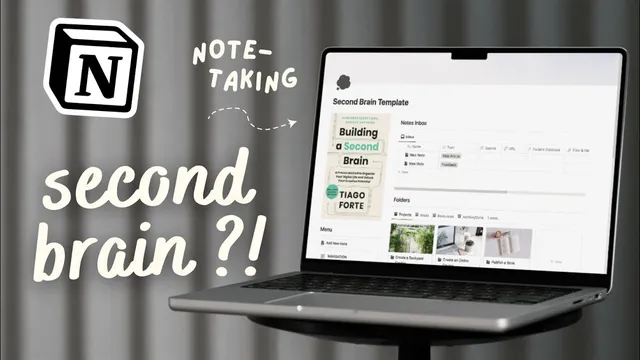
Build a Second Brain? | Game-Changing Way to Organize Your Notes | Notion Template Tour
Based on The Organized Notebook's video on YouTube. If you like this content, support the original creators by watching, liking and subscribing to their content.
Use the Notes Inbox as a temporary holding area for anything not yet tagged to Projects, Areas, or Resources.
Briefing
A “second brain” in Notion is built around one practical idea: keep notes from turning into a pile by routing every item into Projects, Areas, Resources, or an Archive—then run scheduled reviews to keep the system alive. The template tour centers on Tiago Forte’s concept of separating knowledge into meaningful buckets so new notes land in the right place, unfinished items stay visible, and completed or irrelevant material can be stashed away.
The interface is organized with a left navigation menu that jumps to Mobile View, Inbox, Projects, Areas, Resources, Archive, and review pages for Weekly and Monthly check-ins. A key structural element is the Notes Inbox, which acts as a holding area for anything not yet tagged to a folder. From there, users can either tag notes into the correct database or leave them in the inbox until they’re sorted. The template also includes prebuilt databases that shouldn’t be deleted because they power the folder logic and review workflows.
Folders are the backbone of the system, and the tour walks through four main categories. Projects are goal-driven efforts like “write a book,” complete with start and end dates, tags, and fields such as a project description, important questions, an action checklist, and an archive review. Areas represent ongoing parts of life to improve—such as “family”—with fields like current reflection, important questions, and an archive review, but without a required timeline. Resources store general topics to study, like “languages,” again with reflection prompts and important questions to guide note-taking. Finally, Archive/Done provides a place to remove clutter once a project, area, or set of notes is no longer active; items can be moved back to active if needed.
Note capture is designed to be flexible. New notes can be added through the Notes Inbox, where users fill in properties like web bookmarks, embeds, URLs, source type (e.g., web article), key points, tags, and files/media. If a note is tagged to a folder, it automatically appears inside that folder’s database. If the right category isn’t clear yet, the note stays in the inbox until tagging is done. Notes can also be created directly inside a folder, ensuring they land in the correct place from the start.
The template adds a quality-control loop through “needs review” and archiving. Notes marked with a review checkbox surface in a dedicated needs review section; once reviewed, checking it off removes it from that queue. Archiving notes hides them from the main views and reduces the active note count, helping users weed out material that no longer matters.
Weekly and monthly reviews turn the system into a routine rather than a one-time setup. The weekly checklist instructs users to process the inbox (tag notes into folders or archive them), confirm active folders still match current life priorities, decide whether to archive/complete outdated folders, and scan for inspiration by randomly reviewing notes. The review also includes reflection prompts about what went well, what could improve, and what new connections emerged. Monthly reviews repeat the same structure on a larger cadence.
For on-the-go capture, a simplified Mobile View keeps the workflow intact: quick notes can be added immediately, then later categorized on desktop so they enter the correct Projects, Areas, or Resources. The result is a second brain that balances fast capture with deliberate organization and periodic cleanup.
Cornell Notes
The template implements a “second brain” in Notion by routing every note into one of four buckets: Projects (goal-based), Areas (ongoing life improvements), Resources (topic learning), or Archive/Done (inactive material). Notes start in an Inbox when they aren’t tagged yet, then get moved during Weekly and Monthly reviews. A “needs review” checkbox creates a queue for items that must be revisited, while archiving removes clutter from main views. The system matters because it prevents knowledge from accumulating without structure, and it keeps folders aligned with changing priorities through recurring checklists and reflection prompts.
How does the template prevent new notes from becoming disorganized?
What’s the difference between Projects, Areas, and Resources in this system?
What role do “needs review” and archiving play?
Why are Weekly and Monthly reviews central to the template’s design?
How does the template support capturing notes on a phone without breaking the system?
Review Questions
- If a note is created but the correct folder isn’t clear yet, where does it go and what happens later?
- During a Weekly review, which steps ensure folders stay relevant and inbox items don’t linger?
- How do Projects, Areas, and Resources differ in required fields and intended purpose?
Key Points
- 1
Use the Notes Inbox as a temporary holding area for anything not yet tagged to Projects, Areas, or Resources.
- 2
Build your system around four folder types: Projects (goals with dates), Areas (ongoing life improvements), Resources (topic learning), and Archive/Done (inactive items).
- 3
Tag notes to folders to route them automatically; leave them untagged only when categorization can’t be decided immediately.
- 4
Mark items with “needs review” to create a revisit queue, and check them off after review to keep the queue current.
- 5
Archive notes and folders to reduce clutter, with the option to move items back to active if priorities change.
- 6
Run Weekly and Monthly reviews to process the inbox, validate folder relevance, and reflect on progress and new connections.
- 7
Capture on mobile with quick notes, then categorize on desktop so the second brain stays structured over time.