Build a simple online course with Notion: A quick guide ( + free template)
Based on The Organized Notebook's video on YouTube. If you like this content, support the original creators by watching, liking and subscribing to their content.
Build the course homepage with a clear title, cover image, and an introduction section using callouts and toggle lists for compact “About,” “Instructions,” and “Contact.”
Briefing
Notion can be turned into a simple, functioning online course platform by building a page-based structure—an introduction plus modular lesson pages—then publishing the whole thing to the web. The core idea is to avoid databases and instead rely on linked pages, so course navigation stays straightforward and easy to customize.
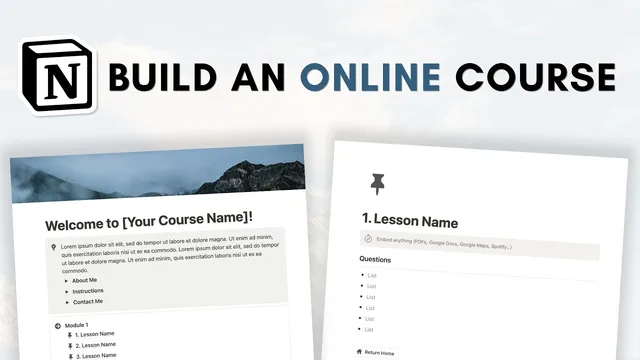
The build starts with an empty Notion page titled with the course name (e.g., “Welcome to [Course Name]”). A cover image is added using Unsplash, giving the course a polished landing look without needing custom assets. Beneath the title, an introduction section is created as a callout block containing a short course description and key information students need before starting. To keep the intro readable, the guide uses toggle lists for compact sections like “About me,” “Instructions,” and “Contact me,” warning that toggles shouldn’t hold too much text because they can make pages grow unwieldy. For contact links, it recommends using a mailto link format—typing the desired link text, highlighting it, clicking Link, then entering “mailto:” followed by the email address—so clicking the text opens an email client.
Next comes the lesson system, organized around modules. Each module is introduced as a callout block (with an icon and a module title such as “Module 1” or “Notion Basics”). Inside each module, new lesson pages are created using “/page” after a Shift+Enter. Each lesson page can include embedded content—such as a YouTube video—via the embed command (“/embed”) and then a link. To reinforce learning, the guide suggests adding a “Questions” section as a heading, followed by bullet points (and notes that duplicating bullets is quick using Command+D). The structure is intentionally flexible: lessons can include videos, web articles, or other embedded resources, with questions or prompts underneath.
To make navigation painless, every lesson includes a “Return home” button that opens the main course homepage in full page mode. The guide notes that Notion may sometimes push lesson pages outside the module container, so the lesson blocks may need to be dragged back into the module. Once one lesson and module layout works, the fastest path to scaling is duplication: duplicate lessons within a module, then duplicate the entire module block to create Module 2, Module 3, and so on. Each lesson can be adjusted by changing titles and embedded content.
Finally, publishing is handled through Notion’s Share menu: clicking Publish to web makes the course live immediately, and the web link can be copied for sharing. The guide advises turning off “duplicate as template” for courses meant for learners rather than template users. It also mentions link expiration and search engine indexing as features tied to the Plus plan, useful for time-limited or paid courses. A finished template link is provided in the description, along with an upgrade link for Notion Plus.
Cornell Notes
The course builder uses Notion’s page and block system to create an online learning hub without databases. It starts with a course homepage (title, cover image, and an intro section using callouts and toggle lists for compact “About,” “Instructions,” and “Contact”). Lessons are organized inside modules: each module is a callout, and each lesson is a nested page that can embed videos or other resources plus self-study questions. Every lesson includes a “Return home” button for navigation. After duplicating modules and lessons to scale, the course is published to the web via Notion’s Publish to web feature, with options like disabling template duplication and (on Plus) link expiration and search indexing.
How does the guide keep the course homepage organized without making it cluttered?
What structure turns a single Notion page into a modular course?
What’s the recommended way to add learning content and practice prompts inside a lesson?
How does the course handle navigation so learners can move back to the main page?
How is the course made available to learners on the web, and what sharing options matter?
Review Questions
- When would toggle lists be a poor choice for course content, and what alternative does the guide imply?
- Describe the steps to create a lesson inside a module and add a “Return home” button.
- What publishing settings does the guide recommend changing for a course meant for learners rather than template users?
Key Points
- 1
Build the course homepage with a clear title, cover image, and an introduction section using callouts and toggle lists for compact “About,” “Instructions,” and “Contact.”
- 2
Use mailto links for email contact by entering “mailto:” followed by the email address in the Link field.
- 3
Organize lessons into modules using callout blocks, then create nested lesson pages inside each module with “/page.”
- 4
Embed lesson content (like videos) with “/embed,” and add self-study prompts using a “Questions” heading plus bullet points.
- 5
Add a “Return home” button inside every lesson to open the main course homepage in full page mode, improving navigation.
- 6
Scale the course by duplicating lesson blocks and then duplicating whole module blocks, updating titles and embedded content as needed.
- 7
Publish to the web via Share → Publish → Publish to web, and disable “duplicate as template” for learner-facing courses; consider Plus-only options like link expiration and search indexing when relevant.