Build an Advanced YouTube & Social Media Content Calendar in Notion | AI & Automations
Based on The Organized Notebook's video on YouTube. If you like this content, support the original creators by watching, liking and subscribing to their content.
Create two linked Notion databases: one for tasks (with Done, Due date, and Type) and one for the content schedule (with Date, Platform, and Posted status).
Briefing
An advanced Notion setup can automatically turn a YouTube or Instagram posting plan into a timed task queue—complete with AI prompts for scripts, captions, and tags—so creators stop manually rebuilding workflows every time they schedule content. The system centers on two linked databases: a “content planner tasks” table that holds step-by-step work (with due dates and completion status), and a “content schedule” calendar that represents each planned post/video.
The build starts with a clean Notion dashboard (“Advanced content planner”) and then adds the two core databases. The tasks database uses properties like task name, a Done checkbox, a Due date, and a Type select that defines workflow stages. For YouTube, the example workflow is scripting, filming and editing, thumbnail and title, and posting. The content schedule database is a calendar view where each planned item (e.g., “Full notion guide” on YouTube) stores at least a date, a platform (YouTube/Instagram), and a Posted status with color coding (red for not posted, green for posted). The crucial step is linking the two: each scheduled item relates to the tasks database via a two-way relation, and a rollup surfaces key fields (like platform) back into the schedule.
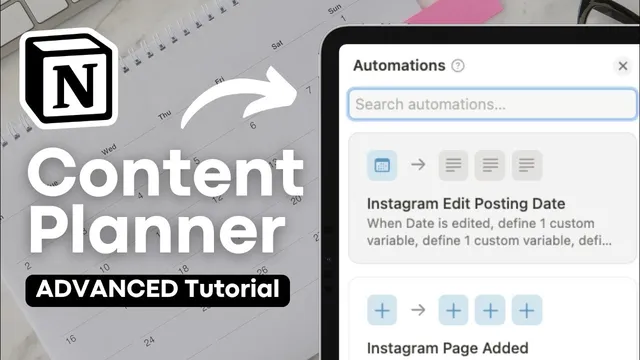
From there, automation makes the calendar actionable. Custom filtered views (notably a “YouTube” view) ensure automations trigger only for the right platform. When a new page is added to the YouTube schedule view, Notion automation creates the required tasks automatically in the tasks database. Due dates are calculated with formulas relative to the posting date: scripting is set for 7 days before the post, filming and editing for 5 days before, thumbnail and title for 3 days before, and posting uses the scheduled date itself. A second automation handles edits: if the posting date changes, all previously generated task due dates shift accordingly using the same relative offsets.
The workflow then scales to other platforms by duplicating the views and automations. For Instagram, the example workflow is create graphic, caption, and posting, with due dates set to 5 days before, 3 days before, and the posting date respectively. A filter prevents tasks from being generated until a date exists, using a “no date” view for collecting ideas without triggering the task pipeline.
Finally, database templates add AI into the loop. Templates for new YouTube videos and Instagram posts embed AI custom blocks tied to the task list—such as prompts to “create a YouTube script based on this title,” generate descriptions, and produce tags/hashtags. When a creator selects a template and fills in the title and platform, the system preloads the task list and the AI prompts, so generating content drafts becomes a click-driven step rather than a fresh setup.
The result is a dynamic content engine: schedule a post, watch tasks appear with correct timing, edit the date and see everything update, and use templates to generate drafts and metadata—while keeping undated ideas safely in a separate “no date” holding area.
Cornell Notes
The setup builds two linked Notion databases: a tasks database (with Done status, due dates, and workflow “Type”) and a content schedule calendar (with date, platform, and Posted status). A two-way relation connects each scheduled post/video to its tasks, and rollups expose key fields like platform. Notion automations then generate the correct task steps automatically when a new schedule entry is added to a platform-specific view, using due-date formulas relative to the posting date (e.g., YouTube scripting = 7 days before). A second automation updates all task due dates whenever the posting date changes. Templates add AI prompts so each scheduled item comes with ready-to-use script/caption/tag generation blocks.
How do the two databases work together to keep tasks tied to a specific post or video?
Why are platform-specific views (like “YouTube”) essential for automation?
How are task due dates calculated from the posting date?
What happens when the posting date is edited after tasks already exist?
How does the system prevent tasks from being created for ideas that don’t have a date yet?
How do templates and Notion AI fit into the workflow?
Review Questions
- If a YouTube posting date changes from the 18th to the 25th, which automation updates the already-created tasks, and how do the due dates shift?
- What properties must exist in the content schedule database for the automation to generate tasks correctly (name the key ones used in the transcript)?
- How would you modify the task offsets if you wanted Instagram tasks to start earlier than 5 and 3 days before the posting date?
Key Points
- 1
Create two linked Notion databases: one for tasks (with Done, Due date, and Type) and one for the content schedule (with Date, Platform, and Posted status).
- 2
Use a two-way relation plus a rollup to connect each scheduled post/video to its generated tasks and surface key fields like platform.
- 3
Build platform-specific filtered views (e.g., YouTube, Instagram) so automations trigger only for the intended platform.
- 4
Use Notion automation with custom formulas to set task due dates relative to the schedule date (e.g., YouTube scripting = date minus 7 days).
- 5
Add a second automation that updates all related task due dates whenever the schedule date is edited.
- 6
Prevent premature task creation by filtering automations to run only when the schedule item has a non-empty date, while keeping ideas in a “no date” view.
- 7
Use database templates to preload task lists and embed Notion AI prompts for scripts, captions, and tags/hashtags.