Building A Book Library In Obsidian
Based on FromSergio's video on YouTube. If you like this content, support the original creators by watching, liking and subscribing to their content.
Install and configure the Book Search plugin to write new book notes into a dedicated “books” folder.
Briefing
A practical Obsidian setup turns a folder of Markdown book notes into a searchable, filterable “book database” using two plugins: Book Search and Dataview. The core payoff is that book metadata lives in YAML front matter (title, author, rating, status, finished date), while Dataview generates live tables—so lists like “Favorite Books” and “To Read” update automatically as statuses change.
The workflow starts by installing the Book Search plugin from Community Plugins and configuring it to write new entries into a dedicated folder named “books.” Book Search is treated as a combined tool: it both runs a script and applies a template when creating a new book file. When adding a book (example: “Ego is the Enemy” by Ryan Holiday), the plugin auto-creates a Markdown note inside the “books” folder and fills in default fields. The setup then gets refined by customizing which YAML headers matter. Instead of keeping unwanted default values, the configuration is adjusted so the template includes user-defined fields: rating, status, and date finished (the transcript references YAML headers like rating, date read, and status, with status values such as “to read” or “complete”).
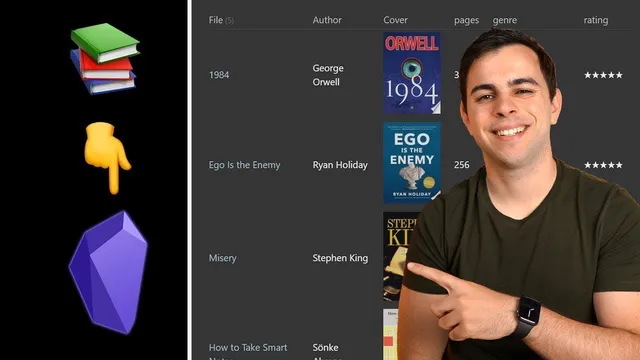
With the book notes standardized, the next step is building Dataview tables that act like dashboards. A Dataview query is copied from an existing vault and adapted into a new page called “favorite books.” The table is configured to display author as a capitalized column header, include a cover image with a specified size (set via a numeric value like 100), and map fields such as pages and category/genre for display. Most importantly, the query pulls rows from the “books” folder and filters by status—initially showing only books marked “complete.” In preview mode the table appears empty until at least one book matches the filter; after changing a book’s status to “complete” and refreshing, the entry appears.
To support a reading workflow, a second Dataview page called “to read list” is created by duplicating the favorite-books query and changing the status filter from “complete” to “to read.” When a book is read, the status flips to “complete,” the finished date is filled in, and a rating is added using a shortcut for star ratings (Command-5). Because the tables are driven by YAML fields, both dashboards update immediately.
The setup also leverages Book Search templates beyond front matter. Prompts can be inserted into either front matter or the note content—examples include “summarize book in three sentences”—so review notes can be generated consistently. Finally, an “author page” template is created using Obsidian’s Templates plugin. The template adds tags (like an author tag) and a genre field, then a simple Dataview table placeholder is used to list books for a given author. Creating an author page for Ryan Holiday automatically lists his books from the database, and adding a new Ryan Holiday book later (e.g., “The Daily Stoic”) makes it appear on the author page without manual table edits.
Cornell Notes
The system builds a book database in Obsidian by standardizing each book note with YAML front matter and then using Dataview to render live tables. Book Search creates new book files in a dedicated “books” folder and applies a template that includes custom fields such as rating, status (e.g., “to read” or “complete”), and date finished. A “favorite books” Dataview page filters for status = “complete,” while a “to read list” page filters for status = “to read,” so both lists update as statuses change. Book Search templates can also insert prompts (like summarizing in three sentences) into front matter or note content. An “author page” template plus Dataview provides an auto-updating view of all books by a chosen author.
How does Book Search turn a single entry into a structured book note inside Obsidian?
Why does the Dataview “favorite books” table initially show no results?
How are “Favorite Books” and “To Read” kept in sync without manual editing?
What role do cover size and field mapping play in the Dataview table?
How do Book Search prompts and templates fit into the workflow?
How does the author page auto-update when new books are added?
Review Questions
- What YAML fields are added or customized in the Book Search template to support rating, reading status, and finished dates?
- How do the Dataview filters differ between the “favorite books” page and the “to read list” page?
- What mechanism ensures an author page updates automatically when a new book by that author is added?
Key Points
- 1
Install and configure the Book Search plugin to write new book notes into a dedicated “books” folder.
- 2
Customize the Book Search template so YAML front matter includes rating, status, and date finished/read fields.
- 3
Use Dataview tables to generate live “Favorite Books” and “To Read” dashboards by filtering on the status YAML field.
- 4
Set display options in Dataview (like cover image size) and map fields for consistent table columns (e.g., category shown as genre).
- 5
Update a book note’s status, finished date, and rating to move it between lists without rewriting the tables.
- 6
Use Book Search prompts/templates to standardize book review content, not just metadata.
- 7
Create author pages with Obsidian Templates plus Dataview so they auto-populate based on the author field in the “books” folder.