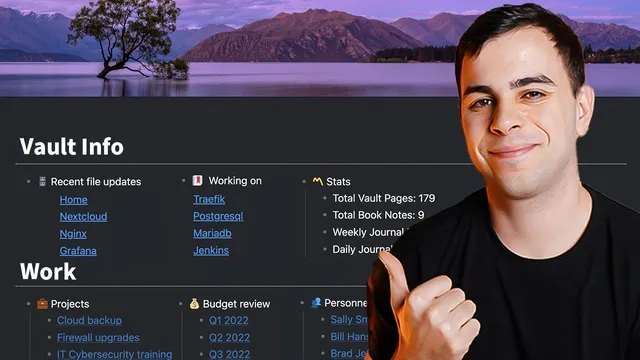
Building a USEFUL Dashboard in Obsidian
Based on FromSergio's video on YouTube. If you like this content, support the original creators by watching, liking and subscribing to their content.
Enable CSS Snippets in Obsidian and copy dashboard.css into the vault’s .obsidian/snippets folder to activate the dashboard plus plus styling.
Briefing
A ready-to-use “home dashboard” can be built inside an Obsidian vault by installing a community CSS snippet (“dashboard plus plus”) and pairing it with DataViewJS queries for live lists and vault stats. The payoff is a single page—typically named “home”—that stays organized and automatically updates as notes change, without requiring users to write CSS from scratch.
Setup starts in Obsidian’s Settings under Appearance, where CSS Snippets can be enabled by pointing Obsidian to its Snippets folder inside the vault’s .obsidian directory. The required file, dashboard.css, is pulled from the dashboard plus plus project repository and copied into that Snippets folder. A key practical detail: a recent DataView update caused CSS conflicts, so the snippet’s dashboard.css was updated quickly to stay compatible.
With the CSS snippet installed, a new page (the “home” page) is created and given a YAML header that applies the dashboard CSS class. At first, preview mode shows little because the page has no content yet. The next step is pasting the dashboard plus plus markdown template from the repository into the page, which provides the structure: a header plus nested lists that render as the dashboard layout.
To improve readability and spacing, the walkthrough adjusts editor behavior. It turns off “readable line length” for the dashboard look, but avoids breaking line wrapping across the entire vault by adding a second CSS snippet (dashboard-ReadableLineLength.css). Enabling that snippet restores the desired white-margin dashboard formatting while keeping the editor’s readable line length setting on.
Once the dashboard renders, the most valuable part is the built-in query system. The template includes sections for “recent file updates,” “favorites,” and “vault info” counters. These lists are driven by DataViewJS, which requires DataView installed plus JavaScript query permissions enabled in DataView settings (both JavaScript queries and inline JavaScript queries). After refreshing the home page, the dashboard populates with live results.
The “recent file updates” query returns the last four edited notes by default, with configurable parameters: the number of results (e.g., 10 instead of 4), filters like folder name (e.g., “movies”), and tag-based selection (e.g., “weekly review”). The “favorites” query pulls notes tagged “favorite,” making frequently used pages one click away. Vault statistics queries count pages globally and within specific paths such as “family/recipes.” The template can be extended by copying a counter query and changing the parameters—for example, counting “weekly journal entries” under a “Journal/weekly” structure.
Finally, the dashboard can be enhanced with two automation plugins. The banners plugin adds a customizable image banner to the page using a local image downloaded from Unsplash, with banner height adjustable (the walkthrough uses 500). The homepage plugin then forces Obsidian to open directly on the “home” page, with optional DataView query support enabled and a hotkey assigned (Command H, then H) to jump to the dashboard from anywhere in the vault.
Cornell Notes
Installing “dashboard plus plus” turns an Obsidian page into a structured, auto-updating dashboard. The process involves enabling CSS Snippets in Obsidian, copying dashboard.css into the vault’s .obsidian/snippets folder, and creating a “home” page with a YAML header that applies the dashboard CSS class. The dashboard layout is filled by pasting the dashboard plus plus markdown template, then enabling DataViewJS so built-in queries populate sections like recent edits, favorites, and vault statistics. Optional CSS (dashboard-ReadableLineLength.css) preserves a clean dashboard margin without changing readable line length for the whole vault. Plugins like banners and homepage add a banner and make the dashboard the default landing page, with a hotkey for quick access.
What exact steps make the dashboard CSS work inside an Obsidian vault?
How does the “home” page get the dashboard styling?
Why is DataViewJS required, and what settings must be enabled?
How can the “recent file updates” list be customized?
How do favorites and vault counters work, and how can new counters be added?
What plugins improve usability beyond the dashboard layout?
Review Questions
- What files must be placed into the vault’s .obsidian/snippets folder, and what Obsidian settings must be enabled for them to take effect?
- How do you modify the dashboard’s recent updates query to switch between “whole vault,” a specific folder, and a specific tag?
- What DataView settings are necessary for DataViewJS queries to render inside the dashboard?
Key Points
- 1
Enable CSS Snippets in Obsidian and copy dashboard.css into the vault’s .obsidian/snippets folder to activate the dashboard plus plus styling.
- 2
Create a “home” page with a YAML header that applies css class: dashboard, then paste the dashboard plus plus markdown template to populate the layout.
- 3
Turn on DataView and enable both JavaScript queries and inline JavaScript queries so DataViewJS sections (recent updates, favorites, stats) render.
- 4
Customize dashboard query behavior by adjusting parameters like limit, folder filters, and tag filters (e.g., weekly review).
- 5
Use the dashboard-ReadableLineLength.css snippet to get the dashboard’s white-margin look without disabling readable line length for the entire vault.
- 6
Add a banner with the banners plugin (local image, adjustable height) and make the dashboard the default landing page with the homepage plugin plus an optional hotkey.