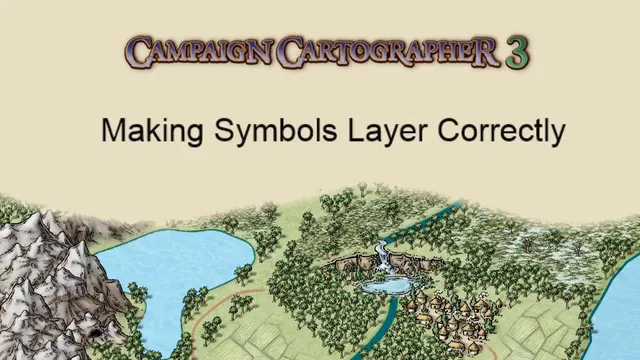
CC3+ - Making Symbols Layer Correctly
Based on Josh Plunkett's video on YouTube. If you like this content, support the original creators by watching, liking and subscribing to their content.
Sheets, not layers, control whether one symbol renders above another in CC3+.
Briefing
Correct symbol stacking in CC3+ depends less on “layers” and more on “sheets.” When symbols share the same sheet, the familiar move tools (send forward / send back) work reliably; when they’re on different sheets, those tools may appear to do nothing because sheet order—not per-object stacking—controls what sits on top.
A common stumbling block shows up with trees. If trees are placed in the wrong order (or moved inconsistently), trunks can overlap in a visually incorrect way—especially when some tree symbols end up effectively in front of others. The practical fix starts with using the correct stacking command for entities on the same sheet: send back can push an object behind everything else, and repeated use can “undo” earlier corrections. Instead, the workflow that produces consistent results is to use the “move above entity” style command (triggered via the bring-in-front control that reads “move above entity”), then select the target entity and right-click to reposition the chosen tree(s) above the one they should overlap.
Once the per-object stacking tools are understood, sheets become the real control panel. In CC3+, layers (the layer list) group and toggle visibility, but they don’t determine whether one symbol appears above another. Sheets do. The sheet list typically includes items like a background and a map border, with symbol sheets such as roads and symbol trees. Roads are meant to sit underneath trees, so a road symbol placed on the roads sheet will render below trees that are on symbol trees. If a road appears above trees, it’s usually because the road is on the wrong sheet.
CC3+ also provides a “list” command that reveals where an entity lives—showing, for example, that a selected tree is on the symbol trees sheet while a selected road is on the roads shape. From there, the “edit properties” workflow lets the user move an entity to the correct sheet (e.g., changing a road to symbol trees to test stacking behavior, or correcting it back so roads sit under trees). The key rule is directional: the bottom of the sheet stack renders in front, while the top renders behind (as described in the walkthrough).
For bulk corrections, the transcript highlights an efficiency trick tailored to trees: using a symbol sort command (typed as “sim sort” in the command prompt) selects a group of symbols and automatically sorts them so back trees end up behind front trees. That avoids manually fixing dozens of overlaps.
The final nuance is that sheet assignment can be wrong even when stacking tools are used. A mountain placed on the wrong sheet can appear on top of trees; correcting it involves moving the mountain to the intended sheet (or moving the trees to the correct sheet) and then using refresh/reset to reapply the sheet-based ordering. The takeaway is straightforward: use sheets to define global front/back behavior, use send/bring tools only when objects share a sheet, and rely on symbol sorting for large tree groups.
Cornell Notes
CC3+ stacking is governed primarily by sheets, not layers. When two symbols are on the same sheet, send forward/send back (and “move above entity”) can correct overlap order; when they’re on different sheets, those tools may not affect what appears on top. The “list” command helps identify which sheet an entity belongs to, and “edit properties” moves entities to the correct sheet (e.g., roads under symbol trees). For many trees, “sim sort” can automatically sort symbols so back trees render behind front trees. Getting sheet assignments right prevents confusing cases like mountains appearing above trees.
Why do send forward/send back sometimes seem to “do nothing” for symbols in CC3+?
What’s the recommended way to fix incorrect tree overlap when trees were placed or moved in the wrong order?
How can someone confirm which sheet a selected symbol is on?
How do sheets differ from layers for controlling what appears on top?
What’s the purpose of “sim sort” for trees?
What should be done when a mountain appears on top of trees even after trying stacking tools?
Review Questions
- How would you diagnose whether a road is rendering above trees: which command would you run first, and what would you look for in the results?
- Under what condition do send forward/send back commands work as expected for symbols, and why might they fail across different sheets?
- When dealing with dozens of overlapping trees, what command can automatically sort them, and what problem does it solve?
Key Points
- 1
Sheets, not layers, control whether one symbol renders above another in CC3+.
- 2
Send forward/send back reliably affect stacking only when the involved entities are on the same sheet.
- 3
Use the “move above entity” workflow to correct tree overlap without repeatedly pushing objects to the extreme back.
- 4
Run the “list” command to identify an entity’s sheet assignment before changing anything.
- 5
Use “edit properties” to move entities to the correct sheet (e.g., roads under symbol trees).
- 6
For large groups of trees, “sim sort” can automatically sort back trees behind front trees.
- 7
If a mountain or other object appears in the wrong depth relative to trees, correct the sheet assignment and then refresh/reset.