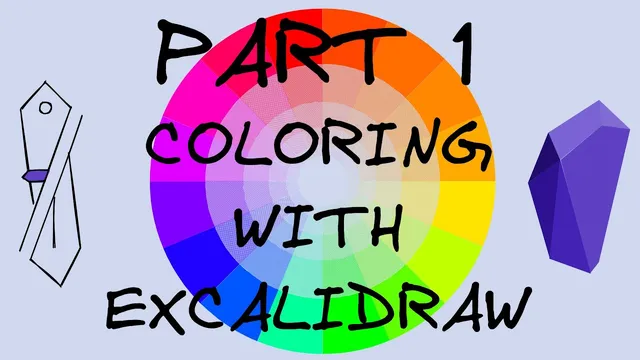
Colorful Second Brain - Part 1: Crafting your colors in Excalidraw-Obsidian
Based on Zsolt's Visual Personal Knowledge Management's video on YouTube. If you like this content, support the original creators by watching, liking and subscribing to their content.
Treat fill (“background”) and stroke as separate color channels; transparency and disappearance can differ between them.
Briefing
Color choice is the difference between a second brain that clarifies ideas and one that overwhelms them—and Excalidraw’s color system in Obsidian is flexible enough to support both. The session lays out practical ways to control fill, stroke, opacity, and color formats, then shows how to reuse styles and automate color changes with Excalidraw-Obsidian scripts. The payoff is a workflow where colors aren’t guesswork: they’re specified, copied, mixed, and batch-adjusted.
The walkthrough starts with element-level controls. A rectangle’s fill and border (“background” vs “stroke”) can be set independently, but transparency behaves differently for each: setting the fill to transparent works, while stroke requires entering “transparent” manually in the edit box. Opacity is then demonstrated as a spectrum—fully transparent on one end, fully opaque on the other—and the consequences of semi-transparent strokes become clear when overlapping elements: a “black” border can appear gray because the stroke itself is semi-transparent.
Dark mode introduces another critical detail: colors invert. A stroke labeled “black” renders as white, and a “white” fill requires typing the opposite value because the system flips the palette. That inversion can feel confusing at first, but the session frames it as a predictable rule once you know to mentally swap light and dark.
Next comes color representation. Excalidraw accepts multiple formats: HTML color names (like “dark green”), hexadecimal, RGB, and HSL. Hex and RGB are tied to the same underlying mixing model—RGB uses three values (0–255) for red, green, and blue, with 255 mapping to “ff” in hex. HSL shifts the mental model to a wheel: hue is an angle (0–366 degrees), saturation controls vibrancy (0% becomes gray), and lightness moves from black (0%) through mid-range (50%) to white (100%). Opacity can be added across formats: an extra alpha value for RGB/hex, and a final alpha number for HSL (0 meaning transparent, 1 meaning fully opaque).
To avoid typing numbers, the session recommends two color-picking routes: copy/paste from an online color picker, or use an OS-level picker (PowerToys on Windows, Digital Color Meter on macOS). It also highlights Excalidraw’s style transfer: right-click an object, copy its style, then paste it onto another object to replicate fill and stroke settings quickly.
Finally, the session moves from manual control to automation. Using the Excalidraw script engine scripts in Obsidian, it demonstrates changing fill styles (including zigzag and dots, with a performance warning for large dotted shapes), adjusting background opacity without forcing the stroke to change, and batch operations like darkening/lightening backgrounds via HSL lightness adjustments. A special trick targets “open” shapes: convert a free-drawn object into line form, apply background color using a shadow/clone-based script, then ungroup to reveal a colorable background layer. The session closes by previewing future episodes focused on choosing palettes, switching them on the fly, and applying consistent coloring across an Obsidian “world” (headings, callouts, highlights).
Cornell Notes
The session shows how to control Excalidraw colors inside Obsidian with precision rather than guesswork. It distinguishes fill (“background”) from stroke, explains how transparency and dark mode inversion affect what you see, and maps the main color formats Excalidraw accepts: HTML names, Hex, RGB, and HSL (including how to add opacity/alpha). It then provides practical ways to obtain colors—copy/paste from color pickers or use OS tools like PowerToys (Windows) and Digital Color Meter (macOS)—and how to reuse styling via copy/paste of object styles. Finally, it demonstrates script-based automation for fill styles, background opacity, darken/lighten adjustments, and coloring open shapes by converting them and applying a background layer.
Why do “transparent” and opacity behave differently for fill vs stroke in Excalidraw?
What changes in dark mode, and how should a user compensate?
How do Hex, RGB, and HSL represent the same color idea in different ways?
How can opacity be added across color formats?
What are the fastest ways to get and reuse colors without manual numeric entry?
How do Excalidraw script engine scripts help with color automation and tricky shapes?
Review Questions
- How does dark mode inversion change the meaning of “black” and “white” inputs in Excalidraw?
- Compare RGB and HSL: what does each control, and how would you make a color gray using HSL?
- What script-based approach allows coloring an open (non-connected) shape, and why is ungrouping useful afterward?
Key Points
- 1
Treat fill (“background”) and stroke as separate color channels; transparency and disappearance can differ between them.
- 2
Expect dark mode to invert colors, so “black” and “white” inputs effectively swap what you see.
- 3
Use RGB/Hex when you think in red-green-blue mixing, and use HSL when you want to control hue, saturation, and lightness directly.
- 4
Add opacity via alpha values across formats (HSL alpha after a comma, RGB alpha via “a”, hex opacity on a 0–ff scale).
- 5
Avoid manual color math by using a color picker (online or OS tools like PowerToys / Digital Color Meter) and then paste the chosen value.
- 6
Reuse styling quickly by copying an object’s style and pasting it onto other elements instead of reselecting colors and opacities.
- 7
Automate color changes with Excalidraw script engine scripts for batch lightness/opacity adjustments, fill-style swaps, and special handling of open shapes.