Colorful Second Brain - Part 4: Scripting Color with Color Master in the Obsidian Excalidraw plugin
Based on Zsolt's Visual Personal Knowledge Management's video on YouTube. If you like this content, support the original creators by watching, liking and subscribing to their content.
Color Master objects can be created from Excalidraw element colors and converted between representations like hex and HSL for inspection and editing.
Briefing
Color Master scripting in the Excalidraw plugin lets users generate new color artwork and also “repaint” existing drawings by rotating every element’s colors around a color wheel—while even updating the canvas background. The core workflow is consistent: pull colors from Excalidraw elements, convert them into Color Master objects, apply transformations (like hue shifts), then write the transformed colors back to the drawing and push the updated elements to the view.
The session starts with a practical setup for scripting inside Obsidian’s Excalidraw automation environment. After opening the developer console (Ctrl+Shift+I / Cmd+Shift+I), the script uses an “EA” convenience variable to access the active Excalidraw view. From there, it demonstrates how to grab the selected element, inspect its properties (including background color), and create a Color Master object via getColorMaster. Once a Color Master object exists, it can be represented in different color spaces (hex, HSL) and queried with helper functions that classify colors (cool vs. dark, etc.). Transformations are equally direct: shifting hue by degrees moves the color around the wheel, which becomes the foundation for the first real script.
The first script builds a color gradient by iterating across hue angles. It defines a step size (in degrees) and a starting color (red), then loops from 0 to 360 degrees. For each step, it sets the drawing element’s background color to the current hue’s hex value, draws a rectangle at an x-position tied to the loop index, and then advances the hue. After generating a dashed, blocky gradient, the script is refined by switching fill style to solid, setting roughness to 0 (attack), and copying the background color into the stroke color so the rectangles look cleaner. Smaller step sizes (like 10 or even 2 degrees) produce a near-continuous gradient.
The second script transforms an existing drawing by shifting every element’s colors. It collects all view elements, copies them into the Excalidraw automation object for editing, and for each element reads its stroke and background colors as Color Master objects. It then applies a hue rotation (e.g., +30 degrees) and writes the resulting hex values back to the element’s stroke and background. A key complication appears with transparent colors: Color Master doesn’t recognize the literal “transparent,” and treating it like a real color can collapse it into black. The fix is guard logic that checks whether a color string equals “transparent” (case-normalized) and skips transformations for those elements. The script also updates the canvas background by reading and modifying App State via the Excalidraw API updateScene call; otherwise, the background can fail to shift even when element colors do.
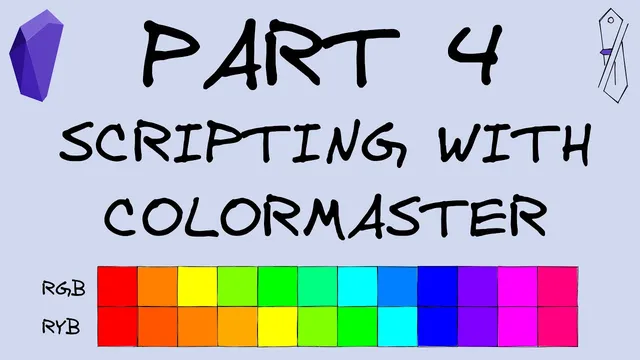
Finally, the session expands beyond hue rotation into color relationships and alternate color-wheel behavior. It demonstrates mixing colors with Color Master’s mix function (e.g., blending a blue with dark gray at adjustable ratios) and generating harmonies like complementary colors. For a more unusual goal—an RYB wheel gradient—it uses a trick: Color Master computes in RGB space, but the script remaps hue-derived RGB components by treating the RGB “green” channel as the RYB “yellow” channel. By swapping that component in the constructed Color Master object, the resulting gradient aligns with RYB expectations (e.g., midpoint hues shift from yellow toward orange). The overall takeaway is that Color Master’s functions plus App State updates enable both generative gradients and full-scene recoloring, with enough control to handle transparency and even remap color-wheel semantics.
Cornell Notes
Color Master scripting in the Excalidraw plugin enables two big tasks: generating gradients from hue angles and recoloring an existing drawing by rotating every element’s colors around a color wheel. The gradient script loops through 0–360 degrees, sets rectangle fill/stroke colors from Color Master hex values, and refines appearance via fill style and roughness. The recoloring script collects all view elements, converts each element’s stroke/background to Color Master objects, applies a hue shift, and writes hex values back—while skipping “transparent” to avoid it turning into black. Updating the canvas background requires changing App State through the Excalidraw API updateScene. A final trick remaps RGB-derived hue values to approximate an RYB wheel by swapping the green channel into the yellow role.
How does a script turn an Excalidraw element color into something it can transform?
What’s the simplest way to generate a hue-based gradient?
How does the recoloring script shift colors across an entire scene?
Why does transparency break recoloring, and how is it handled?
How can the canvas background be recolored if it isn’t an element?
How does the script approximate an RYB color wheel gradient using an RGB-based engine?
Review Questions
- When shifting hue for every element, which properties must be transformed to fully recolor a drawing (stroke, background, and/or canvas background), and where does each live?
- What guard condition prevents transparent colors from turning into black during hue transformations?
- Describe the RYB trick in terms of which RGB channel is repurposed and why that changes the perceived wheel behavior.
Key Points
- 1
Color Master objects can be created from Excalidraw element colors and converted between representations like hex and HSL for inspection and editing.
- 2
A hue-gradient generator can be built with a simple loop over 0–360 degrees, placing rectangles whose fill/stroke colors come from hue-shifted Color Master hex values.
- 3
Recoloring an existing drawing requires iterating through all view elements, shifting hue for each element’s stroke/background, and pushing modified elements back to the view.
- 4
Transparent must be treated as a special case; skipping transformations for color strings equal to “transparent” avoids collapsing them into black.
- 5
Canvas background color is stored in App State, so it must be updated via the Excalidraw API updateScene rather than through element recoloring alone.
- 6
Color relationships like mixing and harmonies (e.g., complementary colors) are available through Color Master functions such as mix and harmony-related helpers.
- 7
An RYB wheel gradient can be approximated by remapping RGB-derived components—specifically treating the RGB green component as the RYB yellow component when constructing the converted color.