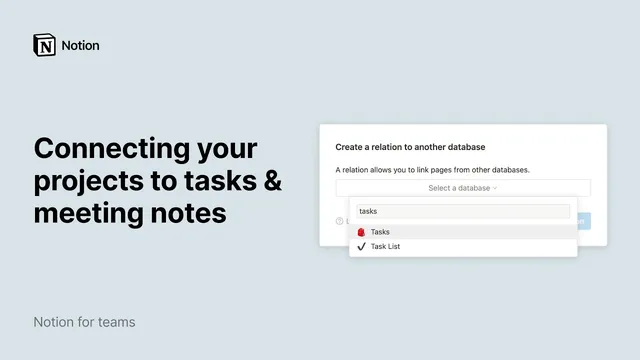
Connecting your projects to tasks & meeting notes
Based on Notion's video on YouTube. If you like this content, support the original creators by watching, liking and subscribing to their content.
Create a “Projects” database page per initiative and store high-level properties like timeline, team, and priority.
Briefing
Notion’s database relations let teams bundle a project’s big-picture details with the tasks and meeting notes that support it—so nobody has to hunt across pages to understand what’s happening. The setup starts with a “Projects” database that stores high-level initiatives (like timeline, product manager, engineer team, and priority) and gives each project its own dedicated page for mixed content such as code snippets, videos, PDFs, and Figma files.
From there, two supporting databases provide the operational and documentation layers: a “Tasks” database where each entry is a specific engineer action (often viewed in board form by status), and a “Meeting Notes” database that holds the notes tied to work. Notion’s strength is that the same underlying data can be displayed in multiple database views—table, board, timeline, calendar, list, or gallery—so teams can look at tasks in the format that matches how they plan and track work.
The core workflow is creating relation properties inside the “Projects” database. First, a new property is added (for example, “Tasks”), and the property type is set to Relation. The relation configuration prompts the user to choose which database to connect; selecting the “Tasks” database and creating the relation links each project to one or more task pages. The same steps are repeated to add a second relation property (for example, “Meeting Notes”) that connects the “Projects” database to the “Meeting Notes” database.
After the relations exist, linking becomes a matter of selecting relevant entries from dropdown lists. When a team member clicks the empty relation field next to a project, Notion surfaces all tasks (or notes) from the connected database. Choosing the items via the blue plus buttons attaches them to that project, and the selected pages then appear as the project’s associated work. This creates a fast path to context: opening a task or meeting note from within a project eliminates the need to search separately.
Relations also mirror automatically in both directions. Adding a relation property in one database causes the same relation to appear in the related database as well—so tasks can show which project they belong to, and meeting notes can show their associated project. The result is a “fully connected” projects view where cross-functional teams can jump into any project and immediately see the relevant tasks and meeting notes together, improving collaboration and reducing missed context. Because relations are bidirectional, adding a task or note can also include selecting its project from the related database, keeping the system consistent as work evolves.
Cornell Notes
The key idea is to connect Notion databases so each project page automatically links to the tasks and meeting notes that belong to it. A “Projects” database holds high-level initiative details, while separate “Tasks” and “Meeting Notes” databases store the execution and documentation. By adding Relation properties in the Projects database (one pointing to Tasks, another pointing to Meeting Notes), each project can be associated with multiple task pages and multiple note pages. Notion mirrors these relations in the connected databases, so tasks and meeting notes also show their related project. This bundling gives teammates instant context and reduces time spent searching across pages.
How do relation properties change what a project page contains in Notion?
What’s the practical difference between the Projects database and the Tasks database?
How does Notion let teams view the same database data in different ways?
What does “bidirectional” relations mean for connected databases?
How do teams actually select which tasks and notes belong to a project?
Why does linking meeting notes to projects improve collaboration?
Review Questions
- When creating a relation property in the Projects database, what property type must be selected and what database must be chosen?
- How does a bidirectional relation affect what appears in the Tasks or Meeting Notes database after linking from Projects?
- What are at least three different database view types mentioned, and how might each be useful for tasks or projects?
Key Points
- 1
Create a “Projects” database page per initiative and store high-level properties like timeline, team, and priority.
- 2
Add a Relation property in the Projects database that points to the “Tasks” database to link relevant task pages to each project.
- 3
Add a second Relation property in the Projects database that points to the “Meeting Notes” database to attach meeting documentation to each project.
- 4
Select related entries using the dropdown and blue plus buttons so tasks and notes appear directly on the project page.
- 5
Expect relations to mirror automatically in connected databases, enabling navigation from tasks or notes back to the project.
- 6
Use different database views (table, board, timeline, calendar, list, gallery) to match how teams plan, track, and review work.