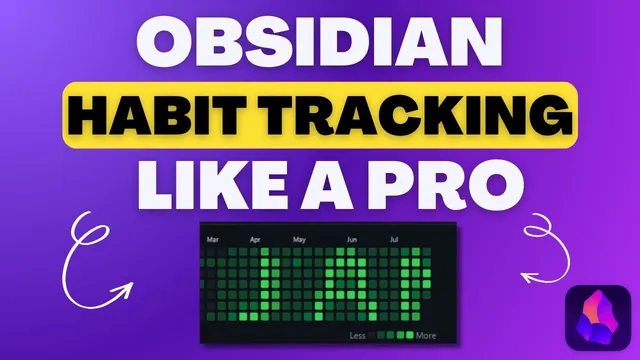
Contribution Graph: The Easiest Way to Track Habits in Obsidian
Based on Prakash Joshi Pax's video on YouTube. If you like this content, support the original creators by watching, liking and subscribing to their content.
Install Contribution Graph and also install Data View, since Contribution Graph depends on it to read note data.
Briefing
A new Obsidian plugin called Contribution Graph turns habit tracking into a simple, code-free heat map—using the same visual language as GitHub’s contribution calendar—so checkmarks, numbers, and even task completions can be tracked over time without building custom scripts. After installing the plugin (and its dependency, Data View), users can add a heat map via a visual editor, assign a hotkey, and configure the exact source files, date field, and property to visualize.
The setup starts with installing Contribution Graph from the community plugins list, enabling it, and installing Data View if it isn’t already present. Once enabled, users can open the heat map editor through a hotkey (the transcript uses Control + H) or the command palette. From there, the core configuration determines what the calendar represents: a title, a graph type (Git-style, Month Track, or Calendar), and a date range. The default range is the latest 180 days, with options like 365 days for a full year, or “latest whole month” / “latest whole year” style presets.
Next comes the data wiring. Users choose a Source—commonly a Daily Notes folder such as a journal path—then select the date field that drives which day each entry lands on. By default, the plugin uses file creation time, but it can also use date attribution from daily note properties or file name formats (via autodetect). The Count field selects which property to read from each note. For checkbox-style habits, the Count field points to a single property (for example, an “exercise” checkbox). In preview, completed days appear as filled cells, while unchecked days remain blank.
The visual output is highly customizable. Users can switch themes, adjust whether the graph fills the screen, and control cell sizing by setting minimum width and minimum height—allowing square cells or rectangular blocks. Style settings also include shadow and background color options, plus cell style rules that map value ranges to different colors. For checkbox habits, only two states exist (true/false), so only two colors typically appear.
For numeric habits, Contribution Graph becomes a progress dashboard. Instead of a checkbox property, daily notes store values like minutes read or pages written. The heat map then uses color thresholds to represent ranges (e.g., 1–10 minutes, 10–20, 20–30, and so on). The transcript demonstrates using a limited palette when a property only has two values, then expanding to multiple color bands for richer numeric tracking. Users can also pull color palettes from external palette sites to tune the look.
Beyond habits, the same mechanism tracks other activity types: file creation counts (how many notes were created per day), and task completion in Obsidian. For tasks, users add a heat map configured for tasks as the source, then filter by status (completed) and optionally by tags or page scope. The result is a unified, calendar-style view of consistency—whether the metric is a checkbox, a number, note creation frequency, or completed tasks—without writing code.
Cornell Notes
Contribution Graph for Obsidian provides a GitHub-style heat map to track habits and other activity over time. After installing Contribution Graph and its Data View dependency, users create a heat map through a visual editor, choosing a graph type, date range, and the source folder containing daily notes. The plugin maps each note’s date field and a selected property (checkbox or numeric) into colored cells, with style rules that can assign different colors to different value ranges. This same setup can also visualize file creation counts and completed tasks using filters, turning daily behavior into an at-a-glance consistency chart.
What are the minimum requirements to use Contribution Graph in Obsidian?
How does the plugin decide which day a note contributes to the heat map?
How do checkbox habits work with Contribution Graph?
How do numeric habits change the heat map configuration?
What else can be tracked besides habits?
Review Questions
- When would you choose file creation time as the date field versus using a date property or file name format?
- How do cell style rules differ between checkbox habits and numeric habits?
- What filters would you apply to track only completed tasks (and optionally only certain tags) in Contribution Graph?
Key Points
- 1
Install Contribution Graph and also install Data View, since Contribution Graph depends on it to read note data.
- 2
Create heat maps through the visual editor (hotkey or command palette) instead of writing code, then configure graph type and date range (default is latest 180 days).
- 3
Point the heat map to a Source folder (commonly a Daily Notes or Journal subfolder) so the plugin knows where to pull data.
- 4
Choose the date field carefully—file creation time by default, or date attribution from properties/file name formats—to ensure each note lands on the correct day.
- 5
For checkbox habits, select a single checkbox property; filled cells correspond to true values and typically produce two-color output.
- 6
For numeric habits, select a numeric property and define value-range color rules so different performance levels appear as different shades.
- 7
Use the same plugin for file creation counts and completed tasks by switching the source and applying filters like completed status (and tags if needed).