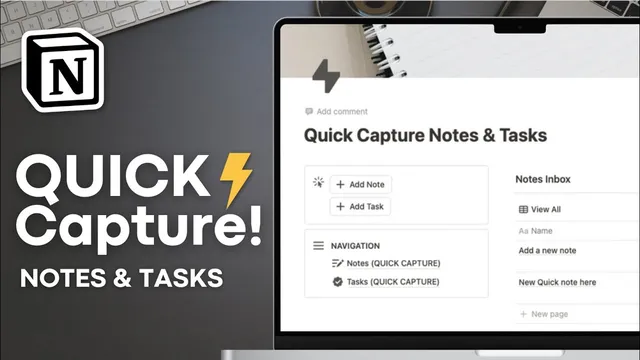
Create a QUICK Capture Notes & Task System! | Easy Notion Tutorial
Based on The Organized Notebook's video on YouTube. If you like this content, support the original creators by watching, liking and subscribing to their content.
Create two simple Notion databases: one for notes with a “reviewed” checkbox, and one for tasks with “status” and “due date.”
Briefing
A simple Notion “quick capture” setup can turn instant ideas into organized notes and tasks using two databases, two inboxes, and two on-page buttons. The core idea is to capture first—without friction—then process later. Notes move out of the notes inbox once they’re marked reviewed, while tasks move out of the task inbox once a due date is added. That creates a lightweight pipeline for turning raw inputs into actionable work.
The build starts on an empty Notion page, formatted for quick use with full-width small text, plus a cover image and an icon for visual identity. Two-column layout separates quick action buttons and database navigation from the inbox area. Callout boxes host the buttons: one for “capture notes” and one for “capture tasks.” A third button label (“add note” / “add task”) is created as a placeholder and later wired to database actions.
Next comes the data model. A “notes quick capture” database is created as a simple page database with a “created time” timestamp, a multi-select “tags” field (e.g., personal), and a checkbox “reviewed.” The “reviewed” checkbox is the switch that determines whether a note stays in the inbox or graduates to the main notes view. A “tasks quick capture” database is created with a “status” field and a “due date” date property. Two views—“incomplete” and “complete”—use filters based on task status (e.g., not started/in progress vs. done).
To support processing later, two linked inbox sections are added. The “notes inbox” is a linked view of the notes database filtered to show only notes where “reviewed” is unchecked. The “task inbox” is a linked view of the tasks database filtered to show only incomplete tasks with an empty due date. This means a task appears in the inbox the moment it’s created, then disappears automatically once a due date is filled in—an intentional proxy for “I’ve added enough context to act on it.”
The most important step is configuring the buttons. Clicking “capture notes” triggers an action that adds a new page to the notes database (leaving properties blank for speed), then opens it for immediate editing. Clicking “capture tasks” similarly adds a new page to the tasks database, setting “status” to “not started” by default, then opens it for entry. Testing confirms the workflow: new notes land in the notes inbox until marked reviewed; new tasks land in the task inbox until a due date is added.
Finally, the system is adapted for mobile. The same quick capture page can be accessed via a Notion widget (Android-friendly) or via iOS shortcuts that create a document directly into the chosen database. Either method keeps the capture buttons one tap away, so the system stays usable when ideas strike outside the desktop workflow.
The result is a minimal, customizable pipeline: capture instantly, process later, and let filters and linked views handle the movement between inbox and main lists automatically.
Cornell Notes
The setup builds a frictionless Notion quick capture system using two databases (notes and tasks), two linked inbox views, and two action buttons. Notes stay in “notes inbox” until the “reviewed” checkbox is checked; tasks stay in “task inbox” until a “due date” is added (while remaining incomplete). Buttons are configured to instantly create new pages in the correct database and open them for editing, so capture takes seconds. Linked views and filters automate the “move out of inbox” behavior without manual sorting. This matters because it separates fast capture from later processing, keeping the system reliable even during busy moments or on mobile.
How does the system decide when a captured note is “processed” versus still waiting in the inbox?
What makes the task inbox work without extra manual steps?
Why include both “incomplete” and “complete” views in the tasks database?
What do the capture buttons actually do inside Notion?
How does the layout support quick capture while still keeping processing organized?
What mobile options keep the capture workflow one-tap away?
Review Questions
- If a note is checked off as “reviewed,” where should it go in this system, and what filter causes that movement?
- A task has status “not started” but no due date—where will it appear, and what single change removes it from that inbox?
- What properties are required in each database to make the inbox filters work as described (name them and state their roles).
Key Points
- 1
Create two simple Notion databases: one for notes with a “reviewed” checkbox, and one for tasks with “status” and “due date.”
- 2
Use linked inbox views filtered to show only unreviewed notes and only incomplete tasks with an empty due date.
- 3
Configure two buttons to add new pages to the correct database and open them immediately for editing, keeping capture fast.
- 4
Let filters automate inbox processing: checking “reviewed” removes notes from the notes inbox; adding a due date removes tasks from the task inbox.
- 5
Use multiple task views (incomplete vs complete) to keep task review separate from the quick capture pipeline.
- 6
Adapt the system for mobile with a widget (Android-friendly) or iOS shortcuts that create entries directly into the chosen database.