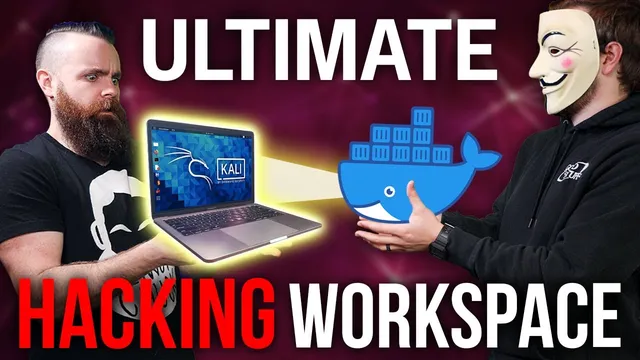
create the ULTIMATE hacking lab in 5min!! (Docker Containers STREAMING Kali Linux to your browser)
Based on NetworkChuck's video on YouTube. If you like this content, support the original creators by watching, liking and subscribing to their content.
Chasm Workspaces streams Docker container sessions into a browser, enabling isolated browsing and testing without installing Kali or other tools on the local machine.
Briefing
A new browser-isolation setup lets users open risky links, run Kali Linux, and even launch full desktop apps inside Docker containers—then instantly wipe the session—so nothing persists on the user’s own machine. The core idea is simple but powerful: instead of browsing or testing directly on a laptop or desktop, traffic and compute happen in a remote, containerized environment streamed into the browser. That makes “bad links” less threatening, because the session can be deleted on demand and the local system never becomes the target.
The workflow starts with Chasm Workspaces installed on a small server (cloud or on-prem). Once running, Chasm automatically spins up Docker containers that provide a secure web browser experience streamed to the user’s browser. The containers are pulled from Docker Hub like normal images, and users can also build custom images. Chasm’s proprietary component—called “chasm B”—orchestrates the container streaming and session handling, while the underlying browser environments remain standard Docker containers.
For deployment, the minimum hardware requirements are straightforward: 2 vCPUs, 4 GB RAM, and 50 GB storage (SSD preferred). The transcript gives a concrete cloud example using Linode: create a Linode instance with Ubuntu 20.04 (explicitly noting Ubuntu 21.0x didn’t work during the recording), choose a region, select a shared CPU plan meeting the RAM/CPU/storage minimums, then SSH into the instance. On-prem follows the same pattern: create a VM with Ubuntu 20.04, at least 50 GB disk, 2 vCPUs, and 4 GB RAM.
Installation focuses on stability first. The setup creates and enables a swap partition, persists it across reboots, downloads the Chasm installation package from an S3 URL via wget, unpacks the .gz archive, and runs the installer script. After installation, the admin console provides credentials and a dashboard. From there, users launch “workspaces” such as a containerized Chrome session, and later add other apps like terminal, Visual Studio Code, and Kali Linux.
The security payoff comes from two practical controls. First, a Chrome extension (“Open an isolation”) routes selected links into Chasm so suspicious URLs open in an isolated container rather than the local browser. Second, sessions are ephemeral: a user can delete the session from the interface, effectively discarding the browsing environment, malware risk, and tracking artifacts. The transcript emphasizes that the isolated browser doesn’t access the user’s local cookies/history and doesn’t retain the session after deletion.
Beyond personal browsing, the admin console supports enterprise-style features: launching different Docker images, enabling root access for Kali via Docker run configuration, and creating multiple user profiles. A built-in web filtering system lets admins deny by default and whitelist specific domains (with optional SafeSearch). In the community edition, the transcript notes limits such as five simultaneous sessions and some feature exclusions, while still claiming broad functionality.
Finally, the setup is positioned for business use cases: replacing VDI solutions like Citrix with web-native access, reducing endpoint software installation and versioning headaches, and supporting DevOps workflows by testing custom Docker containers and code through Chasm’s secure APIs. The end result is a “spin up, use, delete” hacking and testing workspace that can be reused daily without turning the user’s own device into the risk surface.
Cornell Notes
Chasm Workspaces turns a remote server into a browser-and-desktop sandbox by streaming Docker containers into a web browser. After installing Chasm on a VM (cloud or on-prem) with at least 2 vCPUs, 4 GB RAM, and 50 GB storage, users launch containerized workspaces like Chrome, terminals, Visual Studio Code, and Kali Linux. Risky links can be opened in isolation using a Chrome extension, and sessions can be deleted so the environment disappears. Admin controls add multi-user support and web filtering (deny-by-default with whitelists), plus optional root access for Kali via Docker run configuration. The approach matters because it shifts browsing and testing away from the local machine and toward disposable, containerized environments that reduce persistence and tracking risk.
What makes this “ultimate hacking lab” different from running Kali locally or using heavy VMs?
What are the minimum server requirements and how do cloud vs. on-prem deployments differ?
How does Chasm handle risky links and why does session deletion matter?
How is Kali Linux enabled and configured for root access?
How does web filtering work for multiple users in the admin console?
What enterprise use cases are suggested beyond personal secure browsing?
Review Questions
- What sequence of steps turns a fresh VM into a working Chasm server, and which requirements are non-negotiable?
- How do the Chrome extension and “delete session” combine to reduce risk when opening untrusted URLs?
- In the admin console, where do you enable Kali and how do you modify Docker run configuration to grant root access?
Key Points
- 1
Chasm Workspaces streams Docker container sessions into a browser, enabling isolated browsing and testing without installing Kali or other tools on the local machine.
- 2
Minimum server specs are 2 vCPUs, 4 GB RAM, and 50 GB storage (SSD preferred), and the same baseline applies to cloud and on-prem VMs.
- 3
A Chrome extension can route selected links into Chasm isolation, keeping risky URLs out of the user’s normal browser environment.
- 4
Sessions are designed to be ephemeral: deleting a session removes the isolated environment, reducing persistence and local tracking exposure.
- 5
Admin controls support enabling additional Docker images (including Kali), configuring container run settings for root access, and launching containerized apps like Chrome and Visual Studio Code.
- 6
Web filtering can be enforced per user and per workspace image using policies such as deny-by-default with domain whitelists and optional SafeSearch.
- 7
The transcript frames Chasm as useful for enterprise scenarios like replacing VDI (e.g., Citrix) and supporting DevOps testing via secure APIs.