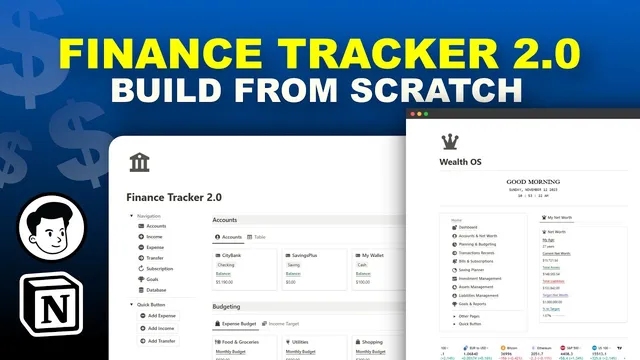
Creating A Powerful Finance Tracker with Formula 2.0 (Full Step by Step Tutorial)
Based on Rosidssoy's video on YouTube. If you like this content, support the original creators by watching, liking and subscribing to their content.
Create separate databases for accounts, expense budgets, income targets, income records, expense records, transfers, subscriptions, and financial goals, then standardize entry creation with default templates.
Briefing
A step-by-step Notion Formula 2.0 build turns a blank workspace into a finance tracker that can automatically connect accounts, budgets, income targets, and goals—then keep balances and goal progress updated as new transactions are added. The core payoff is a web of relations plus month-scoped formulas that “zero out” transactions outside the current month, so budgeting and utilization metrics stay accurate without manual cleanup.
The setup starts with a main dashboard page (“Finance tracker 2.0”) and a dedicated “database” hub, then creates separate databases for each financial object: accounts, expense budgets, income targets, income records, expense records, transfer records, subscriptions, and financial goals. Each database is trimmed down to essential properties (renaming columns like “account name,” “expense type,” and “income type”), with templates used to standardize new entries—such as defaulting income record dates to today and preconfiguring icons and formats for new accounts.
The tracker becomes functional when relations and formulas are layered in. Expense records link to expense budgets (by expense type) and to the accounts they were paid from. A month-filtering formula flags only expenses occurring in the current month by returning the expense amount when the date matches the current month and setting the amount to zero otherwise. Income records get the same treatment: they connect to income categories and receiving accounts, and a parallel formula zeroes out income outside the current month. Transfers are modeled with two account relations—“from” and “to”—and optionally a relation to financial goals so funds can be routed into a goal like an emergency fund.
With those connections in place, rollups and status formulas do the heavy lifting. Expense budget categories roll up total current-month spending, then compute budget utilization percentages and labeled status indicators. Income target categories roll up current-month income and compare it against targets to show whether income is on track. Accounts roll up total income, total expenses, and total transfer in/out; a balance formula calculates current balance as initial amount plus income and transfers in minus expenses and transfers out. Goals roll up funded amounts and compute goal balances and progress percentages, with filters to surface only incomplete goals.
The final phase assembles the system into a usable dashboard. A two-column layout with a toggle-based navigation menu organizes sections for accounts, budgeting, income records, expenses, transfers, subscriptions, and goals. Each section uses tailored database views—gallery for accounts and goals (to show icons and cover images), list views for transaction logs, plus filters like “this month” for income/expenses/transfers and “active” for subscriptions. Quick buttons on the dashboard create new expense, income, and transfer records and route them into the right database.
Validation comes through testing: changing a budget amount updates utilization, adding transactions adjusts account balances, transfers increase the destination account balance, and funding a goal increases the goal’s funded balance. The result is a “simple but powerful” finance tracker that stays synchronized through Notion relations, rollups, and Formula 2.0 month-scoping logic—reducing bookkeeping friction while improving month-to-month budgeting accuracy.
Cornell Notes
The build creates a Notion finance tracker where accounts, budgets, income targets, transactions, transfers, subscriptions, and goals are connected through relations and Formula 2.0. Month-scoped formulas return the transaction amount only when the transaction date falls in the current month; otherwise they return zero, keeping rollups and utilization metrics accurate. Rollups then aggregate current-month totals (expenses by category, income by category, transfers by account) and formulas compute budget utilization, account balances, and goal progress. A dashboard ties everything together with filtered views (e.g., “this month” for income/expenses/transfers and “active” for subscriptions) and quick buttons to add new records. The practical value is automatic synchronization: adding or changing transactions updates balances, budget status, and goal funding without manual recalculation.
How does the tracker ensure budgeting numbers reflect only the current month?
What relations are required to connect spending to budgets and accounts?
How are account balances calculated from multiple transaction types?
How does the tracker model money moving between accounts and into goals?
What role do rollups and status formulas play in budgeting and goal tracking?
Why are templates and default properties important in this build?
Review Questions
- Which specific formula behavior (returning amounts vs returning zero) makes month-based rollups reliable, and where is it applied?
- Trace the data path for a single coffee purchase: which databases and relations must connect it so it affects both budget utilization and the correct account balance?
- How would you verify that funding an emergency fund goal updates both the goal’s funded balance and the relevant account balances after creating a transfer record?
Key Points
- 1
Create separate databases for accounts, expense budgets, income targets, income records, expense records, transfers, subscriptions, and financial goals, then standardize entry creation with default templates.
- 2
Use relations to connect expense records to expense budgets (by expense type) and to accounts (by paying account), enabling category rollups and account rollups.
- 3
Apply Formula 2.0 month-scoping to income and expense records so out-of-month transactions output zero, keeping “this month” totals accurate.
- 4
Compute budget utilization and income target status using rollups plus comparison/status formulas against monthly budget and target amounts.
- 5
Calculate each account’s current balance with a single formula that combines initial amount, rollup totals for income, expenses, and transfer in/out.
- 6
Model transfers with two account relations (“from” and “to”) and optionally link transfers to goals to route funds into goal tracking.
- 7
Assemble a dashboard with filtered views (this month, active subscriptions, incomplete goals) and quick buttons to add new records without breaking the relation logic.