Creating an Efficient Meetings Note Template in Obsidian
Based on Prakash Joshi Pax's video on YouTube. If you like this content, support the original creators by watching, liking and subscribing to their content.
Install Data View and Templater, then configure Templater to trigger on new file creation and point it to the templates folder.
Briefing
An Obsidian meeting-note system links three note types—Meeting, People, and Project—so every new meeting automatically updates context pages like “previous meetings with this attendee,” “related people for this project,” and “recent meetings.” The core idea is relational: each Meeting note stores an attendee link and a related-project link, while the People and Project notes use Data View queries to pull in all matching Meeting notes from the meetings folder.
The workflow starts with installing two plugins: Data View (for querying and tables) and Templater (for templated note creation and automation). With Templater configured to trigger on new file creation and a designated templates folder selected, the system relies on inline metadata fields inside templates. The Meeting note template includes properties such as tags (set to “meeting”), date (with optional time), attendee, related projects, topics, meeting purpose, summary, end summary, plus optional fields like agenda, desired outcome, discussion notes, and action items. A Templater script then automatically moves each newly created Meeting note into a dedicated “meetings” folder.
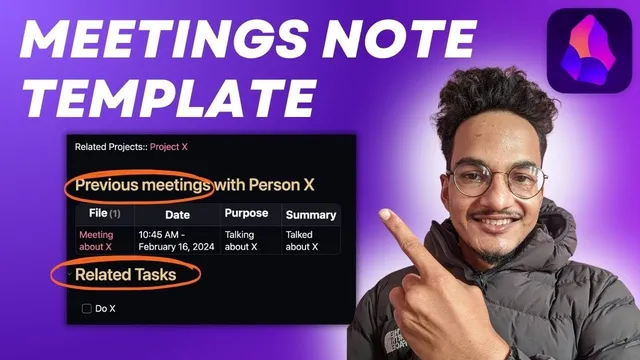
The People note template is built around identifying information (like name, email, mobile, and other optional fields) and two Data View-driven sections. One section lists previous meetings with that person by querying notes in the meetings folder where the outgoing link points to the person’s People note. Another section lists related tasks by querying task notes that also reference the person via outgoing links, sorted in descending order. Like the Meeting template, it also includes a Templater script to move newly created People notes into the “people” folder.
The Project note template similarly acts as a hub. It uses Data View to list related people—querying the people folder for notes whose outgoing links include the project’s title—and to list related meetings—querying the meetings folder for notes that link to the project. A review section is left open for additional project-specific notes. A Templater move script places new Project notes into the “projects” folder.
To make the system work smoothly, the templates depend on a Templater function that copies the new note’s title into the template’s internal references (notably TP file title). A key pitfall is creating a note directly from a template without first naming the file; doing so can leave the title as “Untitled,” which breaks the link-based queries. The recommended approach is to create a new note with a proper name (e.g., “Project X” or “person X”), then insert the relevant template via Templater so the title propagates correctly.
Once a sample meeting is created—linking attendee “person X” and related project “Project X”—the system automatically populates “recent meetings,” “previous meetings with this person,” and “related people for this project.” If “related projects” isn’t filled in the Meeting note’s inline metadata, the Project note won’t show the meeting under its “related meetings” section. The result is a lightweight but structured meeting memory system where context stays current without manual updating.
Cornell Notes
The system builds three interconnected Obsidian templates—Meeting, People, and Project—so one new meeting automatically updates multiple context pages. Meeting notes store inline metadata (attendee, related projects, purpose, summary, action items, etc.) and use Templater to move the note into the “meetings” folder. People notes use Data View queries to show a table of previous meetings with that attendee by matching outgoing links back to the People note, plus related tasks. Project notes use Data View queries to list related people and related meetings by matching outgoing links to the Project note. Correct title handling via Templater’s TP file title is crucial; creating notes as “Untitled” breaks the link-based queries.
How do Meeting notes automatically populate “previous meetings” on a People note?
What Data View queries power the Project note’s “related people” and “related meetings”?
Why does the system require careful note naming instead of creating a template note immediately?
What’s the role of Templater’s move script in keeping the vault organized?
What happens if a Meeting note doesn’t list “related projects” in its inline metadata?
Review Questions
- What outgoing-link relationship must exist between a Meeting note and a People note for the People note’s “previous meetings” table to populate?
- How does the system use folder scoping (meetings/people/projects) to keep Data View queries accurate?
- What specific failure mode occurs when a note is created from a template before giving it a real title (e.g., leaving it as “Untitled”)?
Key Points
- 1
Install Data View and Templater, then configure Templater to trigger on new file creation and point it to the templates folder.
- 2
Use a Meeting note template with inline metadata fields (attendee, related projects, purpose, summary, action items) so Data View can query it later.
- 3
Build People notes with Data View queries that pull meetings from the “meetings” folder where outgoing links reference the People note’s title.
- 4
Build Project notes with Data View queries that pull related people and meetings by matching outgoing links to the Project note’s title.
- 5
Rely on Templater’s TP file title so the injected title matches the actual note name used for link-based queries.
- 6
Avoid creating notes directly from templates without naming them first; otherwise titles may stay “Untitled” and queries return empty results.
- 7
Fill in Meeting note “related projects” correctly; otherwise the Project note won’t display the meeting in its related-meetings section.