Creating Forms
Based on Notion's video on YouTube. If you like this content, support the original creators by watching, liking and subscribing to their content.
Create forms either from scratch (new page → form) or from an existing database view (database view → form → use existing properties).
Briefing
Notion forms turn scattered requests—like RSVPs, bug reports, or creative intake—into structured data that can be acted on without leaving the Notion workspace. Forms can be created either from scratch or directly from an existing database view, and once responses start coming in, they automatically populate the database as new rows. That combination—data capture plus immediate downstream organization—makes it easier to gather information, take action, and keep work moving in one place.
Forms can be built in two main ways. A new form can be created by starting a new page and selecting the form option, which opens a form builder ready for customization. Alternatively, a form can be generated from an existing database view by clicking the plus sign next to the database views and choosing “form” from the dropdown. That route offers a choice between creating a form from scratch or creating one using existing properties. When existing properties are used, database column titles automatically convert into form questions, eliminating the need to manually type every question. Additional questions can be added later as needs evolve.
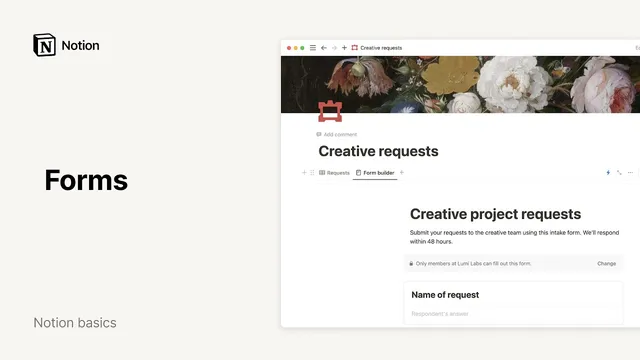
In the example workflow, an intake form is created for a “creative project requests” database using existing properties. The form starts with a clear title and description—such as “intake form creative project requests”—and can include a note for the team to clarify the form’s purpose. Because the form is based on pre-selected properties, questions appear automatically; the user can then tidy them up and adjust each question’s format. Each question can be customized via a three-dot menu, where different question types are available, including text, multiple choice, date and time, person, files, and media.
The example demonstrates two key customizations: a multiple-choice question configured to limit users to a single selection (maximum selection set to one), and a file upload question for “attach mockups,” set to the “files and media” type so users can submit images or other assets. To improve data quality, all questions can be marked as required, and the form can be checked to ensure each question links to the correct database property. Notably, if “sync with property name” is enabled, changing a question title also updates the linked column name; turning off sync allows separate naming.
Sharing the form is handled through the form builder’s share controls. The form can be shared internally with workspace members, published via a public link, or closed. It can also accept anonymous responses by enabling the anonymous responses option. Once submissions arrive, responses appear as rows in the database, and additional views—like charts—can be added to visualize trends such as which creative services are most requested and how responses are distributed.
Finally, Notion forms can trigger automations to act on submissions quickly. Using an automation workflow (via the lightning bolt icon), a trigger can be set based on a property such as “social media” under the type of request, and an action can send an email to a specific person—like notifying Emma, the social media manager. Advanced formulas can personalize the email subject and body, such as including the requester’s name. The result is a streamlined loop: collect structured inputs, review them in database views, and automatically notify the right people to respond.
Cornell Notes
Notion forms can be created from scratch or generated from an existing database view, with database properties automatically turning into form questions. After customizing question types (text, multiple choice, date/time, person, files/media, and more), the form can be shared internally, via a public link, or configured for anonymous responses. Submissions automatically appear as rows in the connected database, where charts and other views help summarize results. Forms also support automations—such as sending an email notification through Slack or email when a specific request type is submitted—allowing teams to act immediately on new data.
What are the two ways to create a Notion form, and how does the database-based method change the setup?
How can a form’s questions be customized after they’re generated from database properties?
What steps help ensure form responses are complete and correctly mapped to the database?
How does sharing work for Notion forms, including external access and anonymity?
How do form responses become usable data inside Notion?
How can automations connect form submissions to real-time notifications?
Review Questions
- When creating a form from an existing database view, what determines the initial set of questions, and how can those questions be changed afterward?
- What does enabling “sync with property name” do, and why might someone turn it off?
- Describe a trigger-and-action automation setup for notifying someone when a particular request type is submitted.
Key Points
- 1
Create forms either from scratch (new page → form) or from an existing database view (database view → form → use existing properties).
- 2
Using existing properties automatically converts database column titles into form questions, reducing manual setup.
- 3
Customize each question’s type via the three-dot menu, including multiple choice (with max selection), and files/media uploads for mockups.
- 4
Improve response quality by marking questions as required and verifying each question links to the correct database property.
- 5
Use form sharing controls to distribute the form internally, via a public link, and optionally accept anonymous responses.
- 6
Responses automatically populate the connected database as rows, enabling charts and other views to summarize results.
- 7
Set up automations (lightning bolt) to notify the right people—such as sending an email when a specific request type is submitted, with Advanced formulas for personalization.