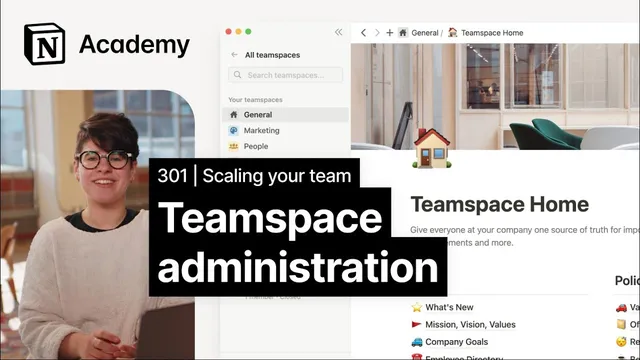
Creating teamspaces for your organization
Based on Notion's video on YouTube. If you like this content, support the original creators by watching, liking and subscribing to their content.
Choose open, closed, or private permissions based on both joinability and page visibility needs, since those are tied together.
Briefing
Notion Teamspaces are designed to tame complex permissions by letting organizations organize work into customizable “channels” with clear rules for who can join and who can see what. The core decision is how each Teamspace is set up—open, closed, or private—because that choice determines both membership behavior and page visibility. Open Teamspaces let anyone join and view pages inside; closed Teamspaces are visible but require an invitation to join and block page viewing; private Teamspaces hide even the Teamspace’s existence, limiting visibility to members only. These settings directly shape day-to-day navigation and reduce the risk of people stumbling into the wrong information.
Creating a Teamspace starts in the sidebar: click the plus button next to “Teamspaces” (or go to “All Teamspaces” and select “New Teamspace”). Each Teamspace needs a name, description, and icon, followed by permission settings (open, closed, or private). After creation, the workflow shifts to provisioning: add members by typing their email or name, and decide whether they are members or Teamspace owners. Owners carry higher responsibility—able to adjust settings and security—while members get lower access, typically limited to contributing within the boundaries set for that Teamspace.
A key operational lever is the “default Teamspace” setting. Organizations can toggle on a default Teamspace so everyone in the workspace is automatically included, but the guidance is conservative: most teams should use only one default Teamspace, and even large organizations should avoid more than three to prevent sidebar clutter.
For structure, Teamspaces work best when they follow a consistent page hierarchy. Each Teamspace should include a home page plus top-level pages for sub-teams, along with important database views or knowledge-based pages. Everything else should be nested as subpages under those top-level sections. This approach improves transparency and reduces the ongoing management burden on Teamspace owners.
The transcript also emphasizes when to deviate from the default recommendation that Teamspaces be open. Closed Teamspaces fit situations where content visibility needs tighter control—such as limiting what managers can view. Private Teamspaces are suited to sensitive or semi-anonymous work, with HR using private spaces for collecting employee feedback and accounting using them for compensation and benefits discussions.
Three implementation patterns illustrate the trade-offs. One model creates a Teamspace per department with minimal admin control, maximizing org-wide visibility but increasing the chance of messy, disorganized content. Another organizes by projects, using a general documents/knowledge base Teamspace with project-based subpages for members; this personalizes the sidebar but reduces visibility into projects outside a person’s assignment—often a better fit for project-driven organizations. A cautionary example shows Teamspaces created haphazardly (multiple overlapping spaces and missing spaces), which quickly confuses users because it becomes unclear where information lives and too many competing options appear. The takeaway is that there may not be a single “right” architecture, but thoughtful permission choices and a disciplined page structure are what keep Teamspaces scalable and usable as teams grow.
Cornell Notes
Notion Teamspaces act like customizable channels that solve permission and provisioning complexity. The most important setup choice is whether a Teamspace is open, closed, or private, since that controls both who can join and whether pages inside are visible. Teamspaces can be created from the sidebar, then populated with members or Teamspace owners, with owners able to manage settings and security. A default Teamspace can automatically include everyone, but using more than one (and ideally no more than three) can create sidebar clutter. Good organization depends on a consistent hierarchy: a home page, top-level sub-team pages, and key database/knowledge pages, with everything else nested as subpages.
How do open, closed, and private Teamspaces differ in day-to-day access?
What role does Teamspace ownership play when adding people?
Why does the “default Teamspace” setting need limits?
What page structure keeps Teamspaces transparent and easier to manage?
When does it make sense to choose closed or private Teamspaces instead of open?
What do the three implementation examples reveal about trade-offs?
Review Questions
- If a Teamspace must be discoverable but not viewable without an invitation, which permission setting fits and why?
- What hierarchy elements should exist at the top of a Teamspace to support transparency and reduce owner workload?
- How can using multiple default Teamspaces affect navigation, and what limit is recommended?
Key Points
- 1
Choose open, closed, or private permissions based on both joinability and page visibility needs, since those are tied together.
- 2
Create Teamspaces with clear metadata (name, description, icon) and then provision access by adding members or Teamspace owners.
- 3
Use Teamspace owners for ongoing governance; members should have only the access level needed to participate.
- 4
Set a default Teamspace sparingly—aim for one, and avoid more than three—to prevent sidebar clutter.
- 5
Design each Teamspace around a home page, top-level sub-team pages, and key database/knowledge pages, with everything else nested as subpages.
- 6
Use closed Teamspaces for controlled visibility (e.g., managers) and private Teamspaces for sensitive work (e.g., HR feedback, compensation discussions).
- 7
Pick an organization model (by department, by project, or a hybrid) that matches how work is actually done, and avoid ad-hoc structures that make information hard to find.