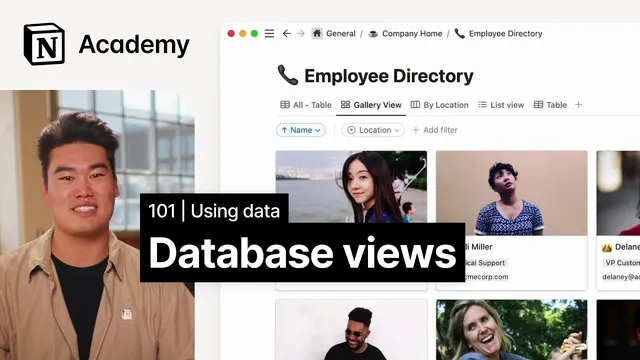
Customize database views to focus on information you need
Based on Notion's video on YouTube. If you like this content, support the original creators by watching, liking and subscribing to their content.
Notion views let one database serve multiple workflows by changing the layout without duplicating data.
Briefing
Notion database views let the same underlying data power multiple, purpose-built interfaces—so teams can sort, filter, and selectively display the exact fields they need without duplicating databases. Instead of exporting data into spreadsheets or rebuilding calendars elsewhere, a new view can instantly reshape existing records into a calendar, board, timeline, gallery, or other layout. That flexibility is the core advantage: one database can serve many workflows at once.
Across Notion’s six view layouts—tables, lists, calendars, timelines, galleries, and boards—the consistent foundation is sorting and filtering, plus the ability to hide or show specific properties. Tables provide the broadest “bird’s-eye” view and are ideal for admin tasks like cleaning up entries or editing multiple properties at once, since they show many fields simultaneously. Lists offer a clean, minimal presentation suited for collections of notes, documents, or personal to-dos when only a handful of key properties matter.
Calendars and timelines focus on time-based workflows. Calendars display database pages as cards on a month-by-month grid, making them a natural fit for planning around date ranges—such as social media post schedules. Timelines support more complex project or launch planning with an infinitely scrolling horizontal structure and flexible time frames, from hourly to quarterly views.
Galleries emphasize visual scanning by showing page previews or cover images, which helps when content includes images or when users need quick context inside each entry. Boards organize work by category, grouping pages into columns and even subgroups. A people database might group employees by office location, while a task workflow could group items by status.
Customization happens inside each view’s three-dot menu, where users can adjust layout options, grouping, and which properties appear. Filters and sorting controls further narrow what’s shown, turning a single database into multiple tailored dashboards.
The practical payoff is straightforward: create additional views rather than reformatting data elsewhere. For example, an employee start-date calendar can be built directly from an existing people database, avoiding the export-and-reformat cycle common with spreadsheets. Similarly, a blog post database can spawn a calendar view for published dates, and a board view organized by author—using the board’s grouping and card styling options like card size and column background colors.
As databases grow more complex, views can incorporate advanced tools such as filters, formulas, roll-ups, and relations. The takeaway is less about any single layout and more about using views as a control panel—reshaping the same data into the right format for each workflow, without duplicating effort.
Cornell Notes
Notion views let one database power many different layouts, each tailored to a specific workflow. Across tables, lists, calendars, timelines, galleries, and boards, users can sort and filter entries and choose which properties to show. The three-dot menu inside each view provides customization for grouping, layout options, and property visibility, while the properties menu helps adjust how data appears (e.g., which date field drives a calendar). Practical examples include building a calendar from employee start dates and creating board views for blog posts grouped by author and status. This approach avoids exporting data to other apps just to get a different interface.
Why create multiple views instead of separate databases or exporting to other tools?
How do the six layouts differ in what they’re best for?
What kinds of customization are available inside a view?
How does a calendar view decide what dates to show?
When would a board view be the right choice?
Review Questions
- Which layout would you choose for a workflow that needs hourly-to-quarterly planning, and why?
- What are three types of customization you can apply to a view using the three-dot menu?
- Give one example of how a calendar view can be created from an existing database without exporting data elsewhere.
Key Points
- 1
Notion views let one database serve multiple workflows by changing the layout without duplicating data.
- 2
All view layouts support sorting and filtering, plus the ability to hide or show specific properties.
- 3
Tables are strongest for admin work because they display many properties at once.
- 4
Calendars and timelines are purpose-built for date-range and multi-step planning, with timelines offering flexible time frames.
- 5
Galleries provide a visual scan using page previews or cover images.
- 6
Boards organize records by category using columns and optional subgroups, making them ideal for status-based task management.
- 7
Creating new views (via Add view) can replace export-and-reformat steps in spreadsheets or other apps.