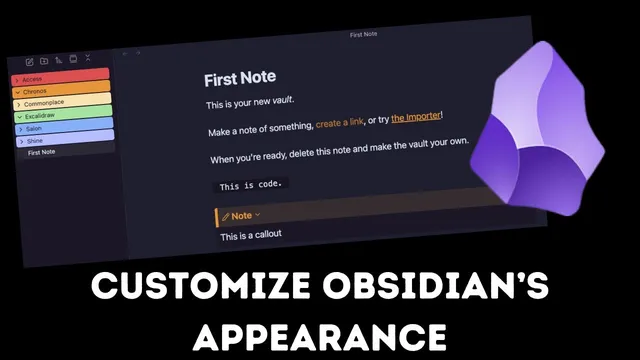
Customize Obsidian Appearance
Based on Knowledge Work Nexus's video on YouTube. If you like this content, support the original creators by watching, liking and subscribing to their content.
Start with Appearance settings: choose dark/light/adapt-to-system and set an accent color using picker/eyedropper or hex/RGB/HSL values.
Briefing
Customizing Obsidian’s look is mostly a matter of tweaking built-in appearance settings first—color scheme, fonts, layout toggles, and zoom—then layering on community themes and CSS-based refinements for deeper control. The payoff is a vault that matches personal taste without changing the underlying notes, since these options primarily affect interface styling rather than content.
The walkthrough starts in Vault Settings (via the gear icon or Command Palette) and focuses on the Appearance tab. Color scheme is the first lever: Obsidian can follow system theme, or switch between dark and light. Accent color is then adjusted using a picker, an eyedropper from the desktop, or direct color values (RGB/HSL/hex). The guide also flags an easy-to-miss detail: Obsidian uses two “loop” arrows—one refreshes to show changes, while the other restores defaults—so resetting requires caution.
Fonts come next, and the key distinction is scope. Obsidian supports separate font controls for the interface (menus and UI), note text, and monospace text for code blocks. Changing the interface font alters menus without touching note content. Switching the text font changes how note writing appears (the example shifts notes to a chalkboard style), while updating the monospace font affects code blocks specifically (e.g., American Typewriter). There’s also an option to manage multiple fonts, which matters for cross-device consistency when different systems have different font availability.
Layout and readability tweaks follow: font size can be increased directly, while menu sizing is handled more reliably through the View zoom controls. The appearance toggles for inline titles, tab title bar, and ribbon are treated as workflow preferences—inline titles rename notes directly in the document, while the tab title bar can be redundant if the note name already appears elsewhere. The ribbon itself is customizable, and the guide emphasizes that plugin buttons can accumulate there as more community plugins are installed.
After exhausting built-in options, the guide moves to community themes. Themes are installed with a single “Install and use” action, but they may require updates as Obsidian evolves. Theme browsing includes counts of available themes by light/dark preference and popularity via download numbers. The example theme, “anap pachin,” demonstrates how a theme can be installed quickly but may offer limited customization unless it includes additional style controls.
That deeper customization comes from the Style Settings community plugin. Once enabled, it exposes theme-specific options—such as dark flavor variants (mocha, macchiato, frappe), accent color choices, and formatting styles for elements like callouts and code blocks. Crucially, Style Settings options depend on which theme is active at the moment.
Finally, the guide shows how CSS snippets extend customization beyond what themes and plugins provide. A custom CSS snippet for “Rainbow folders” is downloaded, placed into Obsidian’s Snippets folder, and then refreshed so it appears as a new option inside Style Settings. After selecting a palette (pink, peach, yellow, green, blue, lavender), the Rainbow folders workspace feature updates folder colors instantly. The walkthrough ends by recommending exporting or saving the configured theme settings once everything looks right, since an accidental reset could undo many overrides.
Cornell Notes
Obsidian appearance customization works in layers: built-in settings first (color scheme, accent color, fonts, UI toggles, and zoom), then community themes, and finally CSS snippets for specialized styling. Font controls are split into interface, note text, and monospace (code blocks), so changes can be targeted without altering note content. Themes can be installed quickly, but deeper control often requires the Style Settings community plugin, which exposes theme-specific options like dark flavors, accent colors, and formatting styles. For workspace features such as Rainbow folders, CSS snippets must be downloaded into the Snippets folder and refreshed so they become available. Once a look is dialed in, saving/exporting settings helps prevent accidental resets from wiping overrides.
How do color scheme and accent color changes affect a vault, and what’s the practical difference between the two “loop arrow” buttons?
Why do Obsidian font settings feel more powerful than a single “choose a font” option?
What’s the difference between inline titles, tab title bar, and the ribbon—and how does each relate to workflow?
What determines whether Style Settings can customize a theme?
How does Rainbow folders customization work using CSS snippets?
Review Questions
- Which font setting category would you change to affect code blocks specifically, and which would you change to affect menus?
- What steps are required after downloading a CSS snippet so Obsidian recognizes it and shows new customization options?
- Why might a theme’s customization options disappear or change when switching between themes?
Key Points
- 1
Start with Appearance settings: choose dark/light/adapt-to-system and set an accent color using picker/eyedropper or hex/RGB/HSL values.
- 2
Be careful with Obsidian’s two different “loop arrow” actions—one resets to defaults while the other refreshes/apply changes.
- 3
Use separate font controls for interface, note text, and monospace code blocks to avoid unintended styling changes.
- 4
Resize menus and UI more reliably with View zoom controls, while note font size can be adjusted directly in Appearance.
- 5
Install community themes with “Install and use,” but plan for theme updates as Obsidian’s interface changes.
- 6
For deeper theme control, install and enable the Style Settings community plugin; its options depend on which theme is active.
- 7
Extend workspace styling (like Rainbow folders) by downloading a CSS snippet into the Snippets folder and refreshing so new options appear.