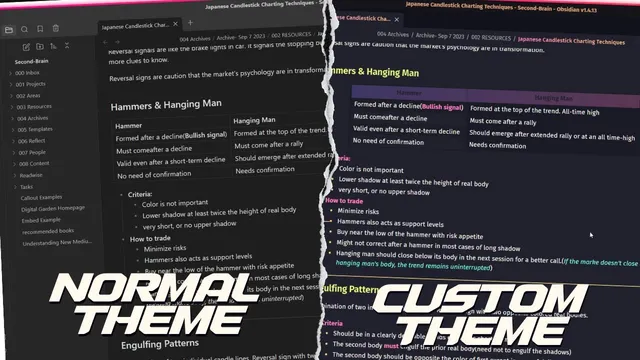
Customizing My Vault With Annuppucin Theme (Personal Vault)
Based on Prakash Joshi Pax's video on YouTube. If you like this content, support the original creators by watching, liking and subscribing to their content.
Replace unavailable themes by installing an available alternative (e.g., “Asana Putin”) to regain control over vault appearance.
Briefing
Resetting an Obsidian vault becomes a chance to rebuild the interface from the ground up. After switching from the default theme to a new look, the customization centers on installing a theme that still exists in the library, then layering in a theme “flavor” and a set of appearance controls that affect everything from editor behavior to file browsing.
The process starts with moving away from a previously loved theme (“bubble space”), which is no longer available. A replacement theme (“Asana Putin”) is installed, and the board’s appearance changes immediately. From there, the customization shifts to the “cognitive login style setting” plugin, where the user selects a Dark theme and chooses a specific dark “flavor” (mocha). A key toggle—“force custom ascent”—ensures the chosen accent color is applied consistently across boards, rather than relying on whatever accent color is set elsewhere in Obsidian.
Next comes editor-level polish. The user configures active line highlighting so the current line in a note is visually emphasized, choosing the “highlight” style rather than a bordered variant. Callouts receive more attention: multiple callout styles are tested (slick, block, vanilla normal, vanilla plus), and the slick style is selected. Additional callout controls are enabled for custom callout colors, along with layout tweaks such as callout radius, title padding, and callout full position (left as default so the fold icon stays on the left). For checklists, custom checkboxes are turned on, with an example checkbox interaction used to confirm the behavior.
The configuration also adjusts content presentation. Code block options, embed height, and list styling are reviewed, with list bullet color and ordered list bullet type available for tuning. Tables get a dedicated styling pass: table styling is enabled, tables are centered, headers are highlighted using alternate columns, and header alignment is set so the header text centers while cell text stays left. Typography and reading comfort are refined through custom heading colors and divider colors, plus heading sizing controls like weight and line height. Text decoration settings are enabled so bold, italic, and highlighted text can adopt customized colors.
Finally, the workspace and navigation experience are reshaped. A darkened canvas background is enabled with a custom background URL, and the user dials down background brightness and blur while adjusting container opacity. File browser options include folder icons, file icons, and a “Rainbow folder” mode set to the full style. Layout changes include switching the workspace layout to a “cards view” style, hiding borders, tuning card radius and padding, and enabling shadows and card formats for both actions and the file browser. The result is a cohesive Obsidian interface—theme, editor, typography, tables, and navigation—built to match the user’s preferred dark aesthetic and workflow.
Cornell Notes
After resetting an Obsidian vault, the customization workflow replaces the default theme with “Asana Putin” and then uses the “cognitive login style setting” controls to standardize the look. The setup locks in a Dark theme with the “mocha” flavor and uses “force custom ascent” so accent color stays consistent across boards. Editor behavior is tuned with active line highlighting, while callouts are styled (slick selected) and custom callout colors are enabled. Content formatting is refined through table styling (centered tables, highlighted headers) and custom heading colors/dividers. The workspace is finished with a darkened canvas background, icon-enhanced file browsing (including Rainbow folder full), and a cards-view layout with tuned card spacing and shadows.
Why switch from “bubble space” to “Asana Putin,” and what changes immediately after installing the new theme?
What does “force custom ascent” accomplish in the theme settings?
How are callouts customized beyond just selecting a style?
What table styling choices are made, and how do they affect alignment and emphasis?
Which workspace and navigation changes most strongly reshape the overall feel?
Review Questions
- Which specific toggles and selections ensure accent color consistency across boards?
- How do active line highlighting and callout styling differ in what they change visually while editing?
- What combination of table settings creates centered tables with emphasized, centered headers but left-aligned cell text?
Key Points
- 1
Replace unavailable themes by installing an available alternative (e.g., “Asana Putin”) to regain control over vault appearance.
- 2
Use the theme’s Dark “flavor” (mocha) and enable “force custom ascent” to keep accent color consistent across boards.
- 3
Tune editor readability by enabling active line highlighting and selecting the highlight style.
- 4
Upgrade callouts by choosing a callout style (slick selected) and enabling custom callout colors plus layout controls like radius and title padding.
- 5
Improve content presentation by enabling table styling, centering tables, highlighting headers, and controlling header vs. cell alignment.
- 6
Finish the look with workspace changes: darkened canvas background, icon-enhanced file browsing (Rainbow folder full), and a cards-view layout with tuned spacing and shadows.