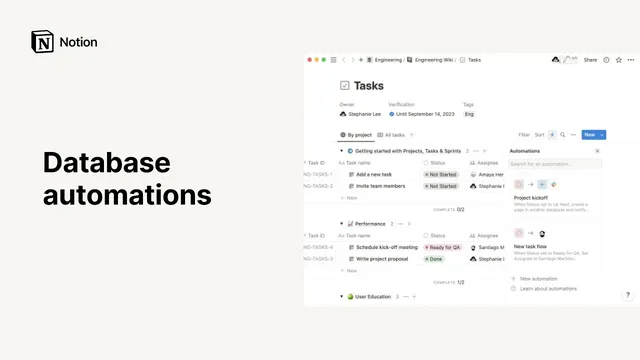
Database automations
Based on Notion's video on YouTube. If you like this content, support the original creators by watching, liking and subscribing to their content.
Database automations run whenever a specific page change occurs, pairing a trigger (like a status edit) with one or more actions (like reassignment or cross-database updates).
Briefing
Notion’s database automations turn routine project-management chores—status updates, reassignment, cross-database edits, and Slack pings—into rules that run automatically whenever a database page changes. The core idea is simple: each automation pairs a trigger (a specific change to a page, like a status edit) with one or more actions (what should happen next), letting teams keep work moving without manually chasing updates.
Automations are built around two parts. A trigger fires when a page is added or when a property on a page is edited—most commonly, when a status property changes to a particular value. After that trigger occurs, the automation can perform actions such as sending a Slack notification, updating a page property, adding a page to another database, editing pages in a related database, or combining multiple actions in sequence. Notion also lets automations target either every page in a database or only pages that match a saved filtered view; importantly, changing the filters in that saved view changes which pages the automation affects.
The transcript walks through a “QA flow” example using a tasks database. The automation is configured to watch for the status property changing to “ready for QA.” Once that condition is met, the automation automatically sets the assignee property to Santiago (the QA engineer) by selecting Santiago’s name from the assignee property lookup. The same behavior applies not only when someone edits an existing page’s status, but also when a new page is added and immediately marked “ready for QA.”
A second example shows how to coordinate kickoff work across teams. A “project kickoff” automation triggers when a project status changes to “up next.” It then creates a new page in a meeting notes database, naming the page “project kickoff” and setting the meeting type accordingly. A second action sends a Slack notification to the product channel to alert others that the project is being tackled.
Two operational details matter for teams rolling this out. First, Slack actions inside automations can only be edited by the person who created the notification, while automations tied to page status can be created, edited, deleted, disabled, and enabled by anyone with full access to the relevant database. Second, automations can be paused and resumed by toggling them off and back on, keeping the workflow controllable without deleting it.
Overall, database automations are positioned as a way to reduce missed handoffs and eliminate repetitive status chasing—setting up once, then letting Notion handle the follow-through whenever the right database changes occur. Access depends on plan type, and users can check availability via the lightning bolt icon in the database interface.
Cornell Notes
Notion database automations automate work by linking a trigger to one or more actions. Triggers fire when a page is added or when a property (often status) changes to a specific value. Actions can assign people, update properties, create pages in related databases, edit those pages, and send Slack notifications. The examples show a QA workflow that assigns Santiago when status becomes “ready for QA,” and a kickoff workflow that creates a meeting notes entry and notifies the product channel when project status becomes “up next.” Access and control differ: Slack notifications can be edited only by the automation creator, while status-based automations can be managed by anyone with full database access. Automations can be paused and re-enabled without being deleted.
What are the two building blocks of a Notion database automation, and how do they work together?
How does the “QA flow” automation decide when to run, and what does it do?
What does it mean for an automation to apply to “all pages” versus a saved filtered view?
How does the “project kickoff” automation coordinate between databases and Slack?
Why can’t everyone edit Slack notifications created by automations?
How do teams temporarily stop an automation without deleting it?
Review Questions
- In an automation rule, what kinds of database changes can serve as triggers, and what kinds of outcomes can serve as actions?
- Compare the QA flow and project kickoff examples: what triggers them and what actions they perform after the trigger fires.
- What permissions differences apply to editing Slack notification actions versus editing status-based automations?
Key Points
- 1
Database automations run whenever a specific page change occurs, pairing a trigger (like a status edit) with one or more actions (like reassignment or cross-database updates).
- 2
Automations can target either all pages in a database or only pages included in a saved filtered view, and changing that view’s filters changes which pages the automation affects.
- 3
A QA workflow can automatically assign a task to a named person when status changes to “ready for QA,” including for newly added pages marked the same way.
- 4
A kickoff workflow can create a meeting notes page in a related database and send a Slack notification when project status changes to “up next.”
- 5
Slack notification actions inside automations can be edited only by the automation creator, while status-based automations can be managed by anyone with full access to the database.
- 6
Automations can be paused and re-enabled by toggling them off and back on, without deleting the automation.
- 7
Access to database automations depends on plan type, and availability can be checked via the lightning bolt icon in the database UI.