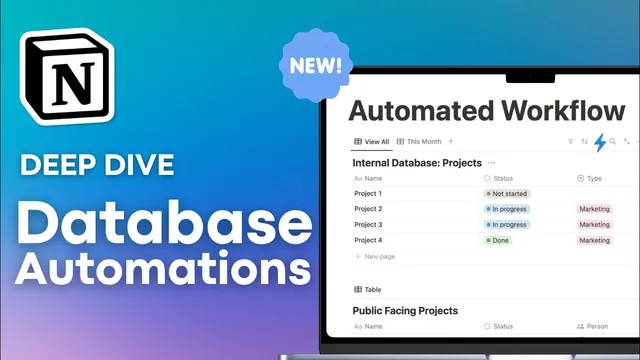
Database Automations DEEP DIVE! | What's New, Basics to Advanced Notion Tutorial
Based on The Organized Notebook's video on YouTube. If you like this content, support the original creators by watching, liking and subscribing to their content.
Notion database automations gained new “send mail to” email actions and “define a variable” steps, expanding what workflows can do.
Briefing
Notion database automations now support two major upgrades—sending emails directly from automation runs and defining variables inside automation steps—making it easier to build workflows that react to database changes and then communicate results. The interface also got a clearer “lightning” workflow builder, with new action options like “send mail to” and “define a variable,” plus formula-based property edits that unlock more dynamic behavior (such as computing dates from other fields).
The practical takeaway is that automations become far more than simple “when X then set Y” rules. With the new email action, a project can automatically notify a person when a status flips to complete, using the trigger page’s name and completion date to generate a subject and message. With variables, automations can reuse computed or referenced values across multiple steps—especially useful when syncing data between related databases or updating many pages at once.
The tutorial then walks through the basics by starting with the prerequisite: an automation needs a database. Once a database exists, automations can be scoped either to the entire database or to specific table views. That scoping matters because views can filter which pages are eligible—for example, creating a “this month” view by filtering a date property, then running automations only for pages visible in that filtered view.
At the core of every automation is a trigger and an action. A simple example sets a “completion date” when a “status” property changes to “complete.” The automation is configured so the trigger watches for the status value, and the action edits a target property on the same page using the date triggered. The tutorial also covers multi-condition triggers, where multiple conditions can be combined using “all” versus “any” logic—useful for assigning a person only when both status and a “type” property match (e.g., status = in progress and type = marketing).
From there, the actions expand beyond editing a property. Automations can add pages to another database (e.g., when a marketing project enters “in progress,” create a related task in a task database with its own initial status and assignee). They can also edit pages in other databases by filtering which pages to update (for instance, turning marketing tasks from “not started” to “in progress” when the parent project changes).
The “advanced” section shows formulas and variables in action. Formulas can dynamically set due dates—like setting a due date to three days after a status enters “in review.” They can also calculate durations, such as computing how many days an issue stayed open by using the date between the trigger time and an “open date.” Variables enable bulk updates, such as completing all subtasks when a parent task is marked done by capturing the triggered page’s sub-item pages and then setting their statuses.
Finally, the tutorial demonstrates a more complex, public-facing sync pattern. An internal projects database can keep sensitive fields (like risk level and total cost) private, while a public-facing projects database shows only selected properties. Automations add new public pages when internal pages are created, then use variables and formulas to keep the public page fields updated whenever internal properties change—using relations to map each internal page to its corresponding public entry.
Cornell Notes
Notion database automations are upgraded with new capabilities that make workflows more expressive: “send mail to” for email notifications and “define a variable” for reusable values inside automation steps. The tutorial starts with fundamentals—automations require a database, can be scoped to specific filtered table views, and always follow a trigger → action structure. It then builds to multi-condition triggers (“all” vs “any”), cross-database actions like adding pages and editing related pages, and formula-based property updates such as calculating due dates and issue open durations. Variables unlock bulk operations (e.g., completing all subtasks when a parent task is done) and support advanced syncing between internal and public-facing databases while keeping sensitive fields hidden.
How do Notion database automations decide which pages they should affect?
What is the trigger/action pattern, and what does it look like in a simple workflow?
When multiple conditions are required, how does Notion handle them?
How can automations work across two databases?
What do formulas and variables enable that basic automations can’t?
Review Questions
- Describe how you would scope an automation to only apply to pages in a specific time window. What role does a filtered table view play?
- Give one example of a formula-based automation and explain what inputs it uses to compute the new property value.
- How do variables help with bulk updates or cross-database syncing compared with only editing a single property on the triggering page?
Key Points
- 1
Notion database automations gained new “send mail to” email actions and “define a variable” steps, expanding what workflows can do.
- 2
Automations can be scoped to either an entire database or specific table views, including views filtered by properties like dates.
- 3
Every automation follows a trigger → action structure, and multi-condition triggers can use “all” or “any” logic.
- 4
Actions can do more than edit properties: they can add pages to another database and edit pages in related databases using filters.
- 5
Formulas inside automations can compute dynamic values such as due dates relative to the trigger date and durations like “days open.”
- 6
Variables enable bulk operations (e.g., completing all subtasks) and advanced syncing patterns between internal and public-facing databases while keeping sensitive fields private.