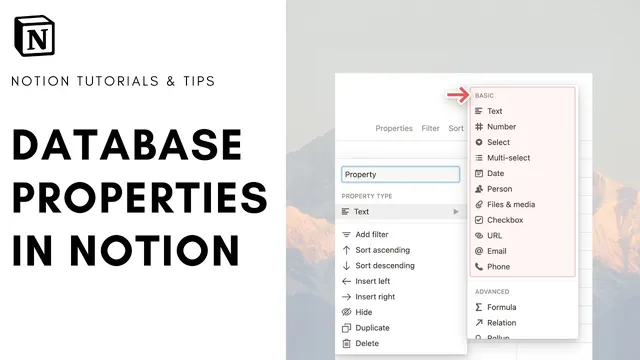
Database Properties in Notion
Based on The Organized Notebook's video on YouTube. If you like this content, support the original creators by watching, liking and subscribing to their content.
Every database item in Notion is a page, so a title/name field is always present even if the page content appears empty.
Briefing
Notion database properties are the building blocks that turn a simple list of pages into structured information—covering everything from basic fields like titles and tags to advanced links between databases. Every database item is a page, and properties define what data each page can hold, how it’s displayed, and how it can interact with other items. That’s why choosing the right property types is essential for making databases usable for real workflows like notes, budgets, task tracking, and team management.
The walkthrough starts with creating a table view database and removing the default “tags” property to focus on the core idea: every item still needs a name, even if the page looks blank (it shows “Untitled” until renamed). From there, it catalogs the property types available in Notion. A “Text” property is the default choice for free-form information such as notes or descriptions. A “Number” property supports numeric formats including commas, percentages, and currency symbols, and it can display values as a plain number, a bar, or a ring (with the ring’s completion based on a chosen divisor like 100). For controlled vocabularies, “Select” limits entries to one option from a predefined list, while “Multi-select” allows multiple choices at once.
For workflow states, “Status” functions like a more task-oriented version of select, with categories such as “To do,” “In progress,” and “Complete,” making it especially suited to kanban-style tracking even when viewed in a table. Time-based organization comes from the “Date” property, which offers multiple date formats plus a “relative date” option that displays values like “tomorrow” based on the current day, along with 12-hour or 24-hour time formatting.
The guide then moves into properties that connect data to people, files, and external links. “Person” restricts selection to workspace members who can access and edit the page. “Files and media” supports uploads and embedded links. “Checkbox” is ideal for binary task states such as done/not done. “URL” creates clickable hyperlinks, while “Email” and “Phone” automatically format entries so they can open the relevant email client or initiate a call.
More powerful automation comes from “Formula,” which can generate outputs based on other properties—using functions and property references so one field can react to others (though it’s treated as complex enough for a separate deep dive). Data relationships are handled through “Relation,” which links one database to another without a fixed limit on how many pages can be connected, and “Rollup,” which aggregates information from the related records (for example, pulling the related item’s name). Finally, Notion includes system-generated metadata fields like “Created time,” “Created by,” “Last edited time,” “Last edited by,” and an “ID” property that generates a unique identifier per item.
The practical takeaway is that properties can be added and managed in multiple ways—via the plus button in the database table, through “Add property” on the page, and even through the database’s three-dots menu. Properties can be reordered, and any set of fields can be hidden or shown to keep the table focused on what matters.
Cornell Notes
Notion database properties define what each database item (a page) can store and how that information behaves. The key property types include Text, Number (with display modes like bar or ring), Select (single choice), Multi-select (multiple choices), Status (task-friendly stages), and Date (with full or relative formats). Properties like Person, Files and media, Checkbox, URL, Email, Phone connect records to people, attachments, and external actions. For advanced structure, Formula creates computed fields from other properties, while Relation links databases and Rollup summarizes fields from related records. System fields such as Created time, Last edited by, and a unique ID round out the toolkit for tracking and organization.
Why does Notion require a “name” even when a database item looks blank?
How do Select and Multi-select differ in practical use?
What makes Status especially useful for task workflows?
What options exist for Date properties, and what does “relative date” do?
How do Relation and Rollup work together across databases?
What is Formula used for, and why doesn’t it do anything by itself?
Review Questions
- Which property types are best for controlled vocabularies, and how would you choose between Select and Multi-select?
- Describe a scenario where Relation and Rollup would be more useful than duplicating information manually.
- What system-generated properties help track record history, and what does the ID property provide?
Key Points
- 1
Every database item in Notion is a page, so a title/name field is always present even if the page content appears empty.
- 2
Text properties are best for free-form notes or descriptions, while Number properties support numeric formats and multiple display styles (number, bar, ring).
- 3
Select restricts entries to one predefined option, whereas Multi-select allows multiple options from the same kind of list.
- 4
Status is tailored for stage-based workflows like task progress, using categories such as To do, In progress, and Complete.
- 5
Date properties support full and relative formats, plus time display options like 12-hour or 24-hour.
- 6
Relation links databases by connecting pages, and Rollup aggregates specific fields from those related pages.
- 7
Notion’s built-in system fields (Created time/by, Last edited time/by) and the unique ID property support tracking and identification.