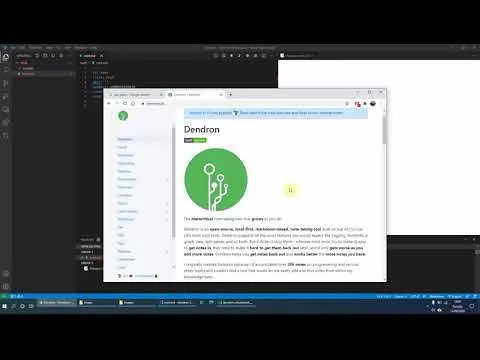
Dendron Getting Started - An alternative note taking app for PKM / To Do / Journal
Based on Ed Nico's video on YouTube. If you like this content, support the original creators by watching, liking and subscribing to their content.
Initialize a Dendron workspace in VS Code to start with root.md, then create additional notes quickly using Ctrl+L and the “create new file” option when a name doesn’t exist.
Briefing
Dendron is presented as a lightweight, structured note-taking system inside VS Code that starts with almost nothing—an initialized workspace creates a single root.md—and then grows through fast note creation, automatic linking, and built-in views for reading and navigation. The core workflow is simple: create a new page, type in Markdown, and use Dendron’s preview and outline to jump around sections without losing context. With the extension installed and a workspace initialized, the quickest path to a new note is using Ctrl+L to search for pages; when a page name doesn’t exist, the lookup window offers to create it on the spot (e.g., creating newpage.md from “new page”).
Once a note exists, Dendron’s editing experience is anchored by two UI features. First, Markdown Preview Enhanced renders the content as HTML so users can see how formatting will look. Second, the outline view (header levels 1–3) turns headings into clickable navigation targets, letting readers jump directly to sections within a note. That combination—rendered preview plus an interactive outline—makes even small notes easier to scan, and it becomes more valuable as notes grow.
The transcript then shifts from writing to organizing. Journal and daily entries are automated via Ctrl+Shift+I, which creates a journal note named with today’s date; repeating the shortcut produces tomorrow’s entry. Linking between pages is handled through backlinks: typing a double-bracket link (e.g., [[new ...]]) surfaces matching page names, and selecting one inserts a link. If the linked page doesn’t exist yet, Dendron can create it automatically, and the backlink appears in the source note. Navigation shortcuts reinforce this: clicking links, using Ctrl+Right Click, or pressing F12 to jump to the referenced page.
To-do management is built directly into Markdown syntax. Creating tasks uses dash + square brackets (e.g., - [ ] task), and the preview renders them as tick boxes. Marking completion can be done either by editing the Markdown (adding an x) or by interacting with the rendered checkbox. The transcript also highlights quick reordering using Alt+Up/Alt+Down, including moving entire blocks—useful for reprioritizing tasks (like high/medium/low) or rearranging sections within a note.
Media and assets are handled through image insertion. After copying an image from Google Images, users can paste it into Dendron via VS Code’s command palette (Ctrl+Shift+P) and the “Paste Image” option. Dendron stores the resulting file under assets (including an images folder) and updates the note accordingly, even creating new asset files as images are added.
Finally, Dendron’s graph view is introduced as a way to visualize relationships between notes. Using the command palette to “Show Note Graph” brings up a node-and-edge view of connected pages; selecting a node opens the corresponding note, and the preview can be inspected directly from the graph. The overall takeaway is that Dendron turns note-taking into a fast loop of writing, linking, and navigating—so organization emerges from the act of creating and connecting pages rather than from separate tooling.
Cornell Notes
Dendron is shown as a structured note-taking workflow inside VS Code that begins with a minimal workspace (root.md) and scales through quick page creation, Markdown editing, and navigation tools. Ctrl+L enables fast “search or create” for new notes, while Ctrl+Shift+I generates date-based journal entries. Double-bracket links create backlinks and can automatically generate missing pages, with navigation supported by Ctrl+Right Click and F12. Tasks use - [ ] syntax and render as interactive checkboxes in preview; Alt+Up/Alt+Down reorders tasks or blocks. Images can be pasted from the clipboard into the note, and a “Show Note Graph” view visualizes connections between notes.
How does a user create a new note quickly in Dendron, and what happens when the note name doesn’t exist yet?
What features make it easier to read and navigate within a single note?
How are journal entries and daily notes generated without manual naming?
How do backlinks and automatic page creation work when linking notes?
How are to-dos created, marked complete, and rearranged?
What tools help with adding images and visualizing note relationships?
Review Questions
- When creating a new note with Ctrl+L, how does Dendron decide whether to open an existing page or offer creation?
- Describe two different ways to navigate to a linked page in Dendron.
- What Markdown syntax creates a to-do checkbox, and how can completion be represented in the underlying text?
Key Points
- 1
Initialize a Dendron workspace in VS Code to start with root.md, then create additional notes quickly using Ctrl+L and the “create new file” option when a name doesn’t exist.
- 2
Use Markdown Preview Enhanced for rendered HTML and the outline view (header levels 1–3) for clickable intra-note navigation.
- 3
Generate date-based journal notes automatically with Ctrl+Shift+I, avoiding manual naming for daily entries.
- 4
Build organization through double-bracket links that create backlinks and can automatically generate missing pages when navigating to them.
- 5
Manage tasks with - [ ] syntax so checkboxes render in preview; mark completion by clicking the checkbox or adding an x in Markdown.
- 6
Reorder content efficiently using Alt+Up/Alt+Down, including moving selected blocks for priority and structure changes.
- 7
Insert images by pasting from the clipboard (Ctrl+Shift+P → Paste Image), which stores them as asset files and updates the note; use “Show Note Graph” to visualize connections between notes.