Dictionary blocks in MIT App Inventor | Customer Record App | Storing records in MIT App Inventor
Based on Obsidian Soft's video on YouTube. If you like this content, support the original creators by watching, liking and subscribing to their content.
Dictionary blocks store data as key–value pairs, enabling reliable retrieval by referencing keys like “name” and “phone.”
Briefing
Dictionary blocks in MIT App Inventor are a practical way to store customer-style data as key–value pairs, then retrieve or display specific fields by referencing their keys. Instead of keeping separate variables for every attribute, a dictionary bundles related information into one structured record—like using “name” as the key to fetch the customer’s name value, and “phone” as the key to fetch the phone number. That structure matters because it scales cleanly from one customer to many: a single dictionary can represent one person, while a list of dictionaries can represent an entire customer database.
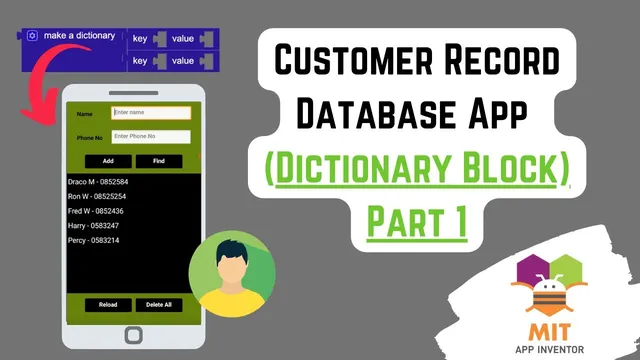
The walkthrough builds a “Customer Record” app for a departmental store. The interface uses two main screens (a main screen and an update screen), with a vertical layout containing labeled text boxes for “name” and “phone number,” plus buttons for “add,” “find,” “reload,” and “delete all.” A ListView sits below the buttons to display stored customers. Input validation is applied to the phone text box so only numbers are accepted.
On the data side, the app starts with global variables: one global dictionary called record (initialized as empty) and one global list called list of Records (initialized as empty). When the user presses the add button, the app constructs a new dictionary using the “make dictionary” block. The dictionary’s keys are taken from the text fields’ labels—such as “name”—and the values come directly from the user’s input (the text entered into the name and phone text boxes). That dictionary is then appended to the global list of Records using an “add item” block.
To persist data across app sessions, the list of dictionaries is stored in TinyDB under a tag named “customer data.” The app uses TinyDB’s “store value” procedure to save the entire list at once, which is crucial because the customer system needs multiple records, not just one.
Displaying the stored customers requires a dedicated procedure, update list view. Inside it, a local variable list is created as an empty list for building ListView elements. A for-each loop iterates through the global list of Records (each element is a dictionary). For each dictionary, the app creates a display string by joining the dictionary’s “name” value and “phone” value with a separator like “ - ”. Once the loop finishes, the procedure assigns the constructed list to ListView elements.
The app also loads existing data on startup. During the screen initialize event, it calls TinyDB’s “get value” using the same tag (“customer data”), ensuring that if the tag doesn’t exist, the fallback value is an empty list (not empty text). Finally, the delete all button clears everything: it uses TinyDB’s “clear all,” resets the global list of Records to an empty list, and empties ListView elements. The result is a working pattern for storing, listing, and managing multiple dictionary-based records in MIT App Inventor using TinyDB.
Cornell Notes
Dictionary blocks let MIT App Inventor store structured data as key–value pairs, such as “name” → customer name and “phone” → customer phone number. A single dictionary represents one customer record, while a list of dictionaries represents many customers. The app builds a global empty dictionary (record) and a global empty list (list of Records), then creates a new dictionary on “add,” appends it to the list, and saves the list to TinyDB under the tag “customer data.” A separate update list view procedure uses a for-each loop to turn each dictionary into a display string like “Name - Phone” and assigns the result to ListView elements. On startup, TinyDB data is loaded back into the list, and “delete all” clears both TinyDB and the UI.
How does a dictionary block represent a customer record, and what are the keys and values in this app?
Why does the app use a list of dictionaries instead of a single dictionary?
What does TinyDB store in this design, and why store the whole list at once?
How does the update list view procedure turn dictionary records into ListView entries?
What safeguards matter when loading from TinyDB on app startup?
What exactly happens when the delete all button is pressed?
Review Questions
- In this app’s data model, what is the difference between the global dictionary record and the global list of Records?
- Why must the fallback value in TinyDB get value be an empty list (not empty text) when the tag is missing?
- Describe how update list view uses keys in dictionaries to build the strings shown in the ListView.
Key Points
- 1
Dictionary blocks store data as key–value pairs, enabling reliable retrieval by referencing keys like “name” and “phone.”
- 2
A single dictionary represents one customer record, while a list of dictionaries represents many customers.
- 3
On “add,” the app builds a dictionary from text box inputs, then appends it to the global list of Records.
- 4
TinyDB persists the entire list of dictionaries under the tag “customer data,” making reload straightforward.
- 5
A dedicated update list view procedure uses a for-each loop to convert each dictionary record into a display string for ListView elements.
- 6
Local variables inside update list view can’t be accessed outside the procedure; ListView elements must be set after the loop finishes.
- 7
Delete all must clear TinyDB, reset the global list, and empty ListView elements to keep storage and UI in sync.