Display data in views and status bar
Based on Obsidian's video on YouTube. If you like this content, support the original creators by watching, liking and subscribing to their content.
A custom view renders inside a leaf; leaves manage layout and movement while views supply the UI content.
Briefing
Custom views in Obsidian let a plugin render its own UI inside movable “leaves” (the tabbed panels that make up an Obsidian workspace). The practical payoff is that a plugin can add a dedicated panel—complete with its own header, controls, and state—then open, focus, and clean it up like a native feature rather than forcing users into settings-only workflows.
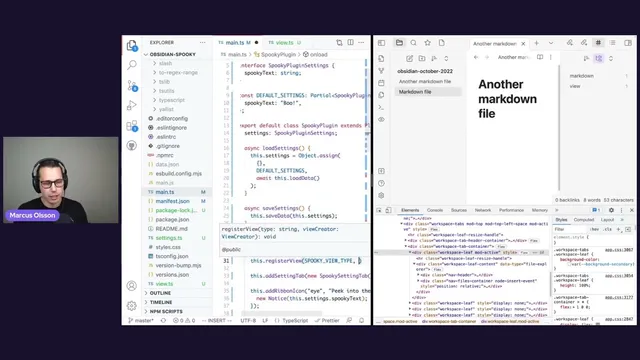
The session starts by grounding the terminology. Obsidian’s interface is organized into dock areas and a central workspace, each containing tabs. Those tabs correspond to “leaves,” which can be rearranged and repositioned as part of a workspace configuration. A “view” lives inside a leaf: the leaf provides the container and placement, while the view supplies what gets displayed. In the example shown, the leaf’s DOM includes a “leaf content” div where the view’s UI is rendered, along with view-specific elements like a header and a files container.
From there, the build moves into code. A new view class (for a “spooky” plugin) is created by extending Obsidian’s item view type. Two required pieces are implemented: a unique view type identifier (used later when attaching the view to a leaf) and a display text string (the label shown on the tab). The view is then registered with the plugin via registerView, supplying a callback that instantiates the view for a given leaf. Importantly, that callback may run multiple times, so the view logic should not rely on global references.
Opening the view requires more than registration. A ribbon action is added to create a leaf on the right side of the workspace, assign the view type to that leaf via view state, and then reveal it. revealLeaf focuses the existing panel if it’s already present; if not, it creates and shows it. To prevent stacking duplicate panels, the workflow includes a cleanup step before opening: detachLeavesOfType removes any existing leaves of that view type, ensuring only one “Emergency Contacts” panel exists at a time.
The view’s UI is built in an onOpen lifecycle method. The view uses the provided contentEl element to append DOM nodes like an H1 title and a list of emergency contacts. A “call” button is wired with onClick logic that toggles a boolean state (isCalling). A key lesson emerges when the button label fails to update: changing state alone doesn’t automatically re-render the DOM. The workaround shown is a brute-force render approach—clearing the view’s content element and rebuilding the UI whenever state changes. The tradeoff is inefficiency: clearing the entire contentEl also removes and recreates elements like the header.
Finally, the session addresses lifecycle hygiene. Disabling the plugin leaves the view behind unless it’s explicitly removed. The fix is to reuse the view-opening/leaf management logic in an onUnload method so all leaves of the view type are detached when the plugin is turned off. The segment ends by teasing a better approach using Svelte, which should handle reactive updates more cleanly than manual DOM rebuilding.
Cornell Notes
Obsidian plugin views are UI components that render inside “leaves,” the movable tab panels in an Obsidian workspace. A view is defined by a unique view type and a display text label, then registered with the plugin so Obsidian can instantiate it inside a leaf. To show the panel, the plugin creates (or reuses) a leaf on a chosen dock side, assigns the view type via leaf view state, and calls revealLeaf to focus it. When implementing interactive UI, updating a boolean state doesn’t automatically update the DOM; the example fixes this by clearing and re-rendering the view on each click. Proper cleanup matters: onUnload should detach leaves of the view type so disabling the plugin removes the panel.
What’s the difference between a leaf and a view in Obsidian’s UI model?
How does a plugin make Obsidian aware of a custom view?
How does the plugin actually open and focus the custom view panel?
Why didn’t the “call/hang up” button label update when state changed?
What cleanup is needed when disabling the plugin?
Review Questions
- When implementing a custom view, which two required methods must be provided, and how are they used later?
- What problem arises when toggling state in a view without reactive DOM updates, and what workaround was demonstrated?
- Why is detachLeavesOfType important before opening a new instance of the same view type?
Key Points
- 1
A custom view renders inside a leaf; leaves manage layout and movement while views supply the UI content.
- 2
Define a view with a unique view type and display text, then register it using registerView so Obsidian can instantiate it in a leaf.
- 3
To open the panel, create a leaf on the desired dock side, set its view state with the view type, and use revealLeaf to focus it.
- 4
Prevent duplicate panels by detaching existing leaves of the same view type before revealing a new one.
- 5
Interactive state changes require explicit DOM updates unless a reactive framework handles rendering.
- 6
Use onUnload to detach/destroy any leaves created by the plugin so disabling the plugin doesn’t leave orphaned UI behind.