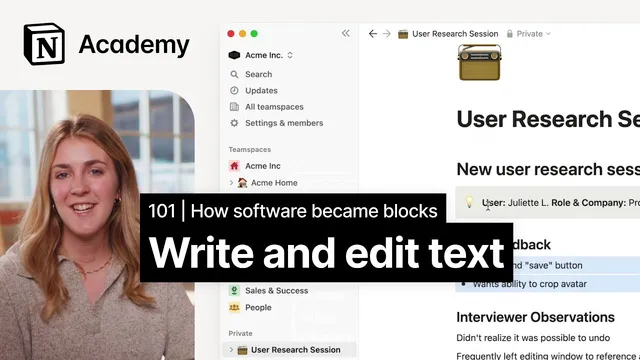
Document editing in Notion
Based on Notion's video on YouTube. If you like this content, support the original creators by watching, liking and subscribing to their content.
Every piece of content in Notion is a block, and the six-dot block handle is the main tool for transforming and styling blocks.
Briefing
Notion’s document editing hinges on one idea: every chunk of content is a block, and the six-dot block handle is the control center for changing what that block becomes and how it looks. By learning to convert text into different block types—especially headings, lists, and callouts—users can quickly turn plain notes into structured pages that read like real documents rather than raw text.
The workflow starts with creating a private page. In Notion, private pages aren’t shared across the workspace, making them a low-stakes place to practice. From the Private section, clicking the plus sign opens a blank canvas where typing or pasting text is intentionally distraction-free: interface features fade so attention stays on writing. From there, the six-dot menu next to any text reveals “turn into” options, including heading styles. A heading can also be created via markdown using the pound sign, or through a keyboard-driven slash command like “/heading 1.”
Once headings are in place, the same block-based approach extends to richer formatting. Notion supports multiple list and content types—such as to-do lists, bullet points, numbered lists, and toggles. Highlighting multiple rows and converting them can produce structured elements like callouts or to-do lists, which is especially useful for action items. The editing toolkit also includes block-level rearranging: blocks can be dragged to reorder items, and they can be dropped into new positions using visual drop indicators. That same drag-and-drop behavior enables layout changes such as moving blocks into columns.
With these building blocks understood, the lesson shifts to a practical template: a lightweight personal task list. The template is assembled using three columns labeled with level-two headings—“to do,” “doing,” and “done.” Under each heading, users add to-do list items (for example: “research personas,” “pick up dry cleaning,” and “request PTO for family vacation”). As tasks progress, blocks are dragged from “to do” into “doing,” then moved again into “done” once completed. Color finishes the template: by highlighting blocks and using the block handle’s color options (red, yellow, and green), the page becomes easier to scan.
The takeaway is that document creation in Notion isn’t about formatting menus or rigid templates—it’s about converting and moving blocks. Master the block handle, headings, list types, and drag-and-drop layout, and building a functional task system becomes a fast, repeatable process.
Cornell Notes
Notion editing works because every piece of content is a block, and the six-dot block handle controls both formatting and transformation. Users can turn text into headings (via the “turn into” menu, markdown like “#”, or slash commands such as “/heading 1”), and convert highlighted rows into structures like to-do lists, bullet points, callouts, or toggles. Blocks can also be dragged to reorder items or move them into columns using visual drop indicators. The lesson culminates in building a simple task template with three level-two heading columns (“to do,” “doing,” “done”), where tasks move across columns as they’re completed, with optional color coding for quick scanning.
How does Notion’s block handle change what you can do with text?
What are the main ways to create headings in Notion?
How can users convert multiple lines into structured lists or callouts?
How does drag-and-drop editing work for rearranging content and building columns?
What steps build the personal task list template described in the lesson?
Review Questions
- What three methods does Notion offer for creating a heading, and how do they differ in input (menu vs keyboard vs markdown)?
- How would you convert a paragraph of action items into a to-do list and then rearrange them into a “doing” column?
- Why does treating content as blocks make it easier to build a template like the three-column task list?
Key Points
- 1
Every piece of content in Notion is a block, and the six-dot block handle is the main tool for transforming and styling blocks.
- 2
Text can be converted into headings using the block handle’s “turn into” menu, markdown with “#”, or slash commands like “/heading 1”.
- 3
Highlighting multiple rows lets users convert groups of text into structured formats such as to-do lists, bullet points, callouts, or toggles.
- 4
Blocks can be dragged to reorder content, and visual drop indicators help place blocks into columns.
- 5
A practical task template can be built by creating three level-two heading columns (“to do,” “doing,” “done”) and moving to-do blocks across them as work progresses.
- 6
Color coding is applied at the block level by highlighting content and selecting color options (e.g., red, yellow, green).