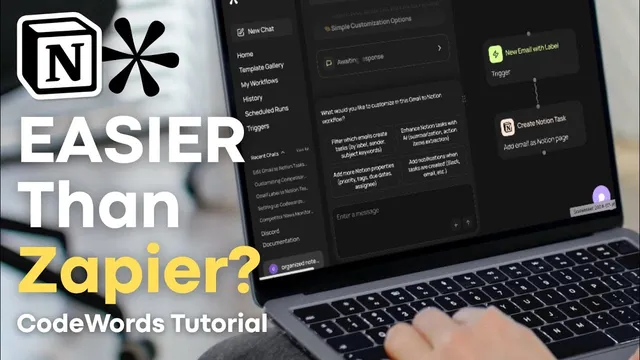
Easy Workflow Automation with CodeWords?| Connect Notion with Gmail, Google Calendar & More
Based on The Organized Notebook's video on YouTube. If you like this content, support the original creators by watching, liking and subscribing to their content.
CodeWords builds automations by prompting an AI agent, reducing the need for node-based wiring common in traditional automation tools.
Briefing
CodeWords turns workflow automation into a chat-driven, code-under-the-hood experience—letting users build multi-step automations by describing what should happen, rather than wiring nodes together in tools like Make or Zapier. With more than 2,500 integrations (including Notion, Gmail, and Google Calendar), it aims to remove the friction that typically blocks beginners: fewer connections to drag, fewer brittle configurations, and a clearer path from intent to a working automation.
The walkthrough starts with CodeWords’ interface: a sidebar with chat, template gallery, workflows, history, scheduled runs, and triggers. New chat launches an AI agent (“Cody”) where users type prompts such as “build me a workflow” and can choose a more structured suggestion mode that breaks down actions like monitoring, enriching, scraping, analyzing, and extracting. Templates provide ready-made starting points—such as a brand sentiment analyzer or a “Gmail AI labeler”—and can be remixed to fit personal needs.
The first hands-on build demonstrates a practical Gmail-to-Notion workflow. The goal: when an email receives a specific Gmail label, CodeWords automatically creates a task in a Notion database. After prompting for a Notion task database, the setup asks for a database ID or URL, then guides users through mapping email fields to Notion properties—using the email subject as the task title, the email body as the task description, and optionally setting basics like status, priority, and due date. Next comes the trigger configuration: users create a Gmail label (e.g., “add to Notion”), then run a test by labeling an email.
Validation is built into the flow. CodeWords checks whether the test task appears in Notion and even verifies that the resulting task includes a working link back to the Gmail message. Once the test passes, the automation can run on a schedule or trigger-based cadence. A visual diagram shows what’s happening behind the scenes, while the trigger dashboard lets users manage the automation—pausing, deleting, disabling email notifications, and inspecting details like the database ID.
After the Gmail-to-Notion example, the walkthrough highlights additional templates. A “competitor news monitor” pulls weekly news mentions into a Notion competitor database, requiring integration connections and a Notion data source ID. The workflow can be scheduled to run every seven days (for example, weekly on Mondays), with executions visible in scheduled runs. Another template syncs Google Calendar events into Notion, filtering out recurring events and importing upcoming one-time items; it also supports recurring schedules for ongoing syncing.
Overall, CodeWords positions itself as an alternative automation layer: start with a prompt or template, connect required integrations (Notion and Gmail/Google Calendar), supply database IDs, test, then manage triggers and schedules from a dedicated dashboard—without building node graphs manually.
Cornell Notes
CodeWords makes automation workflows by prompting an AI agent to generate the steps, then handling the “plumbing” behind the scenes. A key example links Gmail to Notion: when a Gmail message gets a chosen label, CodeWords creates a task in a Notion database by mapping email fields (subject/body) to Notion properties and optionally setting status, priority, and due date. The system verifies success by testing the trigger and confirming the task appears in Notion with a working Gmail link. Users can manage automations through triggers and scheduled runs, and reuse or remix templates such as competitor news monitoring and Google Calendar-to-Notion syncing. The payoff is faster setup and fewer node-based configuration hassles while still supporting multi-step workflows.
How does CodeWords replace the typical node-by-node setup in automation tools?
What information is needed to create the Gmail-to-Notion task workflow?
How does CodeWords confirm the automation works before relying on it?
What can users do after the workflow is created—beyond just running it?
How do the competitor news monitor and Google Calendar sync templates differ in setup and behavior?
Review Questions
- In the Gmail-to-Notion workflow, which Gmail fields are mapped to which Notion properties, and why does that mapping matter?
- What steps are required to test and validate a trigger-based automation before scheduling it?
- Compare how the competitor news monitor and Google Calendar sync handle scheduling and event selection (weekly mentions vs one-time upcoming events).
Key Points
- 1
CodeWords builds automations by prompting an AI agent, reducing the need for node-based wiring common in traditional automation tools.
- 2
A structured suggestion mode and a template gallery help users start faster and remix existing workflows.
- 3
The Gmail-to-Notion workflow triggers on a specific Gmail label and creates tasks in a Notion database by mapping email subject/body to task fields.
- 4
Successful setup includes connecting required integrations (Notion and Gmail/Google Calendar) and supplying Notion database IDs or URLs.
- 5
CodeWords validates workflows through test runs that confirm tasks appear in Notion and include working links back to Gmail.
- 6
Triggers and scheduled runs are managed from dedicated dashboards, including options to pause, delete, and disable notifications.
- 7
Templates like competitor news monitoring and Google Calendar sync can be scheduled and customized by editing workflows and reusing database IDs.