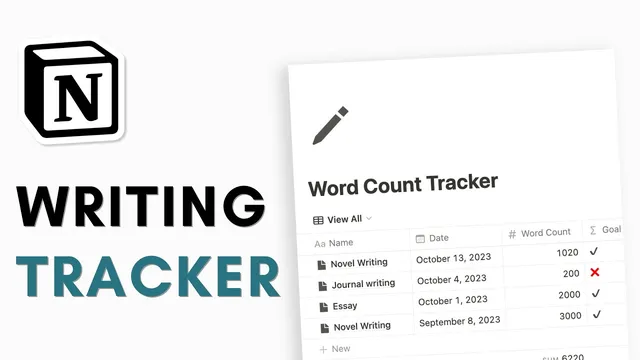
EASY writing tracker in Notion (beginner tutorial + free template)
Based on The Organized Notebook's video on YouTube. If you like this content, support the original creators by watching, liking and subscribing to their content.
Create a single Notion table database with Date and a Number property for the daily metric (Word Count in the template).
Briefing
A beginner-friendly Notion setup can turn daily writing into a measurable habit by combining a single database, a goal-checking formula, and automatic rollups for totals. The core build is a “word count tracker” database with three key fields: a Date, a Number for Word Count, and a Formula that marks each day as “met” or “not met” based on whether the entry reaches a chosen daily target (for example, 1,000 words). To make results instantly readable, the formula outputs a checkmark emoji when the goal is hit and an X emoji when it isn’t.
The workflow starts on a blank Notion page, where the template is titled and styled with a cover image from Unsplash and an icon from Notion’s icon set. From there, a single table database is created (with the database title hidden for a cleaner look). Unneeded properties like tags are removed, and a Date property is added alongside a Word Count number property. The goal logic then becomes the centerpiece: a Formula property named “Writing goal” (or similar) uses an IF condition that compares the Word Count against the daily threshold using a “greater or equal” check. If the condition is true, the formula returns the “met” value; if false, it returns “not met,” with the checkmark and X inserted as emojis for quick visual scanning.
To support longer-term progress, the tracker adds a Notes text property for freeform comments about each writing session. It also uses a rollup-style calculation in the table view: the “calculate” option sums the Word Count across entries, producing a running total for the selected view. The main view is renamed to “All,” then sorted by Date—typically descending so the newest entries appear first.
From there, the template multiplies insights through additional database views rather than extra databases. A “Monthly” view duplicates the “All” view and groups entries by month using the Date property, allowing totals like “September” and “October” to appear as grouped sums. An “Yearly” (labeled “early” in the transcript) view duplicates again and groups by year, with options to hide empty groups and control whether newest groups appear first. These grouped views make it easy to see monthly and yearly writing totals at a glance.
Finally, the transcript highlights a practical way to track word counts directly inside Notion pages: Notion’s page menu includes a “word count” section with last edited details, and database entries also show word count values when pages are opened and edited. The template’s flexibility is emphasized throughout—any numeric daily goal can use the same structure, whether tracking pages read, minutes run, or other measurable targets—so long as the formula’s threshold is updated to match the user’s goal.
Cornell Notes
The template builds a Notion word count tracker using one database with Date, Word Count (number), Notes (text), and a Formula that checks whether each day meets a chosen target. The formula uses an IF condition with a “greater or equal” comparison against the daily goal and outputs a checkmark emoji for “met” and an X emoji for “not met.” A table view can sum word counts for totals, while duplicated views group entries by month and by year to show monthly and yearly totals. The same structure works for any daily numeric habit—pages read, minutes run, or similar—by changing the goal threshold in the formula.
How does the tracker decide whether a day’s writing goal is met?
What are the minimum properties needed in the database?
How are monthly and yearly totals generated without creating new databases?
How does the tracker compute totals across entries in a view?
What’s the flexible part of the template beyond word count?
How can Notion’s built-in word count help alongside the tracker?
Review Questions
- What exact comparison does the formula use to determine “met” versus “not met,” and where is the daily goal value entered?
- How do duplicated views differ from adding new databases in this template’s monthly and yearly tracking approach?
- If someone wants to track minutes run per day instead of words, which properties and formula parts must be changed?
Key Points
- 1
Create a single Notion table database with Date and a Number property for the daily metric (Word Count in the template).
- 2
Use a Formula property with an IF condition and a “greater or equal” comparison to check whether the daily goal is reached.
- 3
Add checkmark and X emojis in the formula output to make goal status readable at a glance.
- 4
Use a Notes text property to capture context for each entry without affecting calculations.
- 5
Sum the Number property in the table view using the calculate option to get totals for the current view.
- 6
Duplicate the main view and group by month and by year to produce monthly and yearly totals, with options to hide empty groups.
- 7
Update the formula’s goal threshold whenever the daily target changes, since the same structure works for other numeric habits too.