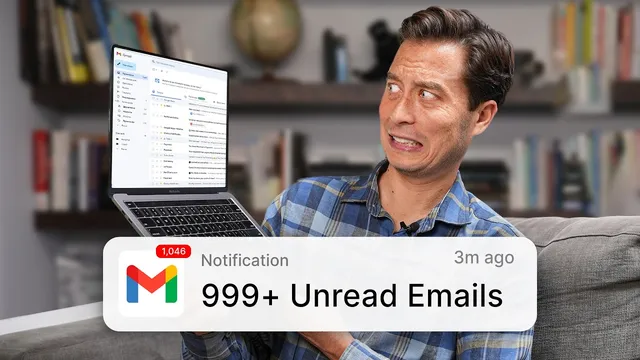
Email Overload SOLVED: My Superhuman Inbox Zero Secrets
Based on Tiago Forte's video on YouTube. If you like this content, support the original creators by watching, liking and subscribing to their content.
Archive the entire inbox periodically to keep it as a clean, short-lived action list rather than a permanent backlog.
Briefing
Email overload isn’t solved by trying to “replace” email—it’s solved by changing how people use it: clear the inbox, search instead of folders, draft faster with AI, and build follow-up and filtering systems that prevent important messages from getting buried. The core shift is operational. Rather than treating email as a pile to manage, it becomes a workflow that’s constantly reset, queried, and acted on.
A first move is to stop organizing unread messages into folders and instead archive everything in the inbox. The method is blunt: even if there are hundreds or thousands of unread emails, the inbox should be periodically emptied into an archive so the inbox becomes a short-lived action list. From there, retrieval relies on search—now enhanced by AI-powered “Ask AI” that can answer questions in natural language and return concise results with clickable sources that jump directly to the underlying emails. Instead of scanning lists, users can ask things like “When is my next flight?” and get the relevant information extracted, with the option to open the exact message if more detail is needed.
The second major change targets the biggest time sink in email: writing from scratch. Responding to messages is mentally expensive, especially when stakes are high and each reply must be accurate and polite. AI features reduce that cognitive load in three ways. “Instant replies” offer quick response drafts (for acknowledgements, questions, or confirmations). “Autocomplete” helps write responses incrementally by suggesting the next word or even full sentences based on the email context. “Write with AI” goes further by drafting a complete customized reply from a few bullet points, then allowing edits like rewriting in a specific “voice,” or adjusting tone to be warmer, more informal, or more professional.
Follow-ups are treated as a system, not a memory test. Three Superhuman features support this: “Remind me” sets a follow-up reminder at send time (e.g., in two days or by Monday if no reply arrives), “Smart send” schedules messages at an optimized time based on recipient time zone and past behavior, and “Read statuses” show whether and when an email was opened, including device context—useful for deciding whether a follow-up is warranted.
To prevent interruptions and missed priorities, the inbox is split into dedicated views such as Team, VIP, and Calendar, plus custom splits based on sender, domain, or specific recipients. Finally, the workflow includes aggressive list hygiene: unsubscribe instantly via keyboard shortcuts, and block senders or entire domains when unsubscribing isn’t enough.
For team communication, the approach avoids endless thread sprawl by using read statuses, team reply indicators, and a collaboration feature that lets users share an email for commenting and back-and-forth discussion without moving the conversation into a separate tool. The overall message is practical: speed, AI drafting, and inbox discipline turn email from a daily drain into a manageable routine—especially when these features are combined into one consistent process centered on action, not accumulation.
Cornell Notes
The strategy for beating email overload centers on workflow design: empty the inbox into an archive, retrieve messages through AI-enhanced search, and use AI to reduce the mental cost of replying. Instead of folders, Superhuman encourages a “blank slate” inbox so unread messages don’t become a permanent backlog. Writing is accelerated with instant replies, autocomplete, and “Write with AI,” which can draft a full response from bullet points and then rewrite it in a chosen tone or “voice.” Follow-ups become reliable through reminders, optimized send timing, and read statuses that show whether recipients opened messages. Inbox splitting, instant unsubscribe, and blocking further prevent noise from interrupting priority work.
Why does the advice to archive everything matter more than organizing unread emails into folders?
How does AI-powered search change the way someone finds information in email?
What are the three AI writing modes, and when would someone use each?
How do reminders, smart send, and read statuses work together to improve follow-ups?
What does inbox splitting accomplish, and how can it be customized?
How does the approach handle unwanted email at scale?
Review Questions
- If the inbox is archived regularly, what mechanism replaces folders for locating needed emails, and why does it still work?
- Which AI writing mode would best fit a reply where the user wants full control over wording but needs speed, and what feature supports that?
- How can read statuses change the decision to follow up, compared with relying only on whether a reply has arrived?
Key Points
- 1
Archive the entire inbox periodically to keep it as a clean, short-lived action list rather than a permanent backlog.
- 2
Use AI-powered search (“Ask AI”) to answer questions directly and click sources to jump to the exact supporting emails.
- 3
Avoid writing from scratch by using instant replies, autocomplete, or “Write with AI” depending on how much drafting control is needed.
- 4
Treat follow-ups as a system: set “Remind me” at send time, use “Smart send” for timing, and rely on “Read statuses” for engagement signals.
- 5
Split the inbox into priority views (Team, VIP, Calendar) and create custom splits by sender, domain, or recipients to prevent noise.
- 6
Unsubscribe instantly with keyboard shortcuts and block senders or entire domains when unsubscribing doesn’t stop the flow.
- 7
Reduce team email thread chaos with read statuses, team reply indicators, and the ability to share an email for in-thread commenting and discussion.