Enhance The New Metadata Properties in Obsidian MD with These Plugins
Based on John Mavrick Ch.'s video on YouTube. If you like this content, support the original creators by watching, liking and subscribing to their content.
Obsidian file properties support interactive property types like checkbox and date, including calendar selection and date jump controls for daily-note workflows.
Briefing
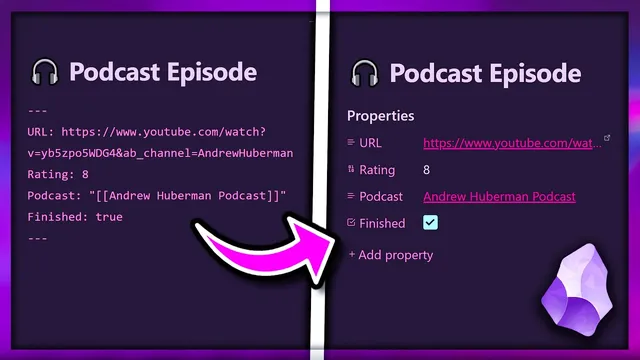
Obsidian’s new “file properties” feature turns note metadata into editable, user-friendly fields—checkboxes, dates, and sidebar views—making it far easier to manage structured information than the old front-matter-only workflow. The core upgrade is that properties aren’t just text at the top of a note; they can be edited in a more guided way (including type-specific controls like calendars) and surfaced through dedicated views that support cross-note searching and filtering.
In practice, adding a property starts from the command palette: “Add file property” creates a field with a name and value, defaulting to text. Changing the property type is interactive—warnings prompt the user to update the type (for example, switching to a checkbox), and date fields can be set either by typing or by selecting from a calendar. For daily notes, date properties also include a quick-jump button that navigates to the corresponding day, reducing the friction of scrolling through long documents just to edit metadata.
For long-form notes, properties can be managed without jumping to the top by using “Show file properties” in the sidebar. Even more powerful is “Show all properties,” which aggregates a vault’s properties across notes. From there, clicking a property value can populate a search filter for all notes sharing that field. The workflow supports more precise queries too: adding a colon and a value lets users narrow results (e.g., filtering podcast notes by a specific podcast name). There’s also a property-search mode that selects a field and value directly from the search pane.
Where the workflow becomes “pro” is automation and richer interaction. A community plugin called Templator can predefine property sets when new notes are created. By installing Templator, pointing it at a templates folder, and enabling “trigger templator on new file creation,” every new “podcast episode” note can automatically receive fields like URL, rating, and finished status. Templator variables then go further by auto-filling values at creation time. Using TP file variables (like `{{tp file title}}`) and date logic via the Moment library, a daily note template can compute a “week” property (e.g., Week 35) from the note title, then insert a link to the relevant weekly note.
To make property entry feel natural inside the writing flow, the workflow adds inline property editing. It relies on the Data View plugin for property fields inside text, plus an additional plugin (installed via BRAT if needed) that syncs those inline fields back into the properties menu. A simple syntax—using double colons after a field name—creates an inline field that syncs to the corresponding property, with customizable underline behavior to avoid ambiguity when multiple fields exist.
Finally, navigation solves a practical limitation: property fields are effectively single-line, so long summaries can’t be fully browsed from tables. The solution uses Obsidian header links: a daily note template adds a link to a specific “Summary” header using the title variable plus a hashtag anchor. That link can appear as a hoverable icon in weekly tables, letting users preview the full summary and jump directly to the section without scrolling. The result is a metadata system that’s not only structured, but also fast to fill, easy to search, and simple to navigate across notes.
Cornell Notes
Obsidian’s file properties turn metadata into interactive fields (text, checkbox, date) that can be edited from the top of a note or via a sidebar view. “Show all properties” aggregates properties across notes, enabling click-to-filter searching by field values. Community plugins extend this into automation: Templator can insert predefined property sets on new note creation and use variables (including Moment-based date formatting) to auto-fill values like a week number and link to the matching weekly note. Additional plugins enable inline property entry inside the note body and sync it back to the properties menu. For long summaries, header links let tables show a hover preview and jump directly to the “Summary” section.
How do file properties work in Obsidian, and what makes them more usable than front matter?
What does “Show all properties” enable for cross-note searching?
How can properties be automatically added when creating new notes?
How can a template auto-fill a “week” property from a daily note title?
How can long property content be navigated without scrolling, and why are header links used?
Review Questions
- What UI controls and views make file properties easier to edit than front matter, and how do date properties add extra navigation value?
- Describe the chain of steps needed to use Templator to auto-insert property fields on new note creation, including how templates are connected to a folder.
- How do inline property plugins and header links address two different limitations: where property entry happens (inside text) and how long content is browsed (hover/jump to a section)?
Key Points
- 1
Obsidian file properties support interactive property types like checkbox and date, including calendar selection and date jump controls for daily-note workflows.
- 2
Sidebar views (“Show file properties”) and vault-wide views (“Show all properties”) let users edit and search metadata without scrolling to the top of notes.
- 3
Templator can prefill property fields automatically on new file creation by associating a template with a target folder and enabling “trigger templator on new file creation.”
- 4
TEMPLATOR variables plus the Moment library can derive computed values (like a week number) from a daily note title and insert them into properties and links.
- 5
Inline property editing can be created inside the note body using double-colon syntax and then synced back into the properties menu via an additional sync plugin (installed via BRAT if needed).
- 6
Header links to specific sections (using title variables and hashtag anchors) enable hover previews and direct navigation to long summary content from tables.
- 7
A complete workflow combines automation (templates), structured capture (properties), inline writing (synced fields), and navigation (header links) to reduce metadata friction.