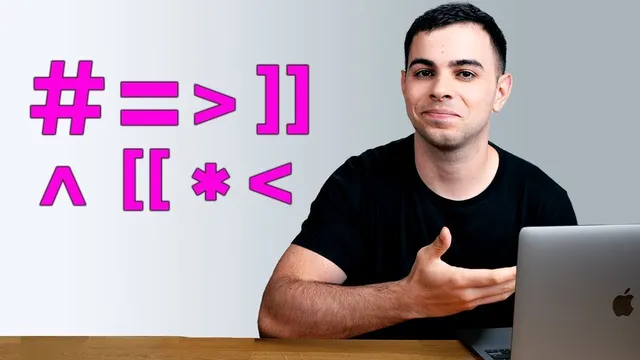
Every USEFUL Markdown Syntax That I Use in Obsidian
Based on FromSergio's video on YouTube. If you like this content, support the original creators by watching, liking and subscribing to their content.
Use “# ” through “###### ” (with a required space) to create headings, and rely on the collapse toggle to manage long sections.
Briefing
Obsidian’s most practical Markdown syntax is less about memorizing “Markdown basics” and more about using a small set of patterns—headers, formatting, lists, links, footnotes, tables, quotes, and code blocks—to turn long notes into navigable documents. The biggest payoff comes from linking: Markdown in Obsidian can jump not only to other pages, but to specific headers and even individual text blocks inside a page, making scrolling optional.
Headers start the toolkit. Typing a hashtag followed by a space creates headings from H1 through H6. Each heading automatically gets a collapsible toggle; collapsing a higher-level heading hides everything beneath it. The space after the hashtag matters—without it, the line becomes a tag instead of a heading.
Text formatting then covers the essentials: italics via single asterisks (or the equivalent shown), bold via double asterisks, strikethrough via double tildes, and highlighting via double equals signs. These are straightforward but they’re the building blocks for readable notes.
Lists are handled through common Markdown conventions: dashes for unordered lists, asterisks for unordered lists, plus signs as an additional unordered-list option, and numbered lists via “1. ” style. Checklist items are a standout workflow feature: using Command+Enter (or Control+Enter on Windows) creates a checkbox that can be toggled in both edit and preview modes.
Linking is where Obsidian’s Markdown becomes especially powerful. Double brackets create internal links to other pages in a vault. Aliases refine those links: adding a pipe lets the displayed text differ from the target page name (e.g., linking to “History note 7” while showing “History notes”). For intra-page navigation, Obsidian supports “headers in the same page” and “headers in another page” by combining double-bracket page links with a hashtag and the target header. Adding a pipe can control what text appears while still jumping to the right section.
Going further, Obsidian can link to individual blocks of text—distinct from headers—using a different delimiter (the transcript uses a “right” bracket style). This enables extremely specific jumps, including to items inside lists. When block links need cleaner display text, a pipe-based alias can replace the raw block identifier.
External links use either a direct URL-like entry (which triggers an “open outside Obsidian” indicator) or a cleaner bracket/parenthesis format: the visible label in square brackets and the destination in parentheses. Embedding external links is done by prefixing with an exclamation point, which renders the link content directly on the preview page.
Footnotes add another layer of navigation. They’re created with a caret-style marker in square brackets and defined with a matching marker plus a colon and the footnote text. Obsidian can treat footnote numbering flexibly based on where definitions appear, so ordering becomes less fragile. A workflow preference is to define footnotes inline (so writers don’t have to jump to a bottom-of-page definition).
Finally, the transcript rounds out the syntax set: tables via pipe-separated rows (with a recommendation to use the Advanced Tables plugin for heavy table users), quotes via a greater-than style marker that can be nested, and code blocks that support language tagging (e.g., Python or JavaScript) so Obsidian formats them appropriately. The overall message is practical: build a personal “syntax page” or save the reference so these patterns become muscle memory rather than trivia.
Cornell Notes
Obsidian’s most useful Markdown syntax centers on turning notes into navigable documents, especially through advanced linking. Headers, formatting (italics/bold/strikethrough/highlight), and lists provide the structure, while double-bracket links connect pages. Adding a pipe enables aliases, so displayed link text can differ from the target page. Obsidian can jump not only to headers but also to individual blocks of text, letting users avoid endless scrolling. Footnotes can be created with caret-style markers and are easiest to manage when defined inline, and tables/quotes/code blocks round out the toolkit for richer writing.
How do headings work in Obsidian, and what common mistake turns them into something else?
What’s the difference between basic internal links and links with aliases?
How can Obsidian link to a specific section inside the same page or a different page?
What does “block linking” enable that header linking can’t?
How are footnotes created in Obsidian, and why might inline definitions be preferable?
What syntax options are mentioned for tables, quotes, and code blocks?
Review Questions
- When would a hashtag line become a tag instead of a heading in Obsidian?
- How do you create an internal link that displays different text than the destination page name?
- What extra delimiter or syntax is used to link to individual blocks of text rather than headers?
Key Points
- 1
Use “# ” through “###### ” (with a required space) to create headings, and rely on the collapse toggle to manage long sections.
- 2
Format text with single/double asterisks for italics/bold, double tildes for strikethrough, and double equals for highlighting.
- 3
Build lists with dashes, asterisks, plus signs, or numbered “1. ” style, and create checklists with Command+Enter (or Control+Enter on Windows).
- 4
Use double brackets for internal links and add a pipe to create aliases that change what the link displays without changing where it goes.
- 5
Jump within documents by linking to headers using “#HeaderName,” and go even more granular by linking to individual blocks using the block-link delimiter (not a hashtag).
- 6
Create external links either directly (e.g., obsidian.md) or with the label/address format: [label](url), and embed them by prefixing with an exclamation point.
- 7
Write footnotes with caret-style markers and consider inline definitions to reduce friction and keep writing flow intact.