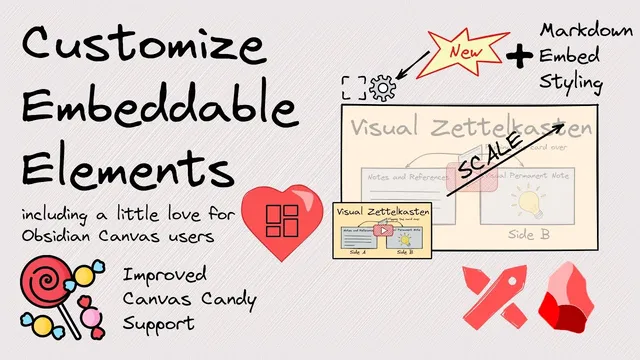
Excalidraw-Obsidian Feature Walkthrough - Customizing Embeddable Elements
Based on Zsolt's Visual Personal Knowledge Management's video on YouTube. If you like this content, support the original creators by watching, liking and subscribing to their content.
Use “scale selected embeddable elements to 100% relative to the current canvas zoom” to keep videos and Markdown embeds readable at the zoom level you’re working in.
Briefing
The biggest upgrade is a new way to scale Excalidraw embeddable elements—especially YouTube-style video embeds and Markdown embeds—so they stay readable and usable at extreme zoom levels on an infinite canvas. Instead of shrinking an embed until controls and text become unusable, users can resize selected embeds to match the current canvas zoom, enabling a “fractal” workflow where tiny details remain legible when zoomed in and don’t collapse into clutter when zoomed out.
The walkthrough starts with a practical problem: embedded videos and embedded Markdown documents can be resized manually, but beyond a certain point the result becomes nearly unwatchable—video controls and content scale down relative to the canvas in a way that breaks the viewing experience. The same failure shows up with Markdown embeds: reducing size eventually leaves only the title visible, while the rest of the content becomes effectively inaccessible. The goal is a different behavior—keeping embeds properly proportioned across Excalidraw’s wide zoom range (described as roughly 10% to 3,000%) so users can place detailed notes and media next to specific points in a drawing.
A concrete example shows an overview canvas with a central Excalidraw video embed and surrounding categories linking to other videos and literature notes. When zoomed in, the embedded videos keep correctly sized YouTube controls and play normally; when zoomed out, the Markdown side documents remain editable and readable at their intended relative scale. The key difference is that the embeds are resized to fit the canvas zoom context rather than being forced into a one-size-fits-all scale.
To achieve that, the update adds a command palette action: “scale selected embeddable elements to 100% relative to the current canvas zoom.” The transcript gives an example canvas zoom of 487% and shows that selecting this action resizes the embed so it looks right at that zoom ratio. A parallel action exists for scaling Markdown embeds as well. For users who prefer a UI control, the properties panel includes a zoom-ratio toggle for scaling in and out, plus a one-click option to set the embed to the same “100% relative” sizing.
Beyond scaling, the walkthrough adds richer control over Markdown embed appearance. Embeds can follow the Excalidraw theme automatically (switching between light and dark modes), and users can override defaults to hide the file name, choose whether the embed background follows the canvas background, the element background, or a custom color, and adjust background opacity. Border styling can be tied to the element stroke color or set independently. Field patterns and background transparency are also configurable, enabling fully immersive notes that blend into the canvas.
Finally, the CSS formatting layer expands customization through front matter: canvas candy-style CSS classes can be applied to Markdown embeds to create effects like rotated labels, dashed borders, and shaped note containers (including circular shapes). Settings also allow defaults for new Markdown embeds, and there’s an “immersive embedding” option for Obsidian Canvas support that removes borders. For a truly borderless, transparent embed, the transcript notes a specific requirement: exporting in Markdown view mode with transparent background settings.
Overall, the changes target one core need—keeping embedded media and notes functional and visually coherent across extreme zoom—while adding theme-aware styling and CSS-driven presentation for more expressive visual knowledge management.
Cornell Notes
Scaling embeds used to degrade quickly: shrinking a video or Markdown embed eventually made playback controls or content effectively unusable. The update adds a command and UI controls to scale selected embeddable elements to “100% relative to the current canvas zoom,” so embeds stay properly proportioned at the zoom level where they’re meant to be read. Markdown embeds gain extensive appearance controls, including theme following, optional file-name hiding, background color/opacity choices, border color rules, and transparency for immersive notes. CSS front matter support enables canvas-candy-style formatting such as rotated labels, dashed borders, and shaped containers. For Obsidian Canvas, “immersive embedding” removes borders, with transparent export in Markdown view mode required for a fully immersive look.
Why does manual resizing of embedded videos and Markdown notes fail on an infinite canvas?
What is the new scaling mechanism that preserves readability across zoom levels?
How can users make embedded Markdown follow theme changes automatically?
What appearance controls exist for Markdown embeds beyond theme following?
How do CSS/front matter options extend styling for embedded notes?
What’s required to embed Excalidraw content into Obsidian Canvas without borders and with an immersive look?
Review Questions
- How would you decide between using the command palette scaling action versus the properties-panel zoom-ratio toggle for an embed?
- Which specific embed appearance settings would you adjust to make a Markdown note fully immersive (blended into the canvas) rather than boxed?
- What combination of Obsidian Canvas settings and export mode is needed to remove borders and achieve a transparent embedded drawing?
Key Points
- 1
Use “scale selected embeddable elements to 100% relative to the current canvas zoom” to keep videos and Markdown embeds readable at the zoom level you’re working in.
- 2
Manual shrinking can make embedded videos unwatchable and Markdown content unusable because controls and text scale down beyond practical limits.
- 3
The properties panel provides an alternative scaling workflow via a zoom-ratio toggle and a one-click “100% relative” sizing option.
- 4
Markdown embeds can follow Excalidraw’s light/dark theme automatically, keeping embedded notes visually consistent.
- 5
Override defaults to control file-name visibility, background source (canvas, element, or custom), background opacity, border color behavior, and field patterns.
- 6
Front matter CSS classes enable canvas-candy-style formatting such as rotated labels, dashed borders, and shaped note containers.
- 7
For Obsidian Canvas, enable “immersive embedding” and export with transparent background in Markdown view mode to achieve a fully borderless, immersive embed.